
Drawing comparer
You regularly place two technical drawings side by side and want to keep dimensions and annotations in view. Looking at one of your own drawings at the scale you work at can help you decide how much screen space you need.


If you often compare two technical drawings, choose a monitor based on the amount of readable drawing space you need, and check that your computer can handle the resolution. A 34-inch screen with 3440 × 1440 pixels is a more compact option; 5120 × 2160 gives you more pixels in both height and width, while 5120 × 1440 mainly gives you extra width. Also measure your desk and check the connections and adjustment options of the exact model.
You regularly place two technical drawings side by side and want to keep dimensions and annotations in view. Looking at one of your own drawings at the scale you work at can help you decide how much screen space you need.
You work from home on a laptop and may want to combine display, data and charging through a suitable connection. The video mode required and charging power available vary by monitor and laptop.
Alongside line drawings, you also assess colour visualisations. In that case, the stated colour gamut and available display modes are useful points of comparison, but they don’t, by themselves, show what a complete workflow will be like.
For each buying priority, the table explains what to check and which consumers tend to focus on it.
Suitable if: you want to place two drawing windows side by side without moving straight to a larger screen.
Trade-off: this resolution has fewer pixels in both directions than 5120 × 2160; Philips Netherlands lists this format for the 346E2CUAE/00, as does LG Netherlands for the 34U650A-B.
Suitable if: you want more vertical pixels for drawing sheets or toolbars, as well as space for two drawings.
Trade-off: according to Dell Netherlands, the Dell U4025QW has this resolution; check that the monitor, your desk and your computer’s output suit your setup.
Suitable if: you mainly want to see two wide work areas at once and have enough room for a large screen.
Trade-off: according to Samsung, the Samsung ViewFinity S95UF has 1440 vertical pixels, the same as the 34-inch option mentioned above; the extra space here is mainly in the width.
| What to consider | What should you check? | Who is this most important for? |
|---|---|---|
| Detail readability | Compare the exact resolution and view one of your own drawings at the scale you normally work at. | When I’m reading dimensions and small annotations, I want to know whether my drawing will fit at a usable scale; around 31% of consumers put detail readability first. |
| Viewing two drawings at once | Check how much space both windows and their toolbars take up; measure your desk too. | I want to view two drawings at the same time without constantly switching between windows; around 25% of consumers give simultaneous workspace their highest priority. |
| Connecting to your laptop | Check your laptop’s video mode, the monitor’s connection and the charging power required. | When I use my laptop at a single workstation, I want to know whether the connection will work with my equipment; around 19% of consumers prioritise laptop connectivity. |
| Fit and adjustability | Compare the external dimensions, stand and adjustment range with your desk and viewing position. | I want to position and adjust the screen to suit my workspace; around 13% of consumers prioritise fit and adjustability. |
| Colour reproduction | Check the stated colour gamut and display modes, and consider how they suit your files and workflow. | When I also assess colour visualisations, I want to take colour reproduction into account when choosing; around 12% of consumers put colour work first. |
A larger screen doesn’t automatically have more vertical pixels. The 34-inch Philips 346E2CUAE/00 and 49-inch Samsung S95UF mentioned here both have 1440 vertical pixels.
Compare the horizontal and vertical resolutions, and view one of your own drawings at a usable scale.
A USB-C connection alone doesn’t confirm that your laptop can send video through it or receive enough power from the monitor. For USB-C video on the 346B1C/00, Philips states that the connected device must support DP Alt mode.
Check the laptop, cable, video mode and charging power required for the exact model.
A product listing can change or contain information that doesn’t match the manufacturer’s details. For the Dell U3425WE, Dell Netherlands lists 3440 × 1440; a Joybuy description gives a different vertical resolution.
Check availability and the full model number again, and compare the technical details with the manufacturer’s information.
The Philips models mentioned range from a 34-inch E Line with 3440 × 1440 to a B Line model with USB-C.
The UltraSharp models mentioned offer different screen sizes and resolutions: the U3425WE is 34 inches and the U4025QW is 40 inches.
According to LG Netherlands, the 34U650A-B is a 34-inch 21:9 IPS model with 3440 × 1440.
According to the manufacturer, BenQ targets the PD3420Q at design work; it’s a 34-inch model with 3440 × 1440.
The ViewFinity S95UF LS49F950UAUXEN is a 49-inch 32:9 option for anyone looking for plenty of horizontal workspace.
This selection ranges from 34-inch ultrawide monitors for a wide workspace to a 49-inch model for two wide work areas. For each model, check the connection, the resolution you need and the space on your desk.
 No image available
Suitable if you want to use two drawing windows side by side and have a laptop with compatible USB-C video and charging support.
The product name lists a 34.1-inch curved WQHD IPS screen, a USB-C hub, webcam, 100Hz and 90W Power Delivery. The maximum charging power is 90 W and requires a compatible laptop.
 No image available
Suitable if you want to combine an ultrawide workspace for drawings with video calls.
The product name lists a 34-inch monitor for video conferencing with a USB-C hub.
 No image available
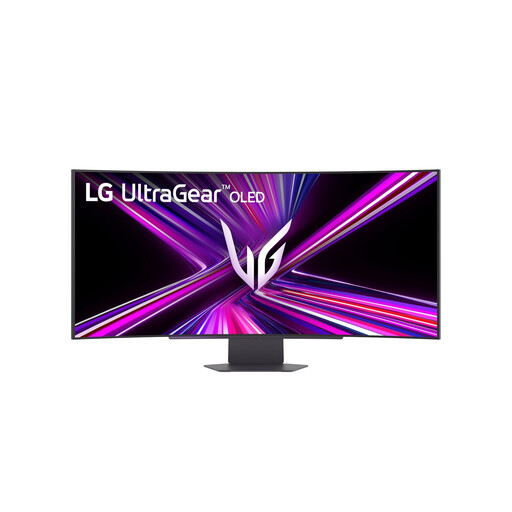
An option if you’re looking for a wide screen for drawings and want to weigh up the resolution against the physical screen size.
The product name lists a 44.5-inch OLED screen with 3440 × 1440 pixels.
 No image available
Suitable if you want to display two wide work areas at once and have room for a 49-inch screen.
The product name lists 32:9 and 5120 × 1440 pixels. According to the product description, your desk or VESA mount must support at least 15 kg; two-person installation is recommended.
 No image available
Suitable if you’re looking for a 34-inch ultrawide screen for drawings and other windows side by side.
The product name lists a 34-inch LCD monitor with 3440 × 1440 pixels.
No, not based on the screen’s diagonal measurement alone. The Samsung ViewFinity S95UF and Philips 346E2CUAE/00 mentioned here both have 1440 vertical pixels. For more vertical pixels, the Dell U4025QW with 5120 × 2160 is another option, according to Samsung, Philips Netherlands and Dell Netherlands.
Only if your laptop and the monitor connection you choose support the required video mode and suitable charging power. For USB-C video on the 346B1C/00, Philips specifies DP Alt mode on the connected device; BenQ lists 65 W Power Delivery for the PD3420Q.
Check the dimensions and adjustability of the exact model, and position it so that reflections don’t interfere with your work. Arboportaal also sets out workplace requirements for employees who use a screen for more than two hours a day, including a height-adjustable, non-reflective screen.
The Dutch government’s guidance doesn’t specify a compulsory ultrawide screen size. For employees who use a screen for more than two hours a day, Arboportaal outlines requirements for setting up the workstation; these don’t make any particular screen size compulsory.
When you buy online from a business, you’ll often have a 14-day cooling-off period, according to the Dutch government. Changing your mind during the cooling-off period is different from your rights if a product is faulty: the Dutch government states that the seller must provide a solution for a fault, and that the Netherlands has no fixed statutory warranty period.