
Students who compare document versions
If you regularly compare two documents, a widescreen monitor can make it easier to place the windows side by side. Microsoft Support explains how to snap windows to the left and right in Windows.


A 34-inch ultrawide monitor with a resolution of 3440 × 1440 pixels is a sensible choice if you want to read two document versions side by side and have enough room on your desk. Split the screen evenly and each window gets 1720 × 1440 pixels, compared with 1280 × 1080 at 2560 × 1080; Philips Netherlands lists both resolutions for the relevant UltraWide models. Also check that your laptop supports the connection you need and that any USB-C dock suits the way you use your setup.
If you regularly compare two documents, a widescreen monitor can make it easier to place the windows side by side. Microsoft Support explains how to snap windows to the left and right in Windows.
Extra screen width means you need enough room for both the monitor and its stand. Measure them before choosing a size. For example, the LG 34WQ75C-B with its stand is 816.7 mm wide and 260.0 mm deep, according to LG Netherlands.
If you regularly bring your laptop with you, the connections and charging options on both the laptop and monitor are worth considering. Check the connection types and charging capacity of the exact models you plan to use.
Start by checking how easy it is to read two documents, then measure your desk and make sure the monitor works with your laptop’s connections.
| What to consider | What should you check? | Who is this important for? |
|---|---|---|
| Room to read two documents | Compare the resolution and aspect ratio with your document layout and usual scaling setting. | If I’m reading two versions at once, I want to be able to follow both text windows comfortably at my normal scaling setting. Around 28% of consumers prioritise room to read two documents. |
| Desk space | Measure the available width and depth, then compare them with the dimensions of the monitor and stand. | With a small desk, I want to know in advance whether the screen and stand will fit alongside my other study materials. Around 22% of consumers prioritise a good fit on their desk. |
| Only useful features | Check whether you actually need the extra connections, docking features or adjustability. | I want to choose features that suit the way I study, rather than paying for things I won’t use. Around 17% of consumers focus on how useful the features are. |
| Connecting a laptop | Check for video over USB-C, DisplayPort Alt Mode and the charging capacity of both the laptop and monitor. | If I often bring my laptop with me, I want to use it at home without unnecessary steps to connect it. Around 17% of consumers prioritise laptop connectivity. |
| Adjusting the screen | Check the height and tilt adjustment, and whether you can position the screen directly in front of you. | For longer reading sessions, I want to be able to position the screen comfortably at my desk. Around 16% of consumers prioritise adjustability. |
Both the monitor and the stand need to fit on your desk. According to LG Netherlands, the LG 34WQ75C-B with its stand is 816.7 mm wide and 260.0 mm deep.
Measure the space available and compare it with the dimensions, including the stand, of the exact version you’re considering.
Your laptop, monitor and cable all need to support the video connection you want and the charging capacity required. AOC lists DisplayPort Alt Mode and up to 65 W power delivery via USB-C for the CU34P3CV; LG and Dell list up to 90 W for the relevant models.
Check your laptop’s USB-C video capabilities and charging requirements, then compare them with the specifications of the exact monitor version.
According to the Dutch government, there is no fixed statutory warranty period in the Netherlands. Your statutory rights if a product is faulty are separate from any additional warranty product.
Check the terms and rights included in any additional cover, and assess them separately from your statutory rights.
The E Line 346E2CUAE/00 is a 34-inch 21:9 model with a resolution of 3440 × 1440 pixels, USB-C and MultiView.
According to LG Netherlands, the 34WQ75C-B has a 34.14-inch IPS panel with a resolution of 3440 × 1440 pixels, height adjustment, USB-C and RJ45.
The CU34P3CV is a 34-inch curved VA model with a resolution of 3440 × 1440 pixels, USB-C docking and RJ45.
The Dell Pro 34 Plus P3425WE is a 34.1-inch curved IPS model with a resolution of 3440 × 1440 pixels, a USB-C hub and RJ45.
This selection includes 34-inch ultrawide monitors with a resolution of 3440 × 1440 pixels. For models with USB-C features, check that your laptop supports the relevant video and charging capabilities.
 Image unavailable
The 21:9 aspect ratio and resolution give you room to place two document windows side by side.
3440 × 1440 pixels; VA panel; 1800R curvature; 120 Hz.
 Image unavailable
An option if you want to view two documents side by side and connect a compatible laptop via USB-C.
3440 × 1440 pixels; DisplayPort Alt Mode; up to 90 W Power Delivery; height, tilt and swivel adjustment.
USB-C charging requires a compatible laptop that supports USB Power Delivery and DisplayPort Alt Mode. Charging capacity also depends on the connected device.
 Image unavailable
The resolution makes this a good option to consider when reading two documents side by side.
3440 × 1440 pixels; USB-C with up to 96 W Power Delivery; height, tilt and swivel adjustment.
 Image unavailable
The 34-inch ultrawide format and 3440 × 1440 pixels are well suited to comparing documents side by side.
Thunderbolt 4; Smart KVM; up to 100 W USB Power Delivery.
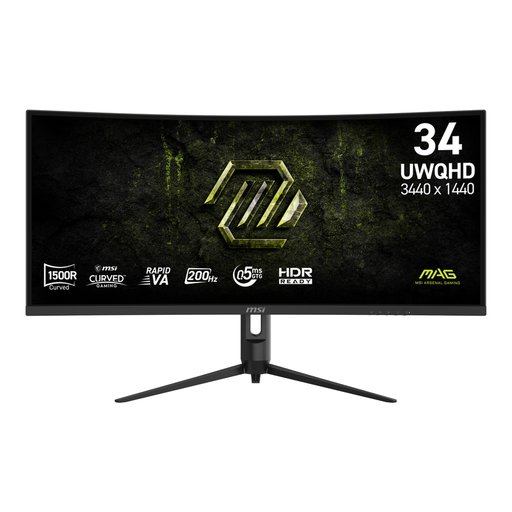 Image unavailable
The 21:9 aspect ratio and 3440 × 1440 pixels give you room to place windows side by side.
VA panel; 1500R curvature; 200 Hz; two HDMI connections and DisplayPort.
Not necessarily. Windows Snap lets you place one window on the left and another on the right, as Microsoft Support explains. Try it with your own documents to check that the text remains comfortable to read at your chosen scaling setting.
No. A USB-C connection alone doesn’t mean the laptop supports video over USB-C or provides enough charging power. AOC lists DisplayPort Alt Mode and up to 65 W power delivery for the CU34P3CV. Check your laptop’s requirements and the specifications of the monitor you choose.
Arboportaal recommends placing the screen directly in front of you, with the top just below eye level. An adjustable monitor can help you find the right position, but your whole workstation should be set up to suit you.
For distance purchases in the Netherlands, you’ll usually have a 14-day cooling-off period, according to the Dutch government. You’re also entitled to a product that works as it should. There is no fixed statutory warranty period, and the retailer is your point of contact if the product is faulty. Check any additional warranty terms separately from your statutory rights.
No. The legal obligations described by Arboportaal apply to employers and employees, and don’t automatically apply as a purchasing requirement for studying at home. However, its advice on positioning your screen may still be useful when setting up your own workspace.