A 29-inch ultrawide with 2560 × 1080 pixels is a more compact option for viewing your calendar and email side by side. The 34-inch models we looked at, with 3440 × 1440 pixels, offer more screen space for text and other study tasks. Don’t just look at the diagonal measurement: also check the space needed for the stand, and make sure windows are easy to read at your preferred text size. If you want to connect and charge your laptop using a single USB-C cable, check that your laptop, monitor and cable all support the right video mode and enough charging power.
Who is this buying guide for?
Student with a small desk
You want to keep your calendar and email side by side, but need the screen and stand to fit into a limited workspace. Compare a 29-inch ultrawide with larger models, and check the stand dimensions for the model you’re considering. LG lists a resolution of 2560 × 1080 pixels for its 29U511A-B.
Student who reads lots of text side by side
You use documents or timetables as well as your calendar and email, and prioritise extra vertical resolution and a well-adjustable workspace. LG and Philips list a resolution of 3440 × 1440 pixels for the 34-inch models mentioned.
Student who wants to use a single laptop cable
You want to charge your laptop when you connect it, and use fewer separate connections. Check that your laptop supports the video mode and that the monitor’s charging power is suitable. LG lists 90 W for the 34WQ75C-B; MSI lists 98 W for the Modern MD342CQP.
What should you look for when choosing?
Start by checking the space available on your desk and whether you can comfortably read two windows. Then check the connections and adjustability if they matter for your study setup.
| What to consider |
What to look for |
Who is this important for? |
| Keeping windows easy to read |
Compare 2560 × 1080 with 3440 × 1440 pixels, and try your preferred window layout at your chosen text size. |
I want to read my calendar and email at the same time without the text becoming uncomfortably small; around 30% of consumers rank readability as their top priority. |
| Desk space |
Measure the width and depth of your desk, then compare these with the dimensions of the screen including its stand. |
If my desk has little room to spare, I want to know in advance whether the screen and stand will fit; around 20% of consumers prioritise the space available on their desk. |
| Connecting and charging your laptop |
Check your laptop’s video mode, the monitor port, charging power and the cable you’ll need. |
I want to use a single connection for my study laptop, but only if it provides a picture and enough charging power; around 20% of consumers put this connection at the top of their list. |
| Setting up your workspace |
Check the adjustment options for the exact model and see how easy the screen is to read under your desk lighting. |
For longer reading sessions, I want to be able to adjust the screen to suit me and avoid distracting reflections; around 20% of consumers prioritise adjustability and workspace readability. |
| Understanding running costs |
Check the energy label for the exact model and see which cables are included; consider any extra warranty separately from your statutory rights. |
I want to factor in running costs and any extra accessories before choosing; around 10% of consumers prioritise weighing up these costs. |
Common buying mistakes
-
Looking only at the screen size in inches
A screen might look like it will fit on paper, while its stand takes up too much space. The 29- and 34-inch models we looked at also have different resolutions, which can affect how much text you want to display at once.
Measure your desk and check the dimensions of the exact model, including its stand. Also try your intended window layout at the text size you want to use.
-
Assuming every USB-C port supports video and provides enough charging power
USB-C alone doesn’t tell you whether a laptop can output video through the monitor connection or receive enough power. MSI lists DisplayPort Alt Mode and 98 W Power Delivery for the Modern MD342CQP; this doesn’t confirm that it’s compatible with your laptop.
Check the laptop, monitor port and cable specifications together. You may need a separate video cable or laptop charger if that combination doesn’t meet your needs.
-
Mistaking an extra warranty for full statutory protection
According to ACM ConsuWijzer, your statutory guarantee rights are separate from any manufacturer’s or retailer’s warranty.
Check what an additional warranty product offers, and compare it with your existing statutory rights.
Brands worth considering
LG
The models mentioned from LG include both a 29-inch ultrawide with 2560 × 1080 pixels and a 34-inch model with 3440 × 1440 pixels and USB-C.
- LG lists height adjustment and 90 W USB-C Power Delivery for the 34WQ75C-B.
- The 29U511A-B has 1080 vertical pixels, compared with 1440 on the 34-inch models mentioned. LG’s description of more efficient working is a manufacturer claim, not an independent performance test.
Philips
According to Philips, the Philips E Line 346E2CUAE/00 is a 34-inch model with 3440 × 1440 pixels and USB-C.
- Philips describes the screen as suitable for displaying images side by side.
- Readability also depends on window size and scaling settings. Check the adjustment options and USB-C charging specifications for the version you’re considering.
MSI
According to MSI, the MSI Modern MD342CQP is a 34-inch model with a 21:9 aspect ratio and a resolution of 3440 × 1440 pixels.
- MSI lists USB-C with DisplayPort Alt Mode, 98 W Power Delivery and PIP/PBP.
- Check separately whether your laptop supports the video mode and whether the charging power is suitable for it. MSI’s statements about comfort and productivity are manufacturer claims.
Dell
According to Dell, the Dell Plus S3425DW is a curved 34-inch model with 3440 × 1440 pixels and USB-C.
- Dell lists a 120 Hz refresh rate, as well as height and tilt adjustment.
- A 120 Hz refresh rate isn’t essential if you’re only using your calendar and email side by side.
Joybuy product picks
These Joybuy product picks are for anyone considering an ultrawide workspace. Screen sizes vary, so measure the space available and check the specifications that matter for your laptop and study setup for each model.
 No image available
LG UltraWide 34U601B-B WQHD VA monitor, 34 inches
A 34-inch model to consider if you’re looking for an ultrawide screen for multiple windows; check in advance that it will fit on your desk.
According to the product name: WQHD, VA, curved 1800R and 120 Hz.
Joybuy
 No image available
Dell Pro P3426WEV WQHD IPS USB-C hub monitor, 34.1 inches
An option to consider if you’re looking for a larger screen for several study windows; check the stand dimensions before deciding whether it will fit on your desk.
According to the product name: curved screen, IPS, USB-C hub, webcam, 100 Hz and 90 W Power Delivery. Check that your laptop supports the required video mode and charging power.
Joybuy
 No image available
Dell Pro P3426WEB USB-C hub conference monitor, 34 inches
A 34-inch model to include in your comparison if you’re looking for an ultrawide workspace with conferencing features. Check the dimensions and connections for your setup.
The product name lists a USB-C hub and conferencing features.
Joybuy
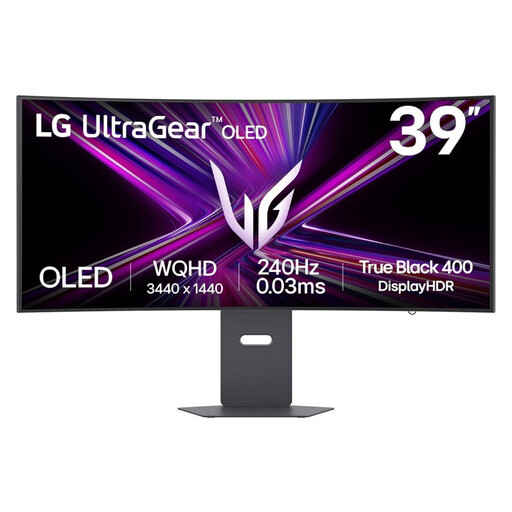 No image available
LG UltraGear 39GX900A-B gaming monitor, 39 inches
Consider this larger gaming model only if its size and features suit your study setup; measure the available space before choosing.
The product name lists a 39-inch gaming monitor.
Joybuy
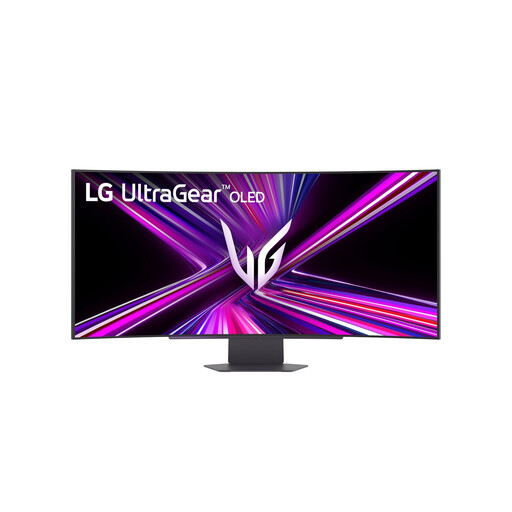 No image available
LG 45GX900A-B OLED monitor, 44.5 inches
This larger model may only be suitable if you have enough space; check the dimensions of the screen and stand before comparing it with more compact options.
According to the product name: 44.5 inches, 3440 × 1440 pixels and OLED.
Joybuy
Frequently asked questions
Do I need software from the monitor manufacturer to put my calendar and email side by side?
Not necessarily on Windows 10 or 11: Microsoft explains how to arrange windows using Windows Snap. Also check that your calendar and email apps are comfortable to use at your chosen screen scaling.
Can I connect and charge my laptop using a single USB-C cable?
Only if your laptop supports video through the relevant USB-C video mode and the monitor’s Power Delivery output is sufficient. MSI lists DisplayPort Alt Mode with 98 W for the Modern MD342CQP; LG lists 90 W for the 34WQ75C-B. Check your laptop and cable separately.
How should I set up my screen for longer study sessions?
Position the screen so that text is easy to read, avoid distracting reflections and break up long periods of screen work. Arboportaal describes the risks of poor readability and an awkward posture; rules for employers on screen work aren’t automatically legal requirements for students studying privately.
How can I compare electricity costs without making up an electricity tariff?
Use the energy label for the exact model. The European Commission describes the A–G scale and notes that the label shows consumption in kWh per 1000 hours. Only apply that consumption figure to your own tariff and expected hours of use.
What are my rights when buying online or if a product is faulty?
According to ACM ConsuWijzer, for a typical online purchase you usually have 14 days to change your mind from the date of delivery. Statutory guarantee rights are separate from a manufacturer’s warranty: if a product doesn’t meet what you could reasonably expect when used normally, the seller is responsible for providing an appropriate solution.


