For a small desk, a 29-inch ultrawide is a compact option to consider, but measure the monitor with its stand before you choose. A 34-inch model with a 3440 × 1440 resolution offers more vertical pixels for text, if you have the space. If you want to keep your notes private from an audience, also check whether your computer and presentation set-up support two displays: a wide screen alone will not separate the two views.
Who is this choice relevant to?
Presenter with a small desk
Wants to see notes and slides at the same time, but first needs to check whether the monitor, stand and remaining workspace will fit. Lenovo lists the dimensions of the L29w-30 including its stand; Microsoft Support explains how to snap windows in Windows.
Reader of detailed notes
Weighs up the space for text alongside slides against the room needed for a larger screen. Lenovo, LG and Philips list different resolutions for the models mentioned; check the text scaling you work with, too.
Presenter speaking to an audience
Wants to keep speaker notes private while showing the audience only the slides. Microsoft Support describes a two-display set-up for separate presenter and audience views.
What to consider when choosing
First, measure the space available for the screen and stand. Then decide which resolution and text scaling work for you, and check separately whether you need a second display to keep your notes private.
| What to consider |
What should you check? |
Who is this important for? |
| Will the monitor fit on the desk? |
Measure the available width and depth, then compare them with the monitor’s dimensions, including the stand. Also check that there’s room for your keyboard and a comfortable working position. |
If I have a small desk, I want to know whether the screen and stand will fit together; around 29% of consumers name fit as their top purchase concern. |
| Are notes and slides readable side by side? |
Compare the full resolution and test your window layout with the text scaling you use. Lenovo lists 2560 × 1080 for the L29w-30; LG and Philips list 3440 × 1440 for the 34-inch models mentioned. |
If I want to read notes and slides at the same time, I look at the space for text and how easy it is to read; around 29% of consumers put reading space at the top of their list. |
| Will speaker notes stay private? |
Check whether your computer and presentation software support a second display. Before your presentation, test which view shows the slides and which shows the notes. |
When I’m presenting to an audience, I want to keep my speaker notes hidden; around 24% of consumers name privacy while presenting as their top purchase concern. |
| Will the connection work with my laptop? |
Check your laptop’s video output and the ports on the exact monitor model. If you want to charge via USB-C, check that both devices support charging, too. |
If I want to connect my laptop easily, I want to know in advance which connection and power supply will work; around 18% of consumers put ease of connection at the top of their list. |
Common buying mistakes
-
Looking only at the screen diagonal
Even a 29-inch monitor takes up a specific amount of desk space once you include the stand. The diagonal alone doesn’t tell you whether the complete set-up will fit.
Measure the available width and depth, then compare them with the dimensions of the exact model, including the stand.
-
Expecting a wide screen to keep notes private
Showing notes alongside slides on one screen is different from showing slides to an audience without revealing the notes. Microsoft Support describes a two-display set-up for keeping these views separate.
Before you buy, check whether your computer supports a second display, and during a test presentation, check what the audience can see.
-
Assuming USB-C always provides both video and charging
The monitor’s features need to match your laptop’s video and charging capabilities. Dell lists USB-C power delivery of up to 90 W for the P3425WE; this alone doesn’t confirm that it’s compatible with every laptop.
Check your laptop’s USB-C support and required charging power against the specifications of the exact monitor model.
-
Assuming all 34-inch models offer the same workspace for text
The screen diagonal doesn’t tell you how many vertical pixels are available. LG lists 2560 × 1080 for the 34U511A-B and 3440 × 1440 for the 34U650A-B.
Compare the full resolution of the model you’re considering, and assess text using your usual window layout and text scaling.
Brands and model-specific considerations
Lenovo
The L29w-30 is a 29-inch option to compare if available desk space is your main consideration.
- Lenovo lists a resolution of 2560 × 1080, height adjustment, HDMI 1.4 and DisplayPort 1.2 for the L29w-30.
- The listed ports don’t include a USB-C video connection. Measure the monitor, including its stand, against the space available.
LG
The 34U650A-B is a 34-inch ultrawide that LG describes as having a resolution of 3440 × 1440 and USB-C.
- The model specifications give you specific details to compare if you’re looking for extra vertical pixels for text.
- Check the dimensions and the connection and power specifications of the exact model, and measure the space available on your desk.
Philips
Philips lists the Philips 346E2LAE/00 as a 34-inch model with 3440 × 1440, USB-C and MultiView.
- The stated resolution is useful to compare if having space for text is important to you.
- Philips says that the graphics card must be able to deliver the desired resolution and refresh rate. MultiView doesn’t replace separate presenter and audience views.
Dell
The P3425WE is a 34.1-inch option to compare if you’re looking for USB-C power delivery and Ethernet.
- Dell specifies USB-C power delivery of up to 90 W and height adjustment for this model.
- The connection and power delivery depend on your laptop supporting them; also check that the monitor will fit on your desk.
Samsung
The ViewFinity S65UC LS34C652UAUXEN is a 34-inch model that Samsung describes as having 3440 × 1440, USB-C and LAN.
- Samsung lists 1000R curvature and USB-C for this model.
- A curved screen isn’t automatically better suited to every viewer or every small desk. Measure your set-up and consider whether the shape works for your workspace.
Joybuy monitors for notes alongside slides
This selection includes 29- and 34-inch ultrawide monitors for using windows side by side. Measure the space needed for the exact model; to keep speaker notes private, you’ll also need a supported two-display set-up.
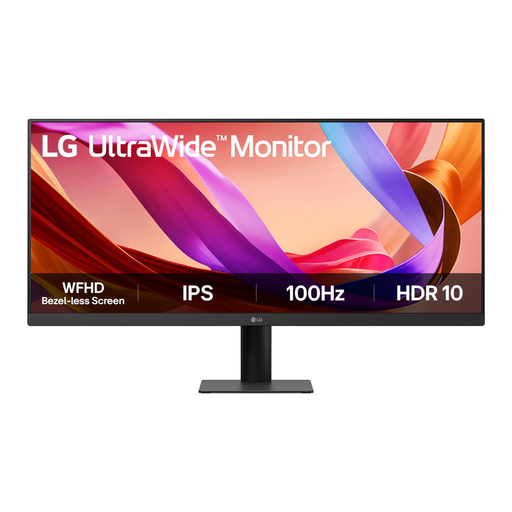 Image unavailable
LG UltraWide 29U511A-B, 29-inch
The 29-inch size is a more compact option to compare with the space available on your desk; remember to allow room for the stand, too.
Check the resolution and connections of this exact model if text display or connecting to your laptop is a deciding factor.
View at Joybuy
 Image unavailable
LG UltraWide 34U650A-B, 34-inch
This 34-inch model is worth considering if you’re looking for space for notes alongside slides; first check that the screen and stand will fit on your desk.
Compare the resolution and USB-C support of the exact model with your laptop and the text scaling you use.
View at Joybuy
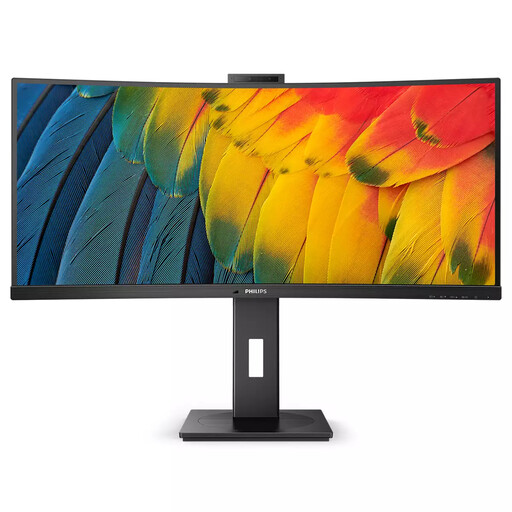 Image unavailable
Philips 5000 Series 34B1U5600CH/00, 34-inch
This 34-inch monitor could suit a workspace where you want to place notes and slides side by side; measure the space required, including the stand.
The product name lists 3440 × 1440. Check the exact connections and whether your computer supports the display set-up you want.
View at Joybuy
 Image unavailable
Iiyama ProLite 34-inch UWQHD Curved Monitor
This 34-inch model is an option for a workspace with multiple windows, provided the monitor and stand fit within the space available.
The product name lists a USB-C dock, LAN, KVM and a 15 cm height-adjustable stand. Check your laptop’s connection and any charging support it needs.
View at Joybuy
 Image unavailable
LG 34WR50QK-B, 34-inch
This 34-inch monitor is worth comparing if you want to place notes and slides on one wide screen; measure the available space before choosing.
The product name lists 3440 × 1440. If you need to keep your notes private from an audience, check separately whether your computer supports a second display.
View at Joybuy
Frequently asked questions
Can I put notes alongside a presentation on one ultrawide monitor?
Yes, if you use separate windows for the presentation and notes. Microsoft Support explains how to snap windows in Windows; test the window sizes and text scaling. This won’t automatically hide your notes from an audience.
How can I keep PowerPoint notes hidden from my audience?
Use a supported two-display set-up and test the presenter and audience views in advance. Microsoft Support explains how to show notes on one screen and slides on the other.
What should I measure for an ultrawide monitor on a small desk?
Measure the available width and depth, then compare them with the monitor’s dimensions, including the stand. Lenovo lists the L29w-30 as 688.4 mm wide and 214.9 mm deep; also check your viewing position and the space for your keyboard.
When is 3440 × 1440 worth considering for notes?
Consider this resolution if extra vertical pixels for text are important and your desk has room for the larger screen. Lenovo lists 2560 × 1080 for the L29w-30, while LG and Philips list 3440 × 1440 for the models mentioned; test your usual text scaling, too.
Can a monitor’s USB-C connection charge my laptop?
That depends on the support and charging power of both devices. Dell lists USB-C power delivery of up to 90 W for the P3425WE; also check whether your laptop’s USB-C port supports video and meets its charging requirements.


