First, choose a screen that lets you read your own slides and notes side by side. A 34-inch ultrawide with a resolution of 3440 × 1440 pixels is one option to compare, but it doesn’t guarantee that every window layout will feel comfortable. Then check that the screen fits on your desk and offers enough adjustment. Choose USB-C power delivery or hub features only if your laptop supports them and you need them. If you require a strictly quiet environment, check the noise information for the specific model before you buy.
Who is this approach right for?
Presenter who needs notes
You want to keep your slides and speaking notes readable at the same time. Test the window layout with your own material and the text size you plan to use. Microsoft Support explains how to arrange windows side by side with Snap.
Long-hours study user
For long periods of screen use, consider adjustability, glare, light levels and where you place the screen. You’ll need to check whether a monitor is quiet enough for your room by looking up the exact model.
Laptop user with a permanent workstation
You want to connect your display, power and possibly your peripherals using fewer cables. This only works if your laptop and the port you choose support the required video features and provide enough charging power.
What to look for in an ultrawide for slides and notes
First, try your own slides and notes side by side at your preferred text size. Then compare the screen’s dimensions and adjustability, and only after that check whether extra laptop connectivity would be useful.
| What to consider |
What should you check? |
Who is this most important for? |
| Readable windows |
Test your own slides and notes side by side at your preferred text size. Also check how much space each application needs. |
I want to read my notes during a presentation without making the slides awkwardly small; around 36% of consumers prioritise having enough room to read both windows. |
| Setup and comfort |
Measure the available desk space, including the stand, and check height adjustment, light levels and glare. If you require a strictly quiet environment, ask for noise information about the exact model. |
For long study sessions, I want to set the screen at a suitable height and avoid distracting glare; around 29% of consumers prioritise a comfortable, quiet setup. |
| Laptop connectivity |
Check whether your laptop outputs video through the port you plan to use and whether the charging power is sufficient. AOC lists up to 65 W for the CU34P3CV; Dell Netherlands lists up to 90 W for the P3425WE. |
I want to connect my laptop at a permanent workstation without unnecessary extra cables; around 21% of consumers choose mainly based on suitable video connectivity, power delivery and any hub features. |
| Energy and purchase terms |
Compare the EU energy label for the exact version and check the purchase terms. Keep any manufacturer’s warranty separate from your statutory rights. |
I want to know in advance how to compare energy information and what terms apply after purchase; around 14% of consumers prioritise running costs and peace of mind when buying. |
Common buying mistakes
-
Looking only at the screen size
A wide screen won’t help if the window layout or text scaling still makes your notes hard to read.
Open your own slides and notes side by side and test the text size you want to use. Then compare the resolution and the amount of desk space the screen takes up, including its stand.
-
Assuming USB-C always gives you video and charging through one cable
The laptop port, monitor port and cable must all support the required video feature. The available charging power must also be suitable for your laptop.
Check the specifications of all three before choosing a one-cable setup; don’t rely solely on the presence of a USB-C port.
-
Mistaking a product listing for current availability
A saved or found product listing doesn’t in itself confirm that the exact version is available when you’re ready to buy or that the description matches the model.
Before paying, check the full model name, specifications and current product information.
Brands and relevant models to consider
Dell
Dell Netherlands describes the Pro 34 Plus P3425WE as a 34.1-inch ultrawide with a resolution of 3440 × 1440 pixels, a USB-C hub, up to 90 W power delivery and Ethernet.
- These connections may be useful for a permanent laptop workstation.
- Check that your laptop supports these features and that you need them; these specifications alone don’t tell you anything about noise levels or how ergonomic the setup will be.
LG
LG Netherlands lists the 34WR55QK-B as a 34-inch VA ultrawide with a resolution of 3440 × 1440 pixels, height adjustment and USB-C power delivery up to 65 W.
- The listed height adjustment may be useful if you want to change your viewing position.
- LG marks this specific model as discontinued. Check the exact version and current availability before deciding to buy.
Philips
Philips describes the E Line 346E2CUAE/00 as a 34-inch monitor with a resolution of 3440 × 1440 pixels, USB-C and MultiView.
- The listed features may suit a workstation where you want to use several windows or sources.
- These are specifications for this model, not all Philips monitors. A product claim about productivity isn’t an independent user test.
AOC
AOC describes the CU34P3CV as a 34-inch VA ultrawide with a resolution of 3440 × 1440 pixels, USB-C docking, Ethernet and up to 65 W power delivery.
- Its connectivity and power delivery are worth considering for a laptop workstation.
- Check that 65 W and the listed connection are suitable for your laptop; this information doesn’t provide a measured noise level or confirm availability.
Ultrawide monitors on Joybuy
These models are designed for a wide workspace where you can place slides and notes side by side. The selection mainly includes screens with USB-C hub features, as well as one model with PiP/PbP. Check which connections and features suit your setup for each model.
 Image unavailable
Dell Pro P3426WEV 34.1-inch Curved WQHD IPS USB-C Hub Monitor
Could suit a spacious workstation with a laptop and peripherals, provided your laptop supports the required connections.
34.1 inches, curved, 21:9 and 3440 × 1440 pixels. USB-C power delivery up to 90 W, a USB hub, KVM and built-in webcam are listed; the stand adjusts for height, tilt and swivel.
View at Joybuy
 Image unavailable
Dell Pro P3426WEB 34-inch USB-C Hub Conferencing Monitor
A possible choice for a spacious laptop workstation that’s also used for video calls, provided the connections suit your equipment.
34 inches, curved, 21:9 and 3440 × 1440 pixels. A USB-C hub with power delivery up to 90 W, RJ45 and KVM are listed; the monitor has a built-in webcam, microphone and speakers.
View at Joybuy
 Image unavailable
Philips 34B2U5900C/00 34-inch Curved Dual-Mode Business Monitor
Could be worth considering for a permanent workstation with peripherals, if the listed connections and power requirements suit your laptop.
34 inches, curved and 21:9. USB-C power delivery up to 140 W, a USB hub, KVM and Ethernet are listed. The description specifies WUHD 5120 × 2160 pixels in one of the listed modes.
View at Joybuy
 Image unavailable
Philips 6000 series 34B2U6603CH/00
An option to consider if you need a wide window layout and a laptop connection via Thunderbolt 4.
34 inches, 21:9 and 3440 × 1440 pixels. Thunderbolt 4, USB Power Delivery up to 100 W, a USB hub and Smart KVM are listed; the stand is height-adjustable and the screen has an anti-glare finish.
View at Joybuy
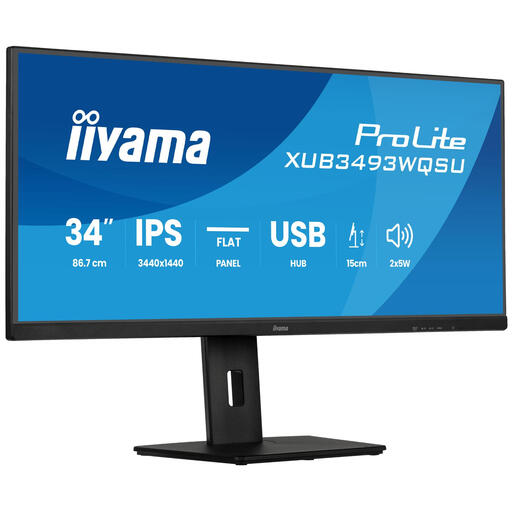 Image unavailable
iiyama ProLite 34-inch IPS Ultra-Wide Flat Screen
Could suit you if a flat screen and height adjustment are important and you want to use PiP/PbP to display several sources.
34 inches, flat IPS screen and 3440 × 1440 pixels. PiP/PbP is listed; the stand is height-adjustable by up to 15 cm.
View at Joybuy
Frequently asked questions
How can I put slides and notes side by side?
With Snap in Windows, you can place windows side by side and adjust their relative sizes. Microsoft Support explains how the feature works; afterwards, check that both windows are readable at your preferred text size.
Can any laptop receive video and power through a single USB-C cable?
No. Your laptop and the connection you choose must support the required features and provide enough charging power. AOC lists DisplayPort Alt Mode and power delivery up to 65 W for the CU34P3CV; Dell Netherlands lists power delivery up to 90 W for the P3425WE. Also check the specifications for your laptop and cable.
What can I do about glare or an uncomfortable viewing height?
Adjust the screen’s position and height, as well as the light levels, and check whether the screen reflects light where you work. Arboportaal recommends adjustability and avoiding glare when working with screens; these workplace rules aren’t automatically requirements for every home study.
How can I compare the energy use of monitors?
Check the EU energy label for the exact version. According to the European Commission, computer monitors are covered by energy labelling for electronic displays; the label helps you compare energy efficiency.
What are my rights when shopping online in the Netherlands?
For a standard online purchase in the Netherlands, you generally have a statutory cooling-off period of up to 14 days after delivery, subject to legal exceptions. Separately, you’re entitled to a product that does what you could reasonably expect; ACM ConsuWijzer explains that there is no fixed, general statutory two-year warranty period. A cooling-off period for changing your mind is separate from your rights if a product is faulty or doesn’t meet the terms of the contract.


