
Tester working with multiple windows
Wants to view search results, filter settings and test notes side by side. MDN Web Docs explains that the viewport is linked to the size of the browser window, so narrower windows need to be tested separately.


First, make sure you have enough screen and desk space to view the search page and test notes side by side. Then check how your computers and peripherals will connect and be shared. If several computers use the same keyboard and mouse, KVM can be useful, provided the laptops and connections are compatible. Test narrower screen sizes separately in a browser window or testing tool: an ultrawide monitor won’t automatically determine the width of a web page.
Wants to view search results, filter settings and test notes side by side. MDN Web Docs explains that the viewport is linked to the size of the browser window, so narrower windows need to be tested separately.
Regularly switches between laptops or computers and wants to check in advance whether one monitor can also make it easier to connect and share peripherals.
Uses a desk shared with other people and wants to position and adjust the screen to suit them. Arboportaal offers advice on screen positioning and setting up a workstation.
First decide how much room you need for your work windows. Then check the connections and adjustability for the different users.
| What to consider | What should you check? | Who is this important for? |
|---|---|---|
| Side-by-side workspace | Measure the available desk space and check that the screen resolution and window layout work for your search page and test materials. | If I want to view filter results and test notes at the same time, I focus on usable side-by-side space. Around 33% of consumers prioritise workspace. |
| Connecting and switching | For each computer, check the video output, USB data connection and charging requirements, and find out what the KVM or hub function on the exact model does. | If several computers need to use the same keyboard and mouse, I want to know whether the connections are compatible. Around 27% of consumers give connecting and switching top priority. |
| Narrower browser widths | Note the relevant viewport widths and test them separately in browser windows or with a suitable testing tool. | If I want to assess how the filter works on narrower screens, I test the interface at the intended viewport widths. Around 20% of consumers prioritise these tests. |
| Positioning and adjustment | Check the space around the stand, the adjustment options, and the screen’s position in relation to the user and windows. | If several people use the same desk, I want to be able to position the screen properly for each user. Around 20% of consumers give adjustability top priority. |
The browser viewport may be narrower than the physical screen. MDN Web Docs explains how viewport size and media queries affect how web pages are displayed.
Test the search filter at the narrower viewport widths that are relevant to the website, too.
A connection or hub function doesn’t automatically mean that two computers can share the same screen and input devices in the way you want.
Compare the video, USB and charging requirements for both computers, and check the KVM function on the exact model.
Depending on the connections, you may need extra cables or a different way to switch between computers.
The dimensions of the stand, available desk space and ability to adjust the screen are also important at a shared workstation.
Measure the available space and compare it with the dimensions and adjustment options of your chosen model.
If the stand doesn’t suit your workstation, you may need a different stand or desk layout.
The Pro 34 Plus P3425WE is worth considering if you’re looking for a 34.1-inch IPS ultrawide with a USB-C hub and RJ45.
The 34WQ75C-B is a 34-inch IPS ultrawide with connectivity and computer-switching features.
The ProLite XCB3497WQSNP-B1 is a 34-inch VA ultrawide with a USB-C dock and KVM.
The Business Monitor 34B2U3600C/00 is a 34-inch VA model with Smart KVM and USB-C to RJ45.
These models may suit anyone looking for extra screen space for work windows, testing or a shared desk. Check each model for the features your computers and workstation need.
 No image available
A 34.1-inch ultrawide model to consider if you want to work with windows side by side and USB-C connectivity matters to you.
The product name lists WQHD, IPS, a webcam, 100 Hz and 90 W Power Delivery.
 No image available
A 34-inch Dell Pro model to compare if you’re looking for an ultrawide monitor with a USB-C hub for a shared workstation.
The product name lists a USB-C hub and conferencing features.
 No image available
A 34-inch ultrawide model to consider if you want extra room to view a search page and test materials side by side.
The product name lists a 34-inch UltraWide monitor.
 No image available
A 49-inch ultrawide model to consider if you want plenty of side-by-side space and have room to position it on your desk.
The product name lists 5120 × 1440, 32:9 and a height-adjustable stand.
 No image available
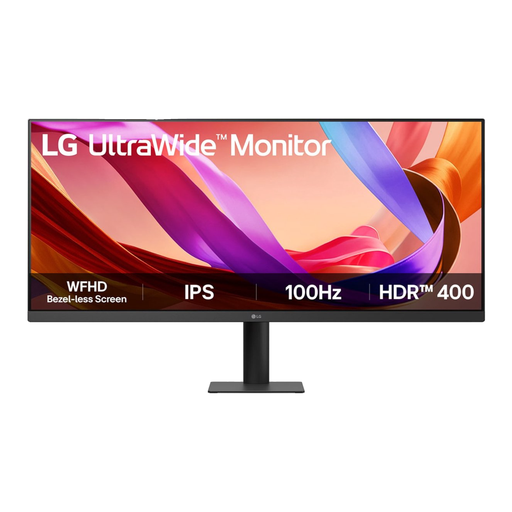
A 34-inch ultrawide model to compare if working side by side matters to you. Check in advance which connections and adjustment options you need.
The product name lists a 34-inch UltraWide monitor.
Not necessarily. An ultrawide screen can give you room to position windows side by side, but choose one based on your test materials and the desk space available. Test narrower page layouts separately: the browser viewport isn’t automatically as wide as the screen.
The presence of a USB-C port alone doesn’t guarantee it. For each laptop, compare its support for video and USB data with the connections on the exact monitor model, and check that the stated Power Delivery meets its charging needs.
Adjust the screen for each user and position it directly in front of them. Arboportaal recommends considering screen position and lighting; before buying, check that the stand offers enough adjustment.
Arboportaal outlines employers’ obligations concerning safe screen work. For employees who work at a screen for more than two hours a day, it notes, among other things, that the screen and keyboard must not be attached to each other. This isn’t a general product specification for every monitor or private buyer.
For eligible distance sales, the Dutch government (Rijksoverheid) says you’ll usually have a 14-day cooling-off period. Private buyers are also entitled to a product that meets the terms of the agreement. There is no fixed statutory guarantee period in the Netherlands; if a product is faulty, contact the seller.