
Digital photo gallery creator
You select and organise lots of images, and want to view photos and work windows side by side.


When putting together a digital photo gallery, choose an ultrawide monitor based on the workspace and colour reproduction you need; extra screen width won’t make colours accurate by itself. Also compare resolution, the space available on your desk and your computer’s connections. For critical print work, colour profiles and your output workflow matter too: EIZO notes that calibration can’t compensate for a colour gamut that’s too small or a lack of uniformity, while Adobe explains how to use profiles for soft proofing.
You select and organise lots of images, and want to view photos and work windows side by side.
You assess colours carefully, possibly with prints as the end result. Colour gamut, calibration and profiles all play a part.
You’re creating your gallery on a laptop and want a practical way to connect the display, power and peripherals.
First decide whether you need more room for windows, colour control, convenient connections or extra pixels. Then compare each model’s screen size, resolution and features to find the right fit for your computer and workflow.
| What to consider | What to look for | Who is this important for? |
|---|---|---|
| Room for photos and windows | Compare the aspect ratio and resolution with your window layout, and measure the space available on your desk. | I want to arrange photos and work windows side by side; around 33% of consumers are mainly looking for this kind of layout space. |
| Colour assessment | Check the stated sRGB coverage and calibration of the exact model. For print work, also consider colour profiles and soft proofing. | If I’m carefully assessing colours for my digital gallery, I want to know which settings and profiles suit my workflow; around 27% of consumers put colour control first. |
| Convenient connections | Check whether the laptop supports video through the relevant USB-C or Thunderbolt connection, and whether the stated power delivery is sufficient. | For my laptop workspace, I want a practical way to connect the display and peripherals; around 20% of consumers prioritise convenient connections. |
| Image detail and screen size | Compare the pixel resolution across different screen sizes and check which scaling setting your computer needs. | I want to assess photo details clearly, so I look at the number of pixels, not just the diagonal screen size; around 20% of consumers prioritise image detail. |
According to the stated model information, both the Philips monitor at around 40 inches and the 34-inch LG monitor have a resolution of 3440 × 1440 pixels. At that resolution, a larger screen doesn’t automatically mean more pixels.
Compare both resolution and physical dimensions if you inspect details, and check that the monitor and stand will fit on your desk.
EIZO notes that calibration can’t compensate for a colour gamut that’s too small or a lack of uniformity. Colour profiles and your output workflow also matter when printing.
Match your monitor settings and profiles to the intended result, and assess print work separately.
You may need additional equipment for calibration, so check what your workflow requires.
USB-C connections offer different features depending on the device and monitor. A suitable port on one device doesn’t guarantee that the combination will provide all the features you want.
Before buying, check the video and power capabilities of your laptop, as well as the connections available on the exact monitor model.
The ProArt PA348CGV is a 34-inch ultrawide worth comparing if both photo colour and room for windows matter to you.
The 34U650A-B is a 34-inch IPS model worth comparing for gallery selection; the 34WK95UP-W is an ultrawide with a different stated resolution.
The UltraSharp U3425WE is an ultrawide worth comparing if you want to connect a laptop and use integrated workspace features.
The 40B1U5600/00 is a larger ultrawide worth comparing for a spacious or shared workspace.
The ViewFinity S65VC is a 34-inch ultrawide worth comparing if contrast and workspace features are important to you.
This selection of Joybuy products is suited to viewing photos and work windows side by side, assessing colour and creating a practical laptop workspace. Compare the stated model details with your desk, computer and workflow.
 No image available
Suited to a laptop workspace where you want to arrange photos and work windows on an ultrawide screen.
The product name lists an IPS screen, webcam, 100 Hz and 90 W Power Delivery.
 No image available
A 34-inch ultrawide worth comparing if you want to view photos and other windows side by side.
The product name lists 3440 × 1440 pixels, 144 Hz, 1500R curvature, a Fast VA panel and 100% sRGB. The stated sRGB coverage alone doesn’t guarantee colour accuracy in your setup.
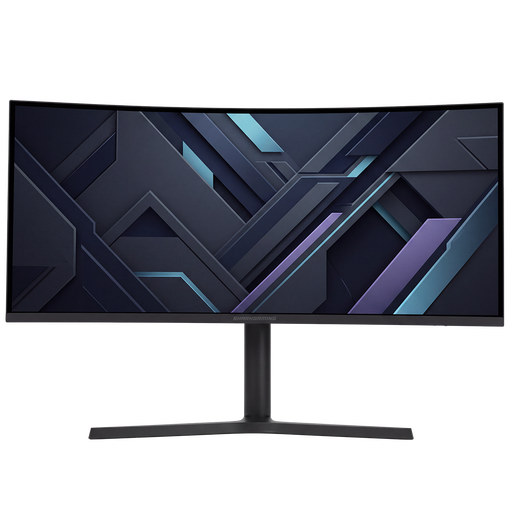 No image available
A curved 34-inch ultrawide worth comparing for a workspace where you want to use multiple windows.
The product name lists UWQHD and gaming monitor.
 No image available
A model worth comparing if you’re looking for an ultrawide for both gallery work and a business workspace.
The product name lists a 34-inch curved screen with Dual-Mode.
 No image available
A 34-inch ultrawide worth comparing if you want a wide workspace for a gallery and other windows.
The product name lists 3440 × 1440 pixels, 180 Hz via DisplayPort and 100 Hz via HDMI. Also listed: 300 cd/m², two HDMI ports, DisplayPort and tilt adjustment.
Not necessarily. First decide where you assess and publish your photos. For colour-critical printing, monitor and output profiles, along with a controlled print workflow, also matter; a stated colour gamut alone won’t tell you how the print will look.
Use the appropriate display settings and a colour-managed workflow. EIZO describes calibration and regular recalibration for accurate assessment; check the manual for your exact monitor to see which settings are available.
For the exact monitor model, compare the European energy label and EPREL information; the European Commission explains energy labels for displays. Statutory consumer guarantees apply to purchases made by consumers in the Netherlands. According to the Dutch government, there’s no fixed statutory guarantee period in the Netherlands, and you should contact the seller if something goes wrong.
For eligible distance purchases from a business, you’ll generally have a 14-day cooling-off period. Check the seller’s information and the terms of your transaction before buying; this is separate from statutory guarantees for faulty products.