
Photo editor working beside a window
You assess colours and tones as the light changes. Arboportaal recommends positioning your line of sight parallel to the window; your screen set-up and calibration routine also deserve attention.


Start with your set-up: reduce reflections and bright light on the screen, as an anti-glare finish or higher stated brightness is no substitute for window blinds. Then choose a monitor with colour modes and calibration options suited to your photo work, and check that the resolution, size and connections are compatible with your computer. Manufacturer specifications alone cannot predict how colours will look in your workspace.
You assess colours and tones as the light changes. Arboportaal recommends positioning your line of sight parallel to the window; your screen set-up and calibration routine also deserve attention.
You want to view photos, selection tools and windows at the same time. A wide workspace can help, but also check that your computer supports the resolution you want.
You may want to use the monitor with your laptop and peripherals. ASUS and Dell list USB-C power delivery for the models discussed; check that the connection and power output suit your laptop.
Start with the light and where you’ll place the monitor, then consider your colour workflow, the workspace you need and the connections available.
| What to consider | What to check before buying | Who is this important for? |
|---|---|---|
| Screen visibility in daylight | Check where the sunlight falls and look at the finish and typical brightness of the exact model. | If I work beside a bright window, I want to reduce reflections and glare before relying on brightness. Around 36% of consumers put screen visibility in daylight first. |
| Colour assessment | Compare the colour mode with your image files and intended output; plan to calibrate the monitor in your usual lighting conditions. | When I assess photos carefully, I look for a colour workflow that suits my files and workspace. Around 29% of consumers put colour assessment first. |
| Room for your gallery and tools | Check that your computer supports 3440 × 1440 pixels through the connection you’ve chosen, and that the screen size suits your desk. | For a gallery with photos and tools side by side, I want plenty of horizontal workspace. Around 21% of consumers give this the highest priority. |
| Connecting a laptop and peripherals | Check that the chosen port supports the display signal and compare your laptop’s power requirements with the output of the exact monitor model. | If I want to set up one laptop workspace with peripherals, the connections and power delivery need to be compatible. Around 14% of consumers consider ease of connection the most important factor. |
Peak HDR brightness and typical brightness are different specifications, and a higher stated figure won’t automatically prevent distracting reflections.
First, consider the light and how you could position the screen. Then compare the same brightness measurement and screen finish across the models.
You may still need to reposition the screen or use window blinds.
A stated colour gamut does not prove that a screen is accurately or evenly adjusted in your workspace. EIZO also notes that calibration cannot fix a gamut that is too small or a display that lacks sufficient uniformity.
Choose a colour mode that suits your photos and assess the display in the light you work in.
A suitable calibration routine may require time or equipment.
The models we looked at list different power outputs. Your laptop must also support the display connection you intend to use.
Before buying, compare your laptop’s port and power requirements with those of the exact monitor model.
If the connection or power output isn’t suitable, you may need a separate power adapter or a different connection.
BenQ positions the PD3420Q as an ultrawide monitor for creative work, with dedicated colour modes.
ASUS describes the ProArt PA348CGV as a 34-inch IPS ultrawide monitor for creative work.
According to LG, the 34U650A-B is designed to display several programmes at once.
Dell combines an ultrawide IPS Black screen with hub features in the UltraSharp U3425WE.
This selection features ultrawide monitors that provide plenty of workspace for putting together a photo gallery. Check the colour information, connections and suitability for your workspace for each model.
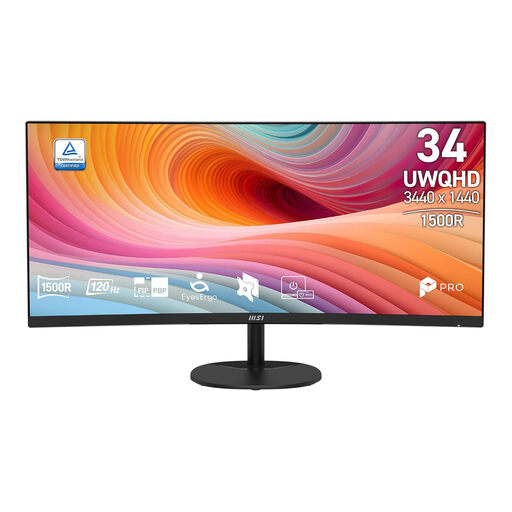 No image available
The 34-inch 21:9 format gives you room to place photos and tools side by side.
3440 × 1440 pixels; VA panel; 120 Hz; curved screen.
 No image available
The wide workspace and listed laptop connections may be useful if you want to combine photos and peripherals in one workspace.
3440 × 1440 pixels; 21:9; IPS; anti-glare; 350 cd/m²; stated sRGB coverage of 99%. USB-C with power delivery up to 90 W, hub, KVM and RJ45. Check that the connections and power delivery suit your laptop.
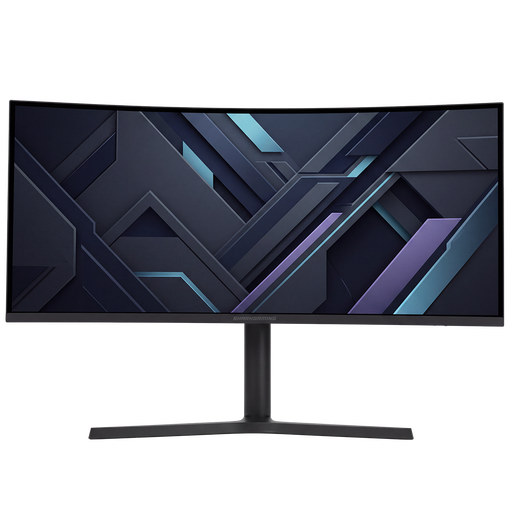 No image available
The 21:9 format provides a wide workspace, while the adjustable stand lets you change the screen position.
3440 × 1440 pixels; curved screen; 350 cd/m². According to the product description, the stand is height-adjustable, tiltable, swivelable and pivotable.
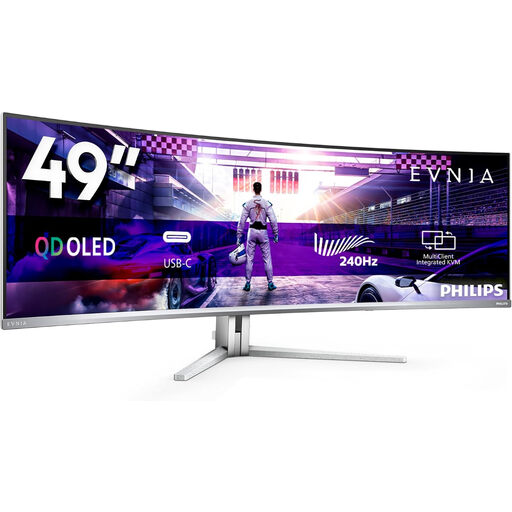 No image available
The 32:9 format gives you plenty of horizontal space to display several windows side by side.
5120 × 1440 pixels; 49 inches; curved QD-OLED screen; SDR brightness 250 nit. The product description advises against displaying static images for very long periods to help limit image retention.
 No image available
The 32:9 format gives you plenty of room to display a photo gallery and other windows side by side.
5120 × 1440 pixels; VA panel; 300 cd/m². The product description lists 120% sRGB coverage; coverage alone doesn’t tell you how colours will look in your workspace.
First, reduce the glare by changing your workspace layout or using window blinds. For bothersome daylight, Arboportaal recommends, among other things, looking parallel to the window; a stated brightness level does not guarantee that direct sunlight won’t be a problem.
For careful photo assessment, calibration also depends on the light in your workspace. EIZO recommends regular recalibration and notes that calibration cannot correct a gamut that is too small or a display that lacks sufficient uniformity.
Check that your laptop can output a display signal at the resolution you want through the connection you intend to use, and compare the power requirements with those of the exact monitor model. Manufacturers list different USB-C power outputs; these don’t guarantee universal compatibility.
For eligible distance purchases from a business, the Dutch government generally provides a 14-day cooling-off period. You’re also entitled to a product that is fit for purpose; the Netherlands has no fixed statutory guarantee period that applies to all products. If something is faulty, contact the seller.
According to the European Commission, computer monitors are covered by the energy labelling rules for electronic displays, with a scale from A to G. Compare the label and product information sheet for the exact model; don’t estimate energy consumption from maximum brightness alone.