
Album designers
You want to view a full spread while keeping your design and selection panels within easy reach. So consider both the resolution and the vertical screen space.


Start with the vertical screen space you need: the 40-inch 5K2K models reviewed offer more vertical pixels, at 5120 × 2160, than the 34-inch models reviewed, at 3440 × 1440. Then choose based on your colour workflow and how colleagues connect their computers. A wider colour gamut or higher resolution alone won’t ensure that the screen preview matches the printed result.
You want to view a full spread while keeping your design and selection panels within easy reach. So consider both the resolution and the vertical screen space.
You compare a screen preview with the intended printed album. A suitable monitor profile, output profile and consistent lighting are all part of that workflow.
You switch computers or seating positions with colleagues and want to adapt the connections, screen settings and setup to suit those changes.
First, compare your spread and open work panels at the scale you use; then assess your colour workflow and how each computer connects.
| What to consider | What should you look for? | Who is this important for? |
|---|---|---|
| Spread and work panels | View your own spread in your design software at the scale you want to use. The 34-inch models reviewed have a resolution of 3440 × 1440; the 40-inch models reviewed have 5120 × 2160. The manufacturer’s resolution doesn’t tell you how much space your window layout will take up. | If I want to see a full spread and my work panels at the same time, I focus mainly on vertical screen space. Around 29% of consumers prioritise having room for both the spread and work windows. |
| Colour before printing | Ask which output profile is used for the album and check whether your software supports soft proofing. Adobe describes this workflow for Photoshop; the monitor profile, output profile and ambient light all play a part. | If I want to compare screen colours with the intended print, I look at the profiles and lighting as well as the monitor specifications. Around 29% of consumers prioritise assessing print colour in this way. |
| Switching between computers | Check the video output, power requirements and peripheral connections for each laptop. A USB-C port doesn’t automatically offer the same functions with every computer. | If several colleagues use the same monitor, I want to know whether their computers can connect in the way they need. Around 21% of consumers prioritise switching easily between computers. |
| Setup and reflections | Check the adjustability and dimensions, including the stand, and consider where the monitor will sit in relation to windows and lamps. Measure your desk before choosing a large screen. | If colleagues change seating positions or the lighting in the workspace varies, I look for adjustability and ways to manage distracting reflections. Around 21% of consumers prioritise an adaptable workspace and manageable lighting. |
The 34-inch models reviewed have 1440 vertical pixels, while the 40-inch 5K2K models reviewed have 2160. A wide screen diagonal alone won’t tell you how much of a spread will remain visible alongside your work panels.
Try the spread with the panels and display scaling you actually use, then compare screen sizes.
According to Adobe, predictable screen-to-print colours also depend on monitor profiling, the output profile and lighting conditions. A stated colour gamut alone doesn’t guarantee that the print will match the preview.
Ask for the album’s output profile and check whether your software supports soft proofing.
If your colour workflow doesn’t match the printing process, you may need to spend more time on proofs or corrections.
The video output, power and peripheral connections you need depend on the capabilities of both the monitor and the laptop.
Check the connections and charging capacity required for every computer used in the shared workspace.
Depending on the connections available, you may need a separate power supply, a suitable cable or an additional connection.
Dell describes the U4025QW as a 39.7-inch IPS Black ultrawide monitor with a resolution of 5120 × 2160 and a built-in hub.
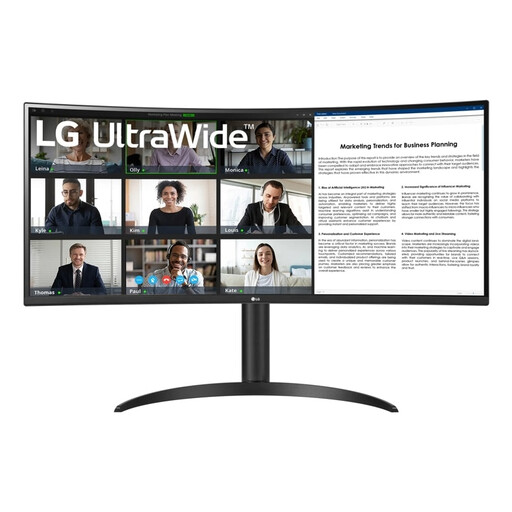
LG describes the 40WP95CP-W as a 39.7-inch 5K2K Nano IPS monitor with Thunderbolt 4.
BenQ describes the PD3420Q as a 34-inch IPS ultrawide monitor with a resolution of 3440 × 1440, colour modes and USB-C.
ASUS describes the ProArt PA348CGV as a 34-inch IPS ultrawide monitor with a resolution of 3440 × 1440, an adjustable stand and USB-C.
EIZO describes the FlexScan EV3895 as a 37.5-inch ultrawide monitor with a resolution of 3840 × 1600, USB-C docking and Picture-by-Picture.
These monitors are intended for viewing photo album spreads in a shared workspace. The selection includes 40-inch models with a resolution of 5120 × 2160 and 34-inch models with a resolution of 3440 × 1440; connections and other listed features vary by model.
 No image available
The 5120 × 2160 resolution may suit you if you want to view a large spread alongside your work panels.
The product description lists an IPS panel, USB-C with 65 W Power Delivery, a USB hub and PBP. It also mentions a calibration report and DeltaE < 2; these are product claims, not independent measurements.
 No image available
This model may suit a shared workspace where a KVM switch and USB-C power delivery are important.
The product information lists a resolution of 3440 × 1440, 99% sRGB, a KVM switch and USB-C with up to 90 W Power Delivery. A USB hub and adjustable stand are also mentioned.
 No image available
The 3440 × 1440 resolution is worth comparing if you want to arrange a spread and work windows on a 34-inch ultrawide.
The product information lists an IPS panel, 99% sRGB and USB-C with up to 96 W Power Delivery. The description says the stand adjusts for height, tilt and swivel.
 No image available
The listed connectivity features may come in handy when colleagues switch between computers at the same workspace.
The product information lists a VA panel with a resolution of 3440 × 1440, USB-C docking with up to 95 W Power Delivery, RJ45-LAN and KVM. The description says the stand offers 15 cm of height adjustment.
 No image available
This 34-inch model is worth comparing if you’re looking for an ultrawide with connections for several computers.
The product information lists a resolution of 3440 × 1440, 99% sRGB, HDR10, USB-C, HDMI and DisplayPort. The description says the stand adjusts for height, tilt and swivel.
No. The monitor, output profile, paper and ambient light all affect the comparison. For Photoshop, Adobe describes using a profiled monitor and soft proofing with the relevant output profile.
Limit distracting direct light and reflections, and keep the lighting as consistent as possible while assessing colour. Adobe recommends recalibrating the monitor if its settings change or the workspace lighting changes significantly.
The employer’s obligations depend on the employment relationship and the actual screen-based work involved. Arboportaal describes requirements including breaks or alternating screen work with other tasks, and highlights specific workplace considerations for employees who spend more than two hours a day working with a screen. These aren’t general product specifications for every buyer.
Check the energy label and product information sheet for the specific model rather than estimating its energy use from the screen diagonal alone. Regulation (EU) 2019/2013 sets out rules on energy labels and product information for electronic displays.
No. Consumers generally have a statutory 14-day cooling-off period for a standard online purchase; according to the Dutch Ondernemersplein, this statutory period doesn’t apply when a business makes a purchase for commercial purposes. Check who is entering into the contract and what other returns terms apply.