Start with your setup: where possible, position yourself so you’re facing parallel to the window, and use window coverings if needed. An anti-glare coating is no guarantee of an unobstructed view. Then choose a monitor with colour settings suited to web design and enough workspace for your design, browser and references. If switching between devices is a priority, compare the connections and adjustability too, and check they’re compatible with your computer.
Who is this choice for?
Designer working beside a bright window
You want to assess text and images without distracting reflections. That’s why screen position and any window coverings should be part of your decision. Arboportaal recommends positioning your line of sight parallel to the window.
Portfolio designer prioritising colour
You work on images for the web and want a useful sRGB display alongside enough room for your designs. Adobe recommends sRGB for online images.
Designer using multiple windows or devices
You want to use a design programme, browser and references side by side, perhaps with a laptop or second computer. The connections you need depend on the devices you use.
What should you look for when choosing?
Design-focused IPS ultrawide
A good fit if: colour checking for web images and a wide workspace are your main priorities. BenQ and ASUS list sRGB settings and anti-glare finishes for the models mentioned.
Bear in mind: an anti-glare finish won’t automatically eliminate direct reflections, and manufacturers’ specifications can’t tell you exactly how visible the screen will be beside your window.
Ultrawide with docking for multiple devices
A good fit if: you want to connect a laptop or regularly switch between devices. Dell lists Thunderbolt, while LG lists USB-C with power delivery for the models discussed.
Bear in mind: check that the connection and charging power are suitable for your computer. A USB-C or Thunderbolt connection doesn’t guarantee that every feature will work.
Ultrawide for extra workspace
A good fit if: you mainly want to arrange design windows, a browser and references side by side. iiyama lists a resolution of 3440 × 1440 for the XUB3493WQSU-B6.
Bear in mind: a wide screen doesn’t replace checking how your homepage looks on narrower screens and in smaller browser windows.
| What to consider |
What should you check? |
Who should pay extra attention? |
| Reflections by the window |
Check the screen finish and stated brightness. Consider whether you can position the screen parallel to the window and use window coverings. |
If reflections could make text or images harder to see, I want to be able to adjust the setup and window coverings. Around 36% of consumers say readability in light from a window is their top priority. |
| Colour for web images |
Compare the sRGB mode and stated sRGB coverage for the exact model. Use suitable colour profiles and check your design in a browser. |
When colour choices matter for my portfolio, I want to know how to assess web images in sRGB. Around 29% of consumers put colour checking for web images first. |
| Room for windows |
Compare the resolution and aspect ratio with the desk space you need. Test your homepage in narrower views too. |
If I want to see my design, browser and references side by side, I look at the available workspace. Around 21% of consumers give workspace their highest priority. |
| Connections and adjustability |
Check your computer’s video output, the charging power required and how far the stand and screen can be adjusted. |
If I often switch between devices, I want to know whether the connection and screen position suit my workspace. Around 14% of consumers put easy connectivity and adjustability first. |
Common buying mistakes
-
Assuming a higher brightness rating will solve every reflection problem
A stated panel brightness doesn’t directly tell you how much reflection you’ll experience at your desk.
Consider screen position, window coverings and the screen finish together. Treat brightness ratings as specifications, not as a real-world test beside your window.
-
Assuming a wide colour gamut guarantees the right colours for the web
Your portfolio will be viewed on devices with a range of colour capabilities. Adobe recommends sRGB for online images.
Check the sRGB setting and colour profiles, and view your exported design in a browser.
-
Assuming a similar model name means it’s the same version
A different model code or resolution could mean you’re looking at another version.
Before buying, compare the full model code and key specifications with the manufacturer’s information.
Brands to compare
BenQ
According to BenQ Netherlands, the PD3420Q is a 34-inch IPS ultrawide with 3440 × 1440 resolution and sRGB and P3 modes.
- BenQ lists an anti-glare finish, typical brightness of 350 nits and 100% sRGB for this model.
- BenQ also lists 60 Hz and 65 W power delivery via USB-C. These specifications don’t tell you how visible the screen will be beside your window.
ASUS
According to ASUS, the ProArt PA348CGV is a 34-inch IPS ultrawide with colour presets and USB-C.
- ASUS lists an anti-glare finish, typical brightness of 350 cd/m², 100% sRGB and a refresh rate of up to 120 Hz.
- These are model specifications, not an independent assessment of colour reproduction or reflections beside your window.
Dell
According to Dell, the UltraSharp U3425WE focuses on a curved ultrawide with a Thunderbolt hub and adjustable stand.
- Dell lists a resolution of 3440 × 1440 at 120 Hz, IPS Black and 90 W power delivery.
- Check that the connections and power delivery suit your computer and how you plan to use it.
LG
LG describes the 34BA75QE-B as a curved 34-inch IPS ultrawide with USB-C and RJ45.
- LG lists 3440 × 1440 resolution, typical sRGB coverage of 99%, 90 W via USB-C and Picture-by-Picture.
- If you use Picture-by-Picture, check that the feature suits the devices you want to use at the same time.
iiyama
iiyama describes the ProLite XUB3493WQSU-B6 as a flat 34-inch IPS ultrawide with Picture-by-Picture.
- iiyama lists 3440 × 1440 at 120 Hz, 400 cd/m² and 15 cm of height adjustment.
- A brightness rating doesn’t measure visibility beside a window; also consider the screen position you need.
Ultrawide monitors at Joybuy
This selection at Joybuy includes ultrawide monitors for wide design projects and working with windows side by side. For each model, check which colour details, connections and dimensions suit your workspace.
 No image available
Dell Pro P3426WEV 34.1-inch curved WQHD IPS USB-C hub monitor with webcam
An option for combining a wide design workspace with USB-C connectivity. Check that it works with your laptop.
The product name lists 3440 × 1440, 100 Hz and 90 W Power Delivery. USB-C charging requires a compatible laptop with USB Power Delivery and DisplayPort Alt Mode; the charging power also depends on the connected device.
View at Joybuy
 No image available
CRUA 49-inch curved ultrawide gaming monitor, DQHD 5120 × 1440, 165 Hz
The large workspace could suit you if you want to view your design, browser and references side by side. Bear in mind how much room it needs.
The product name lists 5120 × 1440, a 32:9 aspect ratio, a VA panel and 120% sRGB. Check that your desk or VESA mount can support more than 15 kg; the product information recommends a two-person installation.
View at Joybuy
 No image available
Philips 6000 Series 34B2U6603CH/00 34-inch monitor
A 34-inch model to compare if you want to arrange your design and browser on a wide screen.
The product name lists a resolution of 3440 × 1440 pixels.
View at Joybuy
 No image available
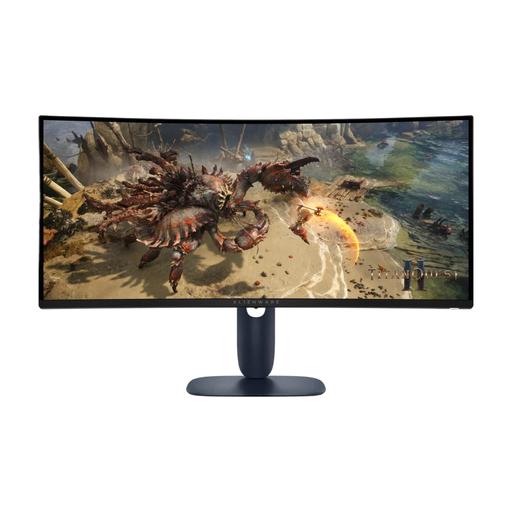
Alienware AW3425DWM 34-inch monitor
A model to compare if you’re looking for a wide screen to use with design windows and a browser side by side.
The product name lists a resolution of 3440 × 1440 pixels.
View at Joybuy
 No image available
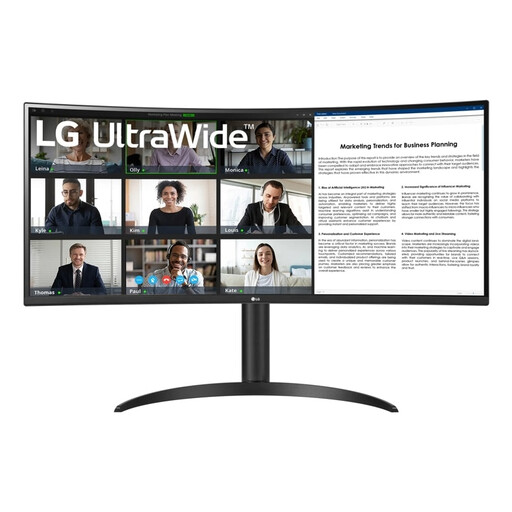
LG 34WR55QK-B 34-inch monitor
An option to compare if you want to put your design and browser on a wide screen.
The product name lists a resolution of 3440 × 1440 pixels.
View at Joybuy
Frequently asked questions
Is an anti-glare finish enough for a monitor beside a bright window?
No. Don’t rely on a coating instead of adjusting your setup. Arboportaal recommends positioning your line of sight parallel to the window and using window coverings if needed. You should also check the finish of the specific model.
Should you check your portfolio homepage only on the ultrawide?
No. Responsive web design should work well across different screen sizes and resolutions too. As well as checking it on your wide workspace, test it in narrower browser views, as described by MDN Web Docs.
How should you clean a matt monitor screen?
Follow the instructions for your model. BenQ recommends unplugging the monitor and cleaning the screen with a slightly damp microfibre cloth, using very little liquid and gentle pressure. BenQ advises against using ethanol, rubbing alcohol or bleach.
What rights do you have when buying a monitor online in the Netherlands?
When you buy online from a business, you’re entitled to a 14-day cooling-off period in many cases. You’re also entitled to a product that works properly, and the seller is your point of contact if something goes wrong. The Dutch government states that the Netherlands has no fixed statutory guarantee period that applies to all products.
Do rules for screen-based work automatically apply to your personal monitor?
No. Arboportaal describes employers’ obligations and requirements for employees’ workplaces. Its practical advice about lighting may be useful at home, but it isn’t automatically a universal product specification for every personal monitor.


