
Dashboard and report reader
You want to read both windows at the same time, so consider screen space and text size before weighing up extra connectivity features. Microsoft Support explains how to position windows on screen using Snap.


Start by checking how much space your dashboard and report need at your preferred text size. A 34-inch ultrawide with a resolution of 3440 × 1440 pixels is a well-founded starting point, but it doesn’t guarantee that every window layout will be comfortable to read. Then check that the screen is in the right position when you’re sitting and standing. Choose USB-C power delivery, networking or KVM only if your laptop and way of working require these features.
You want to read both windows at the same time, so consider screen space and text size before weighing up extra connectivity features. Microsoft Support explains how to position windows on screen using Snap.
You want to position the screen comfortably for both sitting and standing, so consider the monitor’s adjustability and the space available on your desk. Arboportaal offers practical guidance on screen positioning.
You regularly connect a laptop or switch between computers, so you’ll want to know whether USB-C power delivery, networking or KVM suits your equipment and way of working. Dell and Philips describe these connectivity features for specific models.
First, check that both windows are easy to read. Then consider the screen position at both desk heights, and finally decide which connectivity features you’ll actually use.
| What to consider | What should you check? | Who should prioritise this? |
|---|---|---|
| Readable windows | Try your dashboard and report side by side at your preferred text size, and check the screen width too. | If I want to read both documents at once, I prioritise the space available for each window. Around 36% of consumers say readability is their top priority. |
| Screen position | Check the adjustability of the exact model and assess the screen position when sitting and standing. | When I change the desk height, I want to be able to reposition the screen comfortably. Around 29% of consumers prioritise their workstation setup. |
| Laptop and devices | Compare your laptop’s connection with the monitor’s ports and the charging capacity you need. If you use two computers, check whether KVM works with the peripherals you want to use. | If I connect a laptop or switch between computers, I want to know which features my setup actually supports. Around 21% of consumers prioritise connecting or switching between devices. |
| Features you need | Check whether you need USB-C power delivery, RJ45 or KVM, and compare the stand and its adjustability with the space available on your desk. | I don’t want to choose connectivity features I won’t use, but I don’t want to be left without a connection I need either. Around 14% of consumers prioritise avoiding unused features. |
The resolution describes the screen, not how your dashboard and report look at your chosen text size.
Check the windows you actually use and set the scaling before choosing a screen size.
An adjustable desk doesn’t automatically put the screen in the right position for both sitting and standing.
Check the screen position, the adjustability of the exact monitor model and how much space its stand takes up. Arboportaal recommends positioning the screen directly in front of you and suggests a slight downward gaze.
The Dutch government distinguishes between a manufacturer’s warranty and your right to a product that works properly, and states that there is no fixed statutory warranty period.
Keep your proof of purchase and contact the retailer if the product is faulty.
The Dell P3425WE is worth considering if you’re looking for an ultrawide with laptop power delivery and RJ45.
The LG 34U650A-B is a 34-inch IPS ultrawide worth considering for its wide workspace and how it suits your window layout.
The Philips 34B2U5600C/00 is worth considering if KVM or USB-C to RJ45 connectivity is something you’ll actually use.
The Samsung ViewFinity S6 S65UC, model LS34C652UAUXEN, has a 34-inch curved screen that you can assess from your usual viewing position.
These ultrawide models are options for viewing a dashboard and report side by side. Compare the listed connections and screen features with your own workspace.
 Image unavailable
A 34.1-inch ultrawide to consider for two work windows. Check whether the image scaling makes your report and dashboard comfortable to read.
Dell Netherlands lists a resolution of 3440 × 1440, a 100 Hz refresh rate, IPS, USB-C power delivery up to 90 W and RJ45 for this model. Check your laptop’s video output and charging requirements.
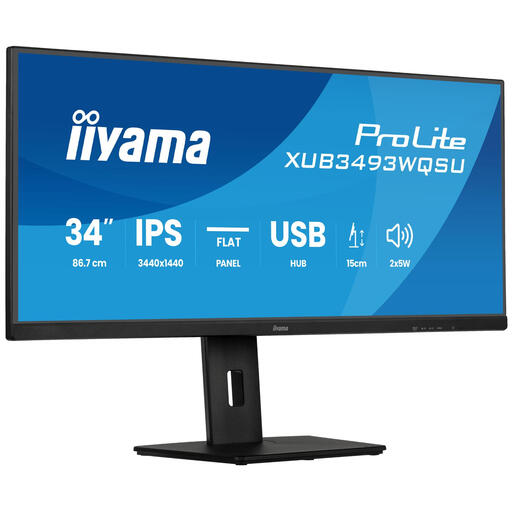 Image unavailable
A 34-inch IPS ultrawide to compare with your other options if you want to view your dashboard and report on one screen.
The product name lists a flat screen, PiP, PbP and a height-adjustable stand. Check whether the shape and adjustment options suit your desk.
 Image unavailable
A curved ultrawide option for viewing two work windows side by side. Assess the curvature from your usual viewing position.
The product name lists a USB-C dock, LAN, KVM and a height-adjustable stand with 15 cm of adjustment. Check which connections your devices need.
 Image unavailable
A 34-inch monitor to compare if you want to view your dashboard and report side by side.
The product name lists a resolution of 3440 × 1440 pixels. Try your preferred text size and window layout with your own work files.
 Image unavailable
A 34-inch monitor to consider if you want to view two work windows at the same time.
The product name lists a resolution of 3440 × 1440 pixels. Compare the screen space you need with your desk’s dimensions and layout.
No, you don’t need KVM for that. If you use Windows, you can position windows on one screen using Snap. KVM is useful when you want to switch peripherals between computers.
Reassess the screen position whenever you change the desk height. Arboportaal recommends placing the screen directly in front of you, with the top just below eye level and a slight downward gaze. Check that the stand on your chosen model suits your workspace.
For eligible online consumer purchases, you’ll generally have 14 days to change your mind; check the terms of your purchase. If a product is faulty, contact the retailer about your statutory rights. The Dutch government states that the Netherlands has no fixed statutory warranty period of two years.
For employees, Arboportaal sets out rules on display screen work and workstation setup. For more than two hours of screen work a day, its guidance includes using a separate screen or keyboard with a laptop, and having a height-adjustable display screen. Whether these requirements apply depends on the employment and workplace circumstances.