
Dashboard and report user
You regularly refer to figures or charts while writing and want to be able to read your dashboard and report at the same time.


Choose based on the space your dashboard and report need, your computer’s connections and the size of your desk. A wide screen is only practical if both windows remain easy to read. A USB-C hub can bring connections together, but check that your computer supports video over USB-C and that the power output is suitable for your laptop. If you want to position your screens independently or keep an existing monitor, compare two separate monitors as well.
You regularly refer to figures or charts while writing and want to be able to read your dashboard and report at the same time.
You regularly connect your work laptop and want to know whether video, USB devices and charging can all work through the monitor.
You want to check in advance that the screen and stand will fit, and that you can position the monitor comfortably in relation to your seating position and windows.
A good fit if: you want one continuous screen where you can arrange your dashboard and report in separate windows.
Bear in mind: readability at your viewing distance, the space needed for the stand and how you arrange your windows.
A good fit if: you want to position your dashboard and report independently or keep using an existing screen.
Bear in mind: you’ll set up each screen and its window positions separately; the display area won’t be one continuous screen.
| What to consider | What to look for | Who is this most relevant to? |
|---|---|---|
| Reading windows side by side | Compare the resolution and screen width with your own window layout; try different text sizes and scaling settings in your applications. | I want to read my dashboard and report at the same time without constantly switching between them. Around 42% of consumers who prioritise readable side-by-side space have this as their main need. |
| Connecting and charging your computer | Check that your laptop supports video over USB-C, the power output, and the combination of hub setting and display mode on the exact model. | I want to know whether video, peripherals and possibly charging will work through the same connection. This is the main need for around 25% of consumers focused on connecting their computer. |
| Space and positioning | Measure the available width and depth, including the stand; check the height adjustment and the position in relation to windows. | I want the screen and stand to fit, and to be able to position the monitor properly. Around 17% of consumers prioritise fitting the monitor into their workspace. |
| Energy and aftercare | Compare the energy label and product information sheet for the exact version; check what any extra warranty offers. | I want to weigh up energy information and my rights after purchase. Around 16% of consumers have running costs and aftercare as their main concern. |
USB-C video functionality and the available display modes can depend on the computer and the monitor’s hub setting. Philips states that the connected device must support DP Alt Mode for the 346B1C/01.
Before buying, check your computer’s USB-C video functionality and which display mode the exact monitor supports with your chosen hub setting.
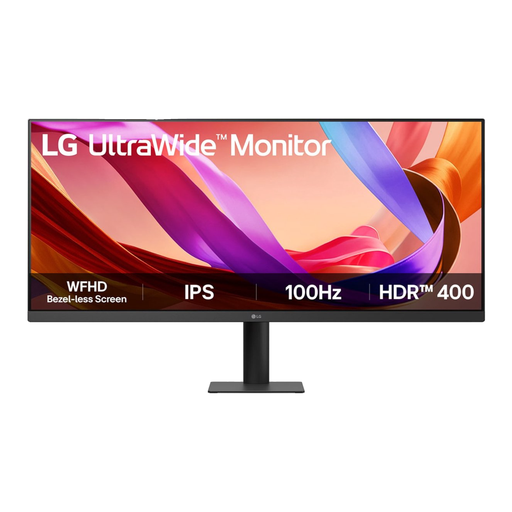
According to LG, the 34WQ75C-B is 816,7 mm wide with the stand. So the space you need depends on more than just the screen size.
Measure your desk and viewing area, then compare them with the dimensions of the version you’re considering, including the stand.
In the Netherlands, your statutory guarantee applies even if you don’t buy an extra warranty. Additional cover doesn’t replace your statutory rights.
Check exactly what extra cover a warranty provides before paying for it.
Philips describes the 346B1C/01 as a curved 34-inch B Line ultrawide monitor with 3440 × 1440 pixels and an adjustable stand.
LG describes the 34WQ75C-B as a 34-inch IPS screen with 3440 × 1440 pixels, USB-C, a network port and height adjustment.
Samsung describes the LS34C650TAUXEN from the ViewFinity S6 S65TC range as a 34-inch 21:9 monitor with Thunderbolt 4.
Dell describes the P3424WE as a 34-inch IPS USB-C hub monitor with 3440 × 1440 pixels and a network port.
Lenovo describes the ThinkVision P34w-20 as a 34,14-inch IPS screen with 3440 × 1440 pixels, USB-C, Ethernet and a USB hub.
These ultrawide monitors at Joybuy are for anyone who wants to view a dashboard and report side by side; check the dimensions, resolution and connections for each model.
 No image available
The stated 21:9 aspect ratio and resolution are designed for viewing multiple windows side by side.
3440 × 1440 pixels; VA panel; 120 Hz; 1800R curve.
 No image available
The 21:9 aspect ratio and 3440 × 1440 pixels provide a wide workspace; USB-C features depend on having a compatible laptop.
IPS; curved; 100 Hz; USB-C with up to 90 W Power Delivery. USB-C charging requires a compatible laptop with USB Power Delivery and DisplayPort Alt Mode.
 No image available
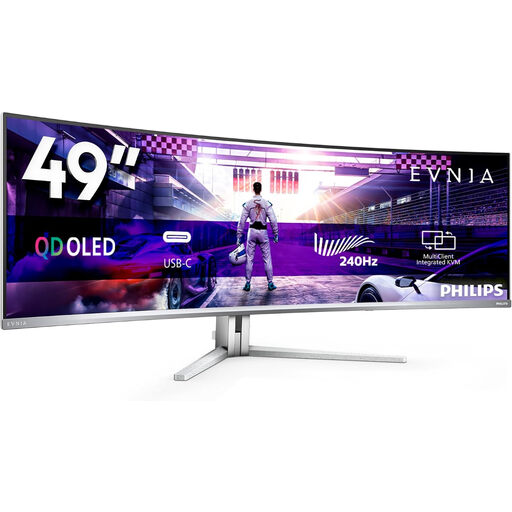
The 32:9 screen with 5120 × 1440 pixels gives you room to place several programmes side by side.
DQHD; QD-OLED; 240 Hz. According to the product description, the monitor weighs 13,96 kg. Allow for two people to lift, move or install it, and use a stable surface.
 No image available
The 32:9 aspect ratio and 5120 × 1440 pixels are designed for viewing several programmes side by side.
165 Hz; 1500R curve; VA panel. According to the product description, your desk or VESA mount must support at least 15 kg; installation by two people is recommended.
 No image available
The 21:9 aspect ratio is designed for viewing several windows; compare the resolution with the level of detail you need for your dashboard and report.
2560 × 1080 pixels; IPS panel; anti-glare coating; HDMI and DisplayPort.
In Windows 10 and 11, you can arrange windows using the Snap feature. Then try your own dashboard and report to see if both fit at a comfortable, readable scale.
No. Philips states that, for USB-C video on the 346B1C/01, the laptop or device must support DP Alt Mode. Check the connection requirements for both the screen and your computer.
Measure the space for the screen and stand, find a comfortable viewing position and watch out for reflections. For employees who work with screens for more than two hours a day, Arboportaal outlines additional requirements for setting up a workspace; these requirements don’t automatically apply to every buyer.
Compare the EU energy label and product information for the exact models. To work out your own costs, you’ll also need to know how long you use the monitor and your electricity tariff.
For online purchases, you generally have a 14-day cooling-off period from delivery; check which exceptions apply to your purchase. The statutory guarantee entitles you to a product that meets the required standards, and there is no fixed statutory time limit for it in the Netherlands. An extra warranty doesn’t replace these rights.