Choose an ultrawide monitor based on the colour space that suits your output and the resolution you need to view edits side by side. A stated colour gamut is no substitute for colour management and calibration. For use in a quiet study, check noise levels for the exact model, as there is no comparable noise data for the models mentioned here.
Who is this choice relevant to?
Colour-conscious image editor
If you compare photo or video edits, you can match the colour space to your final output and check how the monitor can be profiled or calibrated. Adobe explains that devices, monitor settings and ambient light can all affect how colours appear.
Multi-version comparer
If you want to see images and editing tools at the same time, consider resolution, screen size and available desk space together. More pixels are only practical if your computer can output the desired resolution through the connection you use.
Noise-sensitive home worker
If you work in a quiet room, check the noise level of the exact monitor model under the conditions in which you plan to use it. The panel type or office-focused positioning alone cannot tell you how quietly a monitor operates.
What should you look for when choosing?
Colour space for your output
A good fit if: you compare two edits and know whether your output uses sRGB, Rec.709 or P3, for example.
Trade-off: a stated coverage figure alone does not tell you how accurately your individual unit will perform over time or how quietly it operates.
More vertical workspace
A good fit if: extra detail and room for images and windows matter more to you than a lower resolution.
Trade-off: check your computer’s video output and whether text and windows scale comfortably at your viewing distance.
Connectivity for a laptop or multiple computers
A good fit if: you want to connect a laptop or regularly switch between computers.
Trade-off: USB-C power delivery or KVM does not remove the need for colour calibration; check the capabilities of the exact model.
| What to consider |
What should you check? |
Who is it important for? |
| Colour assessment |
Check the stated colour spaces and colour modes for your output, as well as how you can profile or calibrate the monitor. |
If reliably assessing colour edits is your priority, you’ll want to match the display to your output. Around 33% of consumers in this choice prioritise colour accuracy. |
| Noise in the room |
Ask for noise information for the exact model and, if possible, assess it in your own space and under your usual conditions. |
If you work in a quiet study, you’ll want to avoid monitor noise disturbing your peace. Around 27% of consumers in this choice prioritise a quiet workspace. |
| Room for comparison |
Compare the native resolution, screen size, stand dimensions and your computer’s video output. |
If you want to view several edits and tools at the same time, the available space needs to suit your desk and viewing distance. Around 27% of consumers in this choice prioritise room for comparison. |
| Connectivity |
Check video over USB-C, the power required for charging, available inputs and any KVM function on the exact model. |
If you want to connect a laptop or switch between computers, you’ll need connections that work with your devices. Around 13% of consumers in this choice prioritise straightforward connectivity. |
Common pitfalls
-
Assuming a stated gamut percentage means accurate colours
Colour gamut, monitor settings, colour profile and viewing conditions are all different parts of colour management. A colour-space coverage figure therefore does not guarantee accurate results in your workflow.
First choose the colour space that suits your output, then decide how to set up, profile or calibrate the monitor.
-
Assuming a panel type or office monitor will be quiet
Noise information for one specific model does not automatically apply to other models. Dell describes fan noise for certain OLED models; this is not an assessment of the monitors mentioned here.
Check cooling and noise levels for the exact model and, if possible, assess it in the room where you work.
-
Focusing only on screen width or diagonal size
Ultrawide monitors vary in vertical resolution and dimensions. Screen width alone therefore does not tell you how much detail and workspace you can see at once.
Compare the native resolution with your viewing distance, desk space and computer’s video output.
Relevant brands for reference
BenQ
The DesignVue PD3420Q is a 34-inch option for anyone looking to match colour spaces to image editing.
- For this model, BenQ lists 100% sRGB, 100% Rec.709 and 98% P3, with a resolution of 3440 × 1440 at 60 Hz.
- These manufacturer specifications are not an independent measurement of lasting colour accuracy or noise.
ASUS
According to ASUS, the ProArt PA34VCNV combines a 34.1-inch IPS screen with connectivity for a creative workspace.
- ASUS lists 100% sRGB, a factory-rated ΔE < 2 and 96 W USB-C power delivery for this model.
- The stated colour specifications do not establish how much noise the monitor makes in a quiet room.
LG
The 34WK95UP-W is a 34-inch option for anyone who wants more vertical pixels when comparing images.
- LG lists a resolution of 5120 × 2160 pixels and 98% DCI-P3 for this model.
- Check that your computer can output the desired resolution through the connection you use, and confirm the exact variant.
Dell
The UltraSharp U3425WE is a 34.1-inch hub monitor for a laptop-based workspace; the U4025QW is a separate, larger ultrawide model.
- For the U3425WE, Dell lists 3440 × 1440 at 120 Hz and 90 W power delivery.
- The U4025QW’s features do not automatically apply to the U3425WE; no comparable noise results are available here for either model.
EIZO
According to EIZO, the FlexScan EV3895 is an office-focused ultrawide designed for multiple windows and computers.
- For this model, EIZO lists a 37.5-inch screen, 3840 × 1600 resolution, 100% sRGB, KVM and USB-C power delivery up to 85 W.
- These office-focused features do not prove that the model is suitable for every colour-critical output.
Joybuy product picks
These models are suited to comparing edits on an ultrawide, with options for colour space, extra workspace, and laptop or computer connectivity.
 No image available
Dell Pro P3426WEV
An option for anyone who wants to compare two images and connect a laptop to their workspace.
34.1-inch curved ultrawide; 3440 × 1440; IPS; 99% sRGB; USB-C power delivery up to 90 W; KVM switch; 100 Hz.
View at Joybuy
 No image available
INNOCN 40C1U
An option for anyone who wants more vertical workspace and to display multiple sources at once.
40-inch ultrawide; 5120 × 2160; IPS; 100 Hz; 99% sRGB; PBP and PIP.
The stated Adobe RGB coverage is 87% (1931) / 91% (1976); bear this in mind if your output requires an Adobe RGB workflow.
View at Joybuy
 No image available
LG 34WR50QK-B
An option for an sRGB-focused workflow and displaying two sources side by side.
34-inch ultrawide; 3440 × 1440; 99% sRGB; 100 Hz; Picture-by-Picture.
View at Joybuy
 No image available
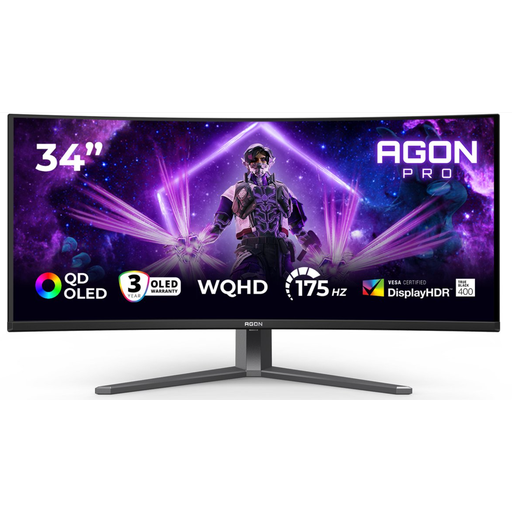
AOC AGON PRO AG346UCD
An option for anyone who values sRGB coverage and adjustability in an ultrawide for editing.
34-inch ultrawide; QD-OLED; 3440 × 1440; sRGB > 100%; DisplayPort 175 Hz and HDMI 100 Hz; height, swivel and tilt adjustment.
The specification table lists DCI-P3 as unavailable; check this if your output specifically requires a DCI-P3 workflow.
View at Joybuy
 No image available
Philips E Line 346E2CUAE/00
An option for anyone who wants to use editing windows side by side and connect a laptop via USB-C.
34-inch ultrawide; 3440 × 1440; 100 Hz; USB-C with up to 65 W Power Delivery; MultiView; 10-bit (8-bit + FRC) colour display.
View at Joybuy
Frequently asked questions
Is a wide colour gamut enough to compare two edits reliably?
No, a wide colour gamut alone isn’t enough. Match the colour mode to your intended output and use an appropriate colour management and calibration workflow. Adobe explains that devices and ambient conditions can make the same image look different.
What should you set up first for colour work?
Set the native resolution and the colour mode for your output, then create a suitable monitor profile. Keep the lighting as consistent as possible; profiling and calibration are not the same thing.
Can you return a monitor bought online if it turns out to be distracting in your room?
For an online consumer purchase in the Netherlands, the ACM generally states that the cooling-off period ends 14 days after delivery. Check the applicable exceptions and returns policy; a retailer’s voluntary promise is different from your statutory rights.
Who should you contact if the monitor doesn’t perform as you’d reasonably expect during normal use?
For a consumer purchase in the Netherlands, the retailer is your point of contact for your statutory guarantee. ACM ConsuWijzer explains that a retailer must resolve the issue if the product doesn’t perform as you’d reasonably expect during normal use; this is separate from any manufacturer’s warranty.


