If you want to compare colour edits side by side, start by choosing a monitor with colour modes and profiling options that suit your workflow. A stated colour gamut alone doesn’t prove that your particular screen displays colours accurately. Then consider how much space you have on your desk, as well as your laptop’s video and charging options. Colour features are of little use if the monitor doesn’t fit your workspace or connect properly.
Who is an ultrawide monitor suitable for?
Student who compares colours critically
You place different versions of an image side by side and want to judge whether a visible colour difference comes from the edit or the screen settings. BenQ and ASUS describe colour features for specific models, while EIZO explains the importance of monitor profiling.
Student with a small desk
You want a wide workspace, but also need to consider how much room the stand takes up and whether you can sit in a comfortable viewing position. Arboportaal recommends paying attention to readability and reflections, among other things.
Student who works on a laptop
You move between your study space and your room, and want a practical way to connect your display, peripherals and, if needed, power. USB-C specifications vary by model; BenQ and ASUS, for example, list different charging capacities.
What should you look for when choosing?
Start with the colour workflow you need. Then check that the screen fits your desk and connects to your laptop through the right port.
| What to consider |
What should you check? |
Who is this important for? |
| Colour consistency |
Check the colour mode for your output, information about factory calibration, and how to use or create a profile. |
When I compare two colour versions side by side, I want the settings to support my comparison. Around 36% of consumers say colour consistency is their top priority. |
| Space for two versions |
Check the native resolution and make sure two windows will remain large enough in your editing software. |
When I want to see an edit and a reference at the same time, usable screen space matters. Around 29% of consumers prioritise room for two image versions. |
| Desk fit |
Measure the available width and depth, then compare them with the monitor’s dimensions, including the stand, and its adjustment range. |
If my desk is small, I want a clear viewing setup without the stand making the available space impractical to use. Around 21% of consumers prioritise desk fit and setup. |
| Connecting and charging a laptop |
Check whether your laptop supports video through the port you plan to use, and compare its power requirements with the monitor’s charging capacity. |
When I connect my laptop frequently, I want to know whether the same connection can provide both a picture and enough power. Around 14% of consumers prioritise connecting and charging. |
Common buying mistakes
-
Assuming a wide colour gamut guarantees accurate colours
Colour gamut and the colour reproduction of your particular screen aren’t the same thing. EIZO describes profiling as part of a consistent colour workflow; a factory claim isn’t a measurement of the screen you receive.
Compare the colour modes for your output and check what the manufacturer says about calibration. Treat factory information separately from a measurement or profile of your own screen.
Setting up and checking a colour profile can take extra time. Profiling may also require suitable equipment.
-
Measuring only the screen diagonal
The stand’s depth and the screen’s position also determine whether the monitor fits your workspace. Arboportaal also recommends paying attention to readability and reflections.
Measure the free space on your desk and compare it with the monitor’s dimensions, including the stand. Then check where the screen could go in the room.
-
Assuming USB-C always supports video and provides enough power
Your laptop’s USB-C port must support video, and the monitor’s charging capacity must suit your laptop. The presence of a USB-C port alone doesn’t tell you this.
Check your laptop’s port, the cable, the power required and the connection specifications of the exact monitor model.
Depending on the combination, you may need a different cable or a separate laptop power supply.
Brands and models compared
BenQ
The BenQ PD3420Q is worth considering if you want to combine colour modes with a wide editing workspace.
- For the PD3420Q, BenQ lists a factory calibration report, uniformity technology, 3440 × 1440 resolution and USB-C with 65 W. The stated average ΔE is ≤3; the model lists colour modes including sRGB, Rec.709 and P3.
- BenQ lists a refresh rate of 60 Hz. Factory information isn’t an independent measurement of the individual screen.
ASUS
The ASUS ProArt PA348CGV is worth comparing if both colour features and a higher refresh rate matter to you.
- ASUS lists 98% DCI-P3, 100% sRGB and factory calibration with ΔE < 2 for this model.
- According to ASUS, the maximum is 120 Hz via DisplayPort or USB-C; via HDMI, ASUS lists a maximum of 100 Hz Adaptive-Sync. Check which connection you’re using. Factory calibration isn’t a measurement of your particular screen.
Philips
The Philips E Line 346E2CUAE/00 is worth considering if a wide window layout and USB-C are important to you.
- Philips lists 3440 × 1440 resolution, a 21:9 aspect ratio, USB-C and a VA panel for this model.
- These features alone don’t tell you how colour-accurate the individual screen is; check what your colour workflow requires.
Dell
The Dell UltraSharp U3425WE is worth considering if you’re weighing up a wide workspace, hub features and 120 Hz.
- Dell lists 3440 × 1440 resolution, IPS Black, 120 Hz and a Thunderbolt hub for this model.
- These specifications don’t prove that colour edits can be assessed accurately on an individual screen without suitable settings and profiling.
Ultrawide monitors at Joybuy
This selection includes ultrawide monitors for viewing colour edits side by side, with colour information, desk size and laptop connections in mind.
 No image available
Dell Pro P P3426WEB
An option for a wide workspace and a compatible laptop that can use USB-C for video and power.
34,1 inches, 21:9 and 3440 × 1440. The product information lists 99% sRGB, USB-C with DisplayPort Alt Mode and up to 90 W Power Delivery, as well as a USB hub and KVM. The stated colour gamut isn’t a measurement of the individual screen. USB-C video and charging require a compatible laptop.
Joybuy
 No image available
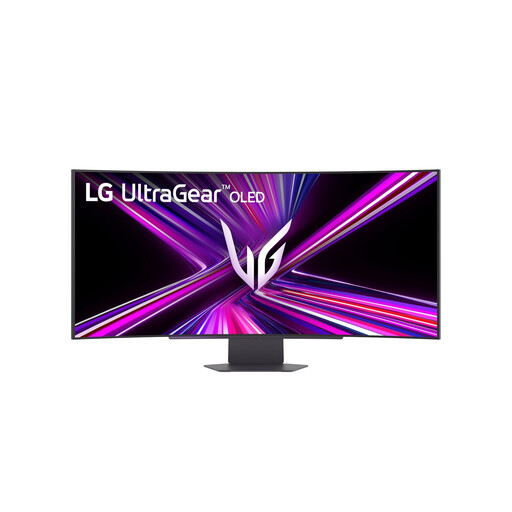
LG 45GX900A-B
A wide monitor to consider if you want to view colour information and space for multiple images together.
44,5 inches, 21:9, 3440 × 1440 and OLED. The product information lists factory calibration, hardware calibration support and 98,5% DCI-P3. These are product specifications, not independent measurements of the individual screen.
Joybuy
 No image available
LG UltraWide 34U650A-B
An option for a wide workspace and a compatible laptop connection via USB-C.
34 inches, IPS and 3440 × 1440. The product information lists 99% sRGB and USB-C with up to 96 W Power Delivery. The stated sRGB coverage doesn’t prove the colour accuracy of your particular screen; also check that your laptop supports the video and charging features.
Joybuy
 No image available
INNOCN 40C1U
An option if you want to compare multiple image sources alongside a wide workspace.
40 inches, 21:9 and 5120 × 2160, with a stated refresh rate of 100 Hz. The product information lists PBP/PIP and USB-C with 65 W Power Delivery. The product title states DeltaE < 2 and the description mentions a calibration report; neither is an independent measurement of the individual screen.
Joybuy
 No image available
Philips 6000 series 34B2U6603CH/00
An option if you’re looking for a wide comparison workspace and connections for a laptop and peripherals.
34 inches, 21:9 and 3440 × 1440. The product information lists Thunderbolt 4, up to 100 W Power Delivery and an adjustable stand that is 807 mm wide and 281 mm deep. The description states 120% sRGB coverage; coverage alone doesn’t show the colour accuracy of the individual screen.
Joybuy
Frequently asked questions
Is 98% P3 enough to compare two edits reliably by colour?
No, not on its own. That percentage is a stated coverage of a colour space, not a measurement of the accuracy of your particular screen. Choose a suitable colour mode and set up profiling and colour management for your workflow.
Can every laptop display a picture and charge through a single USB-C cable?
No. The BenQ PD3420Q lists USB-C with DisplayPort Alt Mode and 65 W power; the ASUS PA348CGV lists DisplayPort Alt Mode and 90 W. Check that your laptop outputs video through its USB-C port and how much charging power it needs.
How should you set up your screen for longer editing sessions?
Position the screen so text is easy to read and reflections and light sources interfere with your view as little as possible. Arboportaal also recommends varying your posture, looking away regularly and taking short breaks; these are usage recommendations, not general legal requirements for a student room.
Can you return a monitor bought online if it doesn’t fit your desk?
According to the Rijksoverheid, online purchases from a business usually come with a 14-day cooling-off period. Measure your desk beforehand and check the returns information that applies to your purchase; purchases from a private individual aren’t covered by the same distance-selling rules.
What if the monitor doesn’t work properly after you buy it?
According to the Rijksoverheid, you’re entitled to a product that works as it should. If a product is faulty, you may be entitled to a free repair, replacement or refund. The Netherlands doesn’t have one fixed statutory guarantee period for all products.


