Start with your screen setup: position the monitor so the window isn’t reflected directly on the display, then consider the screen finish. Next, choose a model with colour settings and calibration options that suit your intended output. If you mainly want to compare two versions side by side, you may prefer to prioritise resolution and connectivity. A stated colour gamut alone won’t guarantee a reliable comparison in your room.
Who is this relevant to?
Colour editor working beside a bright window
You notice reflections changing as you assess subtle differences, so you want to work out the best screen position and finish first. The Occupational Safety and Health Administration recommends positioning a monitor at right angles to the window; EIZO explains how reflections from light sources can make the screen harder to see.
Creator comparing colour versions
You keep two edits on screen at once and, alongside workspace, consider which colour mode best suits your intended output. Manufacturer information about sRGB or Rec.709 settings can help you choose, but it won’t tell you on its own how the display will perform in your room.
Laptop user with a dedicated workspace
You combine image editing with peripherals and want to check in advance whether the monitor can connect to and charge your laptop. Check the capabilities of both the laptop port and the monitor.
What should you look for?
Window light can affect how you assess colour, so start with your screen setup, then weigh up colour management, workspace and connectivity.
| What to consider |
What to look for |
Who is this important for? |
| Reflections and daylight |
Position the monitor in relation to the window, and check the screen finish and adjustability. |
If window light obscures dark shades or subtle differences, I want to reduce reflections first; around 31% of consumers put reflections and changing daylight first. |
| Colour assessment |
Check the available colour modes and the options for calibration with suitable measuring equipment. |
If I want to assess colour versions consistently, I look for a setting that suits my intended output; around 25% of consumers prioritise consistent colour assessment. |
| Workspace for images |
Check the resolution and dimensions, and think about how you’ll arrange windows in your editing software. |
If I want to see two versions and my tools at the same time, usable width matters; around 25% of consumers prioritise side-by-side comparisons. |
| Laptop and running costs |
Check video output and charging power for your laptop, and compare the exact model’s energy consumption. |
If I want to connect peripherals at a single workstation, I also check the power supply I’ll need; around 19% of consumers prioritise connectivity and running costs. |
What to consider before buying
-
Assuming an anti-glare coating will solve every window-position problem
Even with a suitable screen finish, direct light can cause reflections and make it harder to assess dark or subtle edits.
First decide where the screen will sit in relation to the window, then consider which finish is right for that spot.
-
Assuming a high colour gamut percentage means accurate colour assessment
Colour gamut, factory calibration and adjustment for the light in your workspace are separate things.
Choose a colour mode that suits your intended output, and check the recalibration options for each model.
Suitable measuring equipment may be needed for regular recalibration.
-
Assuming a product listing is accurate without checking it
The Joybuy product description for the Dell U3425WE states 3440 × 1400, while Dell lists 3440 × 1440 for this model.
Before choosing, check the full model name and specifications with the manufacturer and retailer; don’t base your decision on conflicting information.
Brands to consider
ASUS
The ProArt PA34VCNV is worth considering if you’re looking for colour settings for sRGB or Rec.709 work.
- ASUS lists an anti-glare IPS display, factory calibration, 100% sRGB, 3440 × 1440 and USB-C with 96 W Power Delivery for this model.
- The stated maximum refresh rate is 60 Hz. Manufacturer information about the finish and calibration can’t replace checking for reflections in your own workspace.
Dell
The UltraSharp U3425WE combines a 34.1-inch screen with a Thunderbolt hub.
- Dell lists IPS Black, 3440 × 1440 at 120 Hz and 90 W power delivery for this model.
- Check whether the colour options suit your workflow, and assess window reflections separately; the stated specifications don’t measure performance in your room.
LG
The UltraWide 34U650A-B is designed to offer a 21:9 workspace with IPS and USB-C.
- LG lists a resolution of 3440 × 1440 and typical sRGB coverage of 99% for this model.
- Stated typical gamut coverage is not the same as proven colour accuracy in changing daylight.
Philips
The E Line 345E2AE/00 is worth considering if you need a 34-inch workspace and support for multiple sources.
- Philips lists a resolution of 3440 × 1440 and MultiView for this model.
- These specifications alone don’t demonstrate a performance advantage for critical colour work beside a window.
Joybuy products for a wide workspace and multitasking
This selection features ultrawide monitors for a wide workspace and multitasking. Check the listed features for each model and make sure the connections are suitable for your laptop.
 No image available
LG UltraWide 34U601B-B WQHD VA monitor, 34-inch
This wide monitor is designed for multitasking; consider it if you want to use several windows side by side.
The product name lists a WQHD VA panel, 1800R curvature and 120 Hz.
View at Joybuy
 No image available
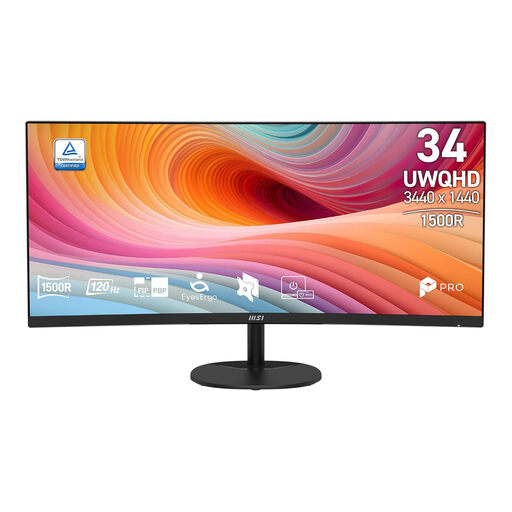
MSI Pro MP341CQ E12, 34-inch UWQHD VA monitor
The product name positions this model for work and projects; its ultrawide layout may suit anyone who wants to keep several windows open side by side.
The product name lists a curved VA panel and 120 Hz.
View at Joybuy
 No image available
Dell Pro P3426WEV, 34.1-inch curved WQHD IPS USB-C hub monitor
This monitor may suit a workspace where you want a wide display and a USB-C hub; check that the connection is compatible with your laptop.
The product name lists a webcam, 100 Hz and 90 W Power Delivery.
View at Joybuy
 No image available
Dell Pro P P3426WEB, 34-inch USB-C hub monitor
The product name describes a hub monitor for video conferencing; consider it if you want to connect peripherals as well as work with images.
The product name lists a 34-inch size and a USB-C hub.
View at Joybuy
 No image available
Gawfolk 34-inch curved UWQHD VA monitor
The product name mentions photo editing and office use; check the colour settings before choosing this model for critical comparison work.
The product name lists 3440 × 1440, 144 Hz, 1500R curvature and 100% sRGB. The model is listed as having no speakers.
View at Joybuy
Frequently asked questions
Will a brighter screen always help with a bright window?
No. First position the screen so window light isn’t reflected directly on the display, then check the screen finish. A brightness specification alone won’t tell you how much reflection you’ll see in your setup.
Should I readjust my monitor when the light by the window changes?
For critical comparisons, it’s worth adjusting your monitor to the ambient light and keeping viewing conditions as consistent as possible. EIZO describes calibration using a suitable sensor; check which options your chosen model supports.
Can a single USB-C cable connect and charge my laptop?
Only if your laptop supports video output through that port and the monitor supplies enough power. ASUS lists USB-C with DisplayPort mode and 96 W for the PA34VCNV; Dell lists 90 W power delivery for the U3425WE. Check your cable and laptop’s capabilities too.
Where can I compare energy consumption, and what applies to online purchases?
Computer monitors carry the EU energy label, so compare the information for the exact model. For many eligible online purchases from a business, the Dutch Government says you have a 14-day cooling-off period. Purchases from a private individual aren’t covered by the same distance-selling rules.


