What should you look for when buying?
First, decide how many work windows you want to see at once and whether you can position the monitor comfortably at both desk heights. Then compare its colour information and ports with your laptop’s requirements and the needs of your design work.
| What to consider |
What to look for |
Who is this important for? |
| Viewing your calendar and work windows |
Compare the aspect ratio, native resolution and physical dimensions; check that text remains legible from your viewing distance. |
If I want to see my calendar, design file and references at the same time, available workspace is crucial. Around 33% of consumers say workspace is their main purchasing concern. |
| Screen position when sitting and standing |
Check the adjustment range of the stand or mount, and whether there is room for a monitor arm; also consider glare. |
When I switch between sitting and standing, I want to position the screen comfortably in both positions. For around 27% of consumers, screen position is their main purchasing concern. |
| Colour and legibility |
Look at the panel type and stated colour gamut, and decide what level of accuracy you need for the final publication. |
If I’m assessing the calendar’s colours and details, I want to know what a specification does and doesn’t prove. Colour assessment is the main purchasing concern for around 20% of consumers. |
| Connecting your laptop |
Check video output through the laptop port, the required charging power, the monitor’s features and the cable supplied. |
When I want to use as few separate connections as possible, the laptop and monitor features need to work together. Around 20% of consumers name laptop connections as their main purchasing concern. |
Joybuy products for calendar design
This selection features 34-inch ultrawide monitors for a wide workspace. For each model, compare its stated resolution, colour information, adjustability and connections with your workspace and laptop.
 No image available
Dell Pro P3426WEB 34-inch USB-C Hub Conferencing Monitor
The product name describes a 34-inch USB-C hub monitor for video conferencing. Check that its resolution and connections suit your preferred window layout and laptop.
Joybuy
 No image available
Gawfolk 34-inch Curved UWQHD Monitor
The product description lists a 34-inch curved UWQHD screen with 3440 × 1440 pixels and a Fast VA panel, designed for multitasking and office work.
The product title states 100% sRGB; this percentage isn’t, by itself, a measurement of colour accuracy.
Joybuy
 No image available
Philips 34B2U5900C/00 34-inch Curved Dual-Mode Business Monitor
This 34-inch curved Dual-Mode model is an option to compare for a wide workspace. Check the resolution and adjustability of the version you’re considering.
Joybuy
 No image available
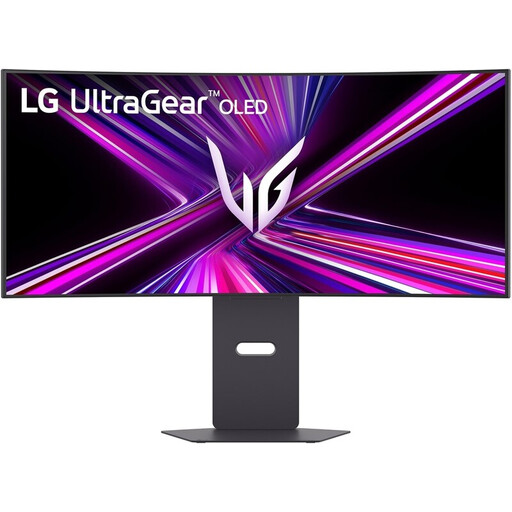
LG UltraGear 34GX900A-B 34-inch Curved WQHD Monitor
The product name lists a resolution of 3440 × 1440 pixels and a height-adjustable stand. Check that its adjustment range suits both sitting and standing desk heights.
The product name also describes the model as a 240 Hz MLA+ OLED gaming monitor.
Joybuy
 No image available
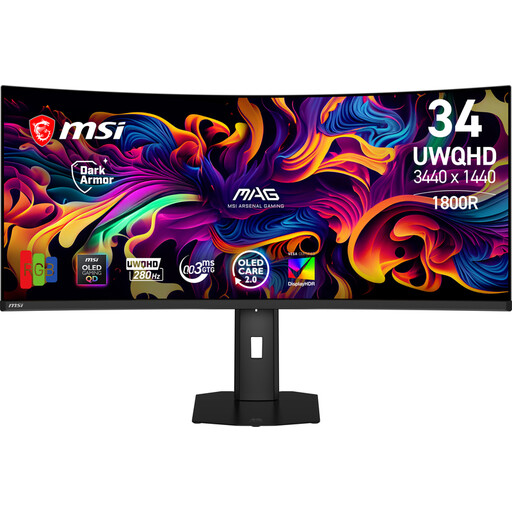
MSI MAG 341CQP QD-OLED X28 34.18-inch Curved UWQHD Monitor
The product name lists a 34.18-inch QD-OLED monitor with 3440 × 1440 pixels. Compare the resolution and connections you need with your design software and laptop.
The product name also lists a refresh rate of 280 Hz; consider whether this feature is relevant to how you’ll use the monitor.
Joybuy
Frequently asked questions
Does a 40-inch monitor automatically give you more workspace than a 34-inch model?
No, a larger diagonal doesn’t automatically mean more pixels. In a Dutch review, the 40-inch Philips and 34-inch iiyama models discussed both had a resolution of 3440 × 1440 pixels: the picture is physically larger, but it doesn’t contain more pixels.
Can I connect and charge my laptop with a single cable using any USB-C monitor?
No, it depends on the features of both the laptop’s port and the monitor. Check whether the laptop can output video over USB-C, how much charging power it needs and which features the monitor port supports.
How do I set up a monitor properly when alternating between sitting and standing?
Adjust your desk and screen for both positions, and make sure the text remains legible without distracting glare. Arboportaal recommends alternating screen work with other tasks or a break; standing still doesn’t replace that variety.
How can I compare monitors’ energy consumption?
Compare the EU energy label and the information for the exact model variant. The European Commission explains that electronic displays are rated on an energy label scale from A to G.
What can I do if my monitor develops a fault?
In the Netherlands, consumer purchases are covered by a legal guarantee as well as any manufacturer’s warranty. ACM ConsuWijzer explains that a product must meet the expectations you were entitled to have; there isn’t one fixed guarantee period for every product.


