
Script reader during video calls
Wants to keep the script readable while keeping the call in view. The space you need also depends on your text size and calling software; Microsoft Support explains how to arrange and resize windows using Snap.


Choose a screen that lets you view your script and video call side by side at a text size that suits you, then check that the monitor and stand will fit on your desk. USB-C docking or a built-in webcam can reduce the need for extra cables or equipment, but only if the connections and features suit your laptop and the way you make calls.
Wants to keep the script readable while keeping the call in view. The space you need also depends on your text size and calling software; Microsoft Support explains how to arrange and resize windows using Snap.
Wants to make the most of the extra screen space, but needs to check how much room the monitor and stand actually take up. Philips lists an ergonomic stand for the 346E2CUAE/00; check the dimensions and adjustment options for the exact model.
Wants to connect their laptop easily or use less separate call equipment. USB-C docking and a built-in webcam are different features: Philips lists a webcam and microphone for the 34B1U5600CH/00, while docking models offer different connectivity options.
| What to consider | What should you check? | Who is this important to? |
|---|---|---|
| Script beside the call window | Try arranging the windows with your calling app and the text size you use. In Windows, you can use Snap to position windows and adjust the divider. | If I want to read my script easily during a call, I want to view both windows at my preferred text size. Around 36% of consumers put readability first. |
| Desk space | Measure the space available and compare it with the dimensions and stand depth of the exact model; screen diagonal does not tell you how much desk space it needs. | If my desk has limited space, I want to know in advance whether the monitor and stand will fit. Around 29% of consumers prioritise the space available for their setup. |
| Connecting and charging your laptop | Check that your laptop can output video through the connection you plan to use, and compare its charging requirements with the monitor and the cable you need. | If I connect my laptop often, I want to know whether the connection will work with it and which cables I need. Around 21% of consumers prioritise ease of connection. |
| Camera and microphone | Check whether each model has a built-in webcam and microphone, or whether you plan to use your existing equipment. | If I don’t want a separate camera or microphone on my desk, I check these features for the exact model. Around 14% of consumers prioritise integrated call equipment. |
A built-in webcam is specific to each model. Philips lists one for the 34B1U5600CH/00; Dell does not list a webcam for the P3425WE.
Before buying, check the full model code and the webcam and microphone specifications. If they’re not included, consider whether you’ll use your existing equipment or need a separate camera or microphone.
A separate camera or microphone can take up extra desk space.
The monitor’s connection needs to suit your laptop’s video output and charging requirements. AOC lists DP Alt Mode and up to 65 W Power Delivery for the CU34P3CV; Dell lists up to 90 W USB-C power delivery for the P3425WE.
Check the specifications for your exact laptop and monitor together. Also check which cable or adapter you’ll need for the connection.
You may need a different cable, adapter or separate laptop power supply.
A product category doesn’t always reflect the panel type of the exact model. Joybuy lists the Philips 34B1U5600CH/00 under ‘OLED monitors’, while Philips describes this model as a VA monitor.
Before relying on a shop category, compare the full model code and panel specification with the manufacturer’s information.
The Philips models mentioned offer different combinations of screen space, USB-C and call equipment. Compare the features of each model rather than choosing by brand name alone.
The LG 34U650A-B is a 34-inch, 21:9 IPS model for anyone looking for a wide workspace.
The CU34P3CV combines a 34-inch ultrawide VA screen with USB-C docking.
The P3425WE is a 34.1-inch ultrawide with a USB-C hub for a laptop setup.
This selection includes models suited to displaying a script beside a video call, including USB-C docking models and models whose product name mentions a webcam.
 No image available
Worth considering if you want space for your script and call, and a webcam mentioned in the product name matters to you.
34.1-inch curved WQHD IPS USB-C hub monitor; 100Hz; 90W Power Delivery; webcam.
 No image available
Worth comparing if you’re mainly looking for extra screen space for your script and video call.
34-inch monitor.
 No image available
Worth considering if you’re looking for an ultrawide layout for your script and call window.
34 inches; 3440 × 1440.
 No image available
Worth considering if you’re looking for an ultrawide and the listed docking and connectivity features suit your laptop setup.
34-inch UWQHD curved monitor; USB-C dock; LAN; KVM switch; stand with 15 cm height adjustment.
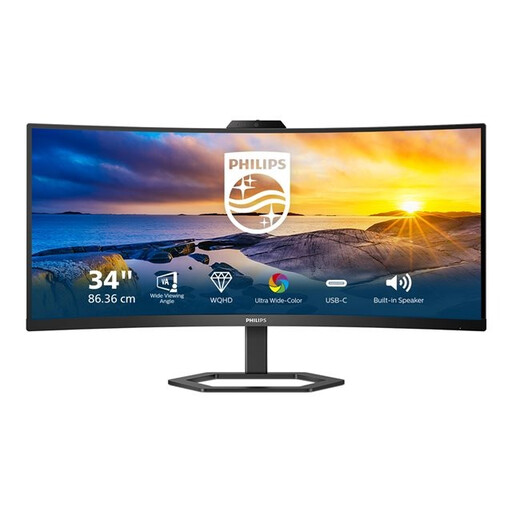 No image available
Worth considering if you’re looking for an ultrawide whose product name mentions a Windows Hello webcam.
3440 × 1440; 21:9; 300 cd/m²; 4 ms; HDMI, USB and DP.
In Windows, you can use Snap to place windows side by side and drag the divider. Try it with your calling app and preferred text size; the resolution alone doesn’t guarantee that every app will have the same amount of space. Microsoft Support explains how to use Snap to position and resize windows.
No, it depends on the monitor and your laptop. AOC lists up to 65 W Power Delivery for the CU34P3CV, while Dell lists up to 90 W USB-C power delivery for the P3425WE. Also check that your laptop can output video through that connection and how much charging power it needs.
Measure your desk and check the dimensions, stand depth and adjustment options for the exact model. Arboportaal describes rules for screen-based work in the context of relationships between employers and employees; these do not automatically apply to every student room.
For eligible online consumer purchases from a business, you generally have a 14-day cooling-off period, with some exceptions. The Dutch government does not set a fixed statutory warranty period for products in the Netherlands: you are still entitled to a product that works as it should, and the retailer is your point of contact if something goes wrong.