
Caller who reads from a script
You want to see your call and script at the same time without making the text uncomfortably small. Test the window layout using the text size you normally use.


Start with a screen that lets you fit your script and call window side by side at a comfortable text size. A 34-inch screen with a resolution of 3440 × 1440 pixels is a practical starting point for testing this layout, but it won’t suit everyone. Position the screen to work with the window, and only choose a built-in webcam or extensive USB-C hub if you need those features.
You want to see your call and script at the same time without making the text uncomfortably small. Test the window layout using the text size you normally use.
You want to reduce disruption from daylight or reflections, and can adjust the screen position, height and blinds to suit your workspace. Arboportaal recommends positioning your line of sight parallel to the window.
You’re weighing up a built-in webcam against your existing call equipment, and checking that the monitor’s USB-C connection supports your laptop and the features you need.
First, test whether your script and call window remain easy to read side by side. Then assess the setup by the window and check that the camera and connections work with your equipment.
| What to consider | What to look for when buying | Who is this important for? |
|---|---|---|
| Keeping your script and call easy to read | Test your usual script, text scaling and call window side by side. Compare the resolution with the space available on your desk. | I want to read both windows without making the text smaller than is comfortable. Around 36% of consumers prioritise having enough readable space for their windows. |
| Daylight and reflections | Check for reflections in the intended position, and see whether adjusting the screen, moving it or using blinds would help. Arboportaal recommends positioning your line of sight parallel to the window. | If light from the window is distracting, I want to be able to adjust the screen position and use blinds if needed. Around 29% of consumers prioritise daylight and reflections. |
| Camera and sound for calls | Check the full model number to see whether a webcam and microphone are built in, and whether the camera is in a useful position. | I want to know whether I can keep using my existing call equipment or need a built-in camera. Around 21% of consumers prioritise integrated call equipment. |
| Laptop connections and setup | Compare your laptop’s video output, the cable, the power required, the ports and the space needed for the monitor stand. | I want to know in advance whether the monitor will connect and fit well with my laptop and workspace. Around 14% of consumers prioritise connections and workspace setup. |
The direction of the window and the daylight in your workspace affect how clearly you can see the screen.
First, assess the position of the window and screen. Then see whether you need blinds or a different setup.
You may still need to use blinds or adjust your screen setup.
Philips lists a webcam for the 34B2U3600CH/00, while Dell does not list one for the P3425WE. So check the specifications for the full model number.
Before choosing a model, check specifically for a webcam, microphone and camera position.
If a monitor doesn’t have a suitable built-in camera, you may need separate call equipment.
USB-C features and stated charging power vary between monitors. Also check what your laptop supports through its USB-C connection.
Compare the monitor, laptop and cable as a complete setup before ordering.
Depending on your equipment, you may need a different cable or connection, or a separate laptop power supply.
The models reviewed illustrate different ultrawide setups: a business model with a pop-up webcam and an E Line model with USB-C.
The Pro 34 Plus P3425WE reviewed here is an ultrawide USB-C hub monitor for a laptop workspace.
The 34WR55QK-B reviewed here is an example of a 34-inch ultrawide monitor with USB-C power delivery and height adjustment.
The models below are ultrawide monitors for using a script and video call side by side. Check that each model’s webcam and connections suit your setup.
 No image available
Worth considering if you’re looking for an ultrawide monitor with an integrated webcam and USB-C hub.
34.1 inches; curved; WQHD; IPS; 21:9; 3440 × 1440 pixels; 100 Hz; USB-C power delivery up to 90 W.
 No image available
An option to consider if you want to test your script and call window side by side and need an integrated webcam.
34 inches; 21:9; 3440 × 1440 pixels; integrated 4MP webcam; USB-C power delivery up to 90 W; RJ45.
 No image available
Worth a look if you want to combine ultrawide screen space with a built-in camera.
34 inches; 21:9; 3440 × 1440 pixels; built-in 5MP camera; height adjustment; anti-glare screen.
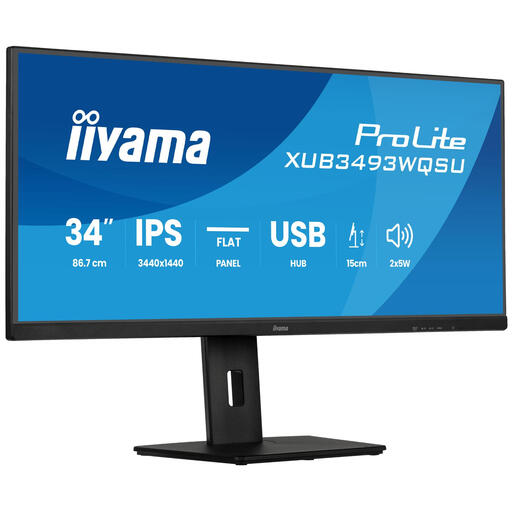 No image available
An option to consider if you want to arrange multiple screen sources at once using PiP or PbP.
34 inches; IPS; 3440 × 1440 pixels; PiP and PbP; stand adjusts through 15 cm.
 No image available
Worth considering if screen space, USB-C and an adjustable screen position matter to you.
34 inches; 21:9; 3440 × 1440 pixels; anti-glare screen; 100 mm height adjustment; USB-C power delivery up to 65 W. Check that this is enough for your laptop.
Not necessarily. Arboportaal recommends positioning your line of sight parallel to the window and, if reflections are distracting, considering moving further from the window or using suitable blinds. Also check how the screen works in your own workspace.
That depends on your laptop, cable and the features you need. Dell specifies USB-C power delivery up to 90 W for the P3425WE. Also check whether your laptop can output video through that connection and how much power it needs.
When you buy as a consumer from a business in the Netherlands, you’re covered by statutory guarantees, with no fixed statutory guarantee period. If a product is faulty, contact the seller. Online purchases from a business usually come with a 14-day cooling-off period. The Dutch Government explains these rules; check the terms that apply to your purchase.
Employers must follow rules on working with display screens. Arboportaal outlines workstation requirements for employees who work with a screen for more than two hours a day. These are not general product specifications for every private buyer.
Test your script and call windows using the text size you normally use, and position the screen so you can read both. Check whether the model has a webcam or whether your own camera can stay in the position you want.