What should you look for when choosing?
First, test whether your bookkeeping software and invoice are both practical to use at your preferred text size. Then decide which connections and adjustment options your workspace actually needs.
| What to consider |
What to look for when buying |
Who is this important for? |
| Keeping two documents readable |
Try the windows with your own bookkeeping software and invoices at your preferred text size. Philips lists a resolution of 3440 × 1440 pixels for the 34-inch 346E2CUAE/00; that specification alone does not prove that every invoice will be readable without zooming. |
If I want to check figures against the original invoice, a usable window layout comes first. Around 36% of consumers say viewing documents side by side is their top priority. |
| Connecting a laptop |
Check whether your laptop's USB-C port outputs video and whether the charging power is suitable for your laptop. Dell and LG list USB-C power delivery of up to 90 W for the P3425WE and 34WQ75C-B. |
If you want to connect your laptop through the monitor and possibly charge it, first check the connection and power you need. Around 29% of consumers put laptop connectivity at the top of their list. |
| Setting up the screen at your workspace |
Measure the available desk space and check the adjustment range of the stand and screen. The Arboportaal advises placing the top of the screen slightly below eye level. |
If I work at my desk for long periods, I want to be able to adjust the screen to suit my sitting position. Around 21% of consumers prioritise their workspace setup. |
| Avoiding unnecessary docking features |
Check which video inputs you already use and whether you need KVM, networking through the monitor or laptop charging. iiyama lists these features for specific versions; they are not automatically available on every model from the brand. |
If you already have a suitable connection and do not need extra docking features, you can leave them out of your main selection criteria. Around 14% of consumers prioritise simplicity. |
Joybuy monitors for this workspace
This selection includes 34-inch ultrawide monitors for anyone looking to arrange bookkeeping software and invoices side by side; connections and adjustment options vary by model.
 No image available
Philips 6000 series 34B2U6603CH/00
An option for combining a wide window layout with a monitor hub, if the connections are suitable for your laptop.
34 inches; 3440 × 1440 pixels; 21:9; Thunderbolt 4; Smart KVM; USB Power Delivery up to 100 W.
Joybuy
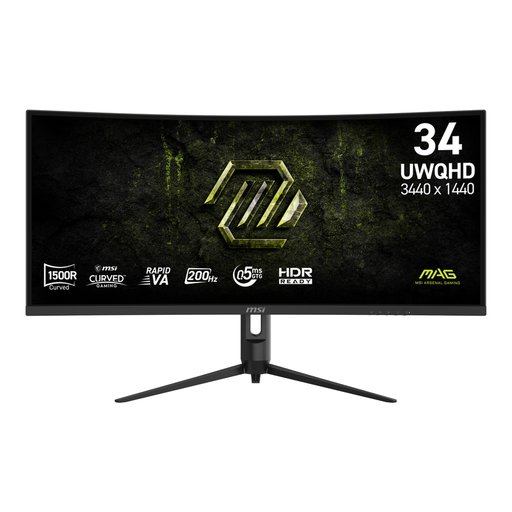 No image available
MSI MAG 342CQRF E20 Rapid
A 34-inch ultrawide to consider if you’re mainly looking for more screen space and the listed connections suit your computer.
34 inches; UWQHD; 21:9; 1500R; 200 Hz; HDMI and DisplayPort.
The description lists height, tilt, swivel and pivot adjustments.
Joybuy
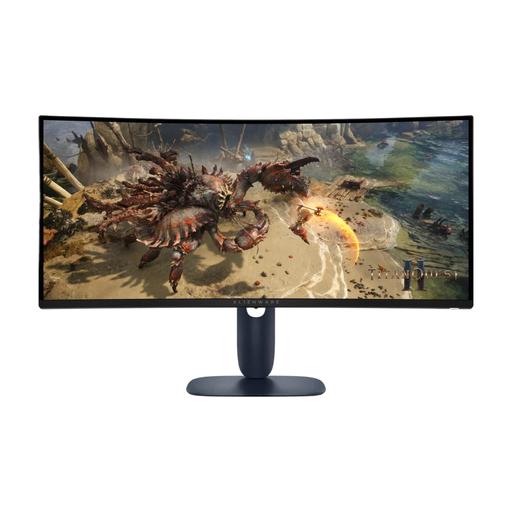 No image available
Alienware AW3425DWM
A 34-inch model for a wide document layout; check the connections and screen position to make sure they suit your workspace.
34 inches; 3440 × 1440 pixels; Wide Quad HD; 21:9.
The description lists height and tilt adjustment.
Joybuy
 No image available
LG 34WR50QK-B
An option for arranging two windows on an ultrawide screen; Picture-by-Picture is useful if you want to display two different sources at the same time.
34 inches; 3440 × 1440 pixels; Wide Quad HD; Picture-by-Picture; 100 Hz.
Joybuy
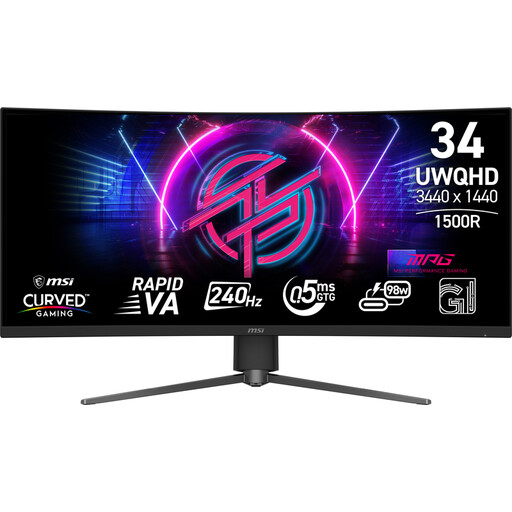 No image available
MSI MPG 346CQRF X24
A model to include in your comparison if adjustability and USB-C video matter for your workspace.
34 inches; 3440 × 1440 pixels; UltraWide Quad HD; 21:9.
The specifications list USB-C with DisplayPort Alternate Mode, HDMI and DisplayPort, plus height adjustment of up to 110 mm and tilt and swivel adjustment.
Joybuy
Frequently asked questions
How do I place my bookkeeping software and an invoice side by side?
In Windows 10 or 11, you can use Snap to place one window on the left and another on the right. Then check that text and figures remain readable in your applications at the scaling level you’ve set; the monitor resolution alone cannot guarantee this.
How should I set up a monitor at home?
The Arboportaal advises positioning the screen directly in front of you, with the top slightly below eye level. Vary your posture and tasks too; an adjustable monitor stand alone will not make an unsuitable workspace appropriate.
Do I need a separate dock as well as a monitor with USB-C?
Not always: according to their manufacturers, some monitors already provide USB-C power delivery, USB ports or RJ45. Compare the features of the exact monitor with your laptop’s video output, charging requirements and peripherals before choosing a separate dock.
What can I do if a monitor I bought online does not meet my expectations?
According to the Dutch government, online purchases made by consumers from businesses are often covered by a 14-day cooling-off period. The Netherlands also has statutory consumer rights, with no fixed statutory warranty period; if a product is faulty, contact the seller. Your exact rights depend on the purchase and the circumstances.
Is an ultrawide monitor a legal requirement for working from home?
The relevant Dutch government information does not specify an ultrawide format as a requirement. Employers also have a duty of care to provide a healthy and safe workspace when employees work from home; specific workplace setup rules apply when screen work exceeds two hours a day. Exceptions are possible if health and safety are maintained.


