
Colour-critical editor
You compare photo, design or video versions and want the colour space and calibration to suit your finished work. BenQ, LG and EIZO describe colour features and calibration options for specific models.


First decide whether you want to compare two windows on one computer or view images from two computers at the same time. This determines whether you need Picture-by-Picture and specific connections. Then match the colour space and calibration options to your final work: a stated colour coverage figure isn’t a measurement of the individual screen you buy. Two separate monitors are still an option if you want to position the images independently or give each one a full screen.
You compare photo, design or video versions and want the colour space and calibration to suit your finished work. BenQ, LG and EIZO describe colour features and calibration options for specific models.
You want to view images from two computers at once and distinguish between Picture-by-Picture, side-by-side windows on one computer, and sharing peripherals.
You need room for a large preview alongside your tools or timeline. The resolution, connections and screen dimensions all need to suit your workspace.
Best for: working on two edits side by side on one computer.
Trade-off: both windows share the height and physical position of the same screen. Check how much resolution is available for each window.
Best for: viewing two separate computer sources at the same time.
Trade-off: check the inputs and layout of both screen areas. Picture-by-Picture doesn’t automatically mean you can share a keyboard and mouse.
Best for: images you want to position independently or display full-screen.
Trade-off: you’ll need two physical screens and will need to assess and calibrate each display separately.
| Consideration | What should you check? | Who should prioritise this? |
|---|---|---|
| Reliable colour assessment | Supported colour spaces, calibration options and uniformity across the screen. | If you assess colour corrections for photos, design or video, you’ll want the display to suit your finished work. Around 36% of consumers say colour assessment is their top priority. |
| Working on two edits at once | Decide whether you’re using one or two computer sources; check Picture-by-Picture and the usable resolution for each window. | If you want to keep versions side by side, it matters whether they’re coming from one computer or two separate sources. Around 29% of consumers say comparing images at the same time is their top priority. |
| Connecting and switching | Check video over the computer connection, the power output required, and any USB upstream and KVM features. | If you regularly connect or switch between computers and peripherals, the picture, power and controls need to suit your setup. Around 21% of consumers prioritise convenient connections. |
| Workspace and running costs | Compare the screen’s width and depth with your desk; check the EU energy label for the specific model. | If desk space is limited, consider whether the screen and stand will fit and leave you enough room to work. Around 14% of consumers say available workspace is their top priority. |
Colour gamut, accuracy and uniformity are different things. Calibration can’t make up for a colour space that’s too small or an insufficiently uniform display.
Choose a colour space that suits your finished work, and assess calibration and uniformity separately.
Allow time for calibration and recalibration, and check whether you’ll need a suitable calibration tool.
Displaying two windows on one computer is different from using two video signals. KVM is a separate feature for switching between connected peripherals.
List your video sources and peripherals, then check the inputs, Picture-by-Picture and any KVM feature for each model.
You may need a different cable or connection setup to link your chosen sources and peripherals.
A similar model name doesn’t confirm that the version and key specifications match.
Before buying, check the full model number and resolution in the product information.
The BenQ DesignVue PD3420Q is a 34-inch IPS model with stated sRGB and P3 colour modes, plus PIP/PBP.
The UltraWide 40WP95CP-W is a larger 5K2K model, offering plenty of horizontal screen space and a stated mode for two sources.
The FlexScan EV3851X is a 37.5-inch 24:10 work monitor with Picture-by-Picture and KVM.
The ProArt PA34VC is a 34.1-inch ultrawide. ASUS lists hardware calibration and support for simultaneous image sources.
The UltraSharp U3425WE and U4025QW are 34.1-inch 3440 × 1440 and 39.7-inch 5120 × 2160 models respectively.
This selection includes ultrawides for side-by-side windows and models associated with displaying two computer sources. For colour work, check the colour space and calibration you need. For multiple sources, confirm that the exact version supports Picture-by-Picture.
 No image available
For anyone looking to arrange two work windows on one ultrawide; match the colour space to your intended finished work.
Features listed in the product name: curved IPS, WQHD, USB-C hub, webcam, 100 Hz and 90 W Power Delivery.
 No image available
For anyone looking for a wide workspace for side-by-side windows; check that the display and connections suit your computer.
The product name lists a USB-C hub and a conferencing monitor.
 No image available
For anyone looking for a wide screen for gaming and office work; check separately whether its colour display suits your editing work.
Features listed in the product name: 3440 × 1440, 144 Hz, 1500R curvature, 400 nits HDR and 100% sRGB. The title doesn’t mention speakers.
 No image available
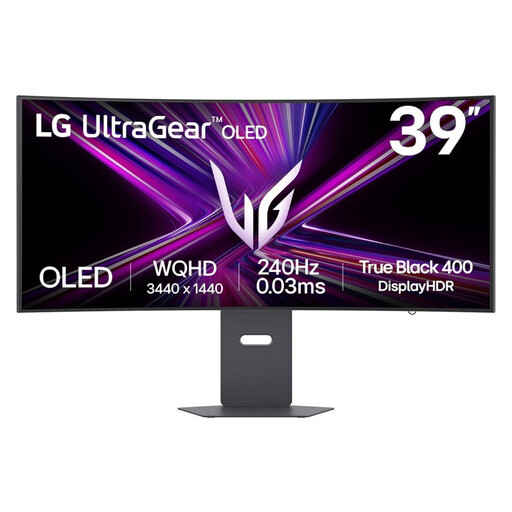
This option is associated with the need to display two computer sources at the same time. Before buying, confirm that the exact version supports the display mode you need.
The product name lists a 39-inch gaming monitor.
 No image available
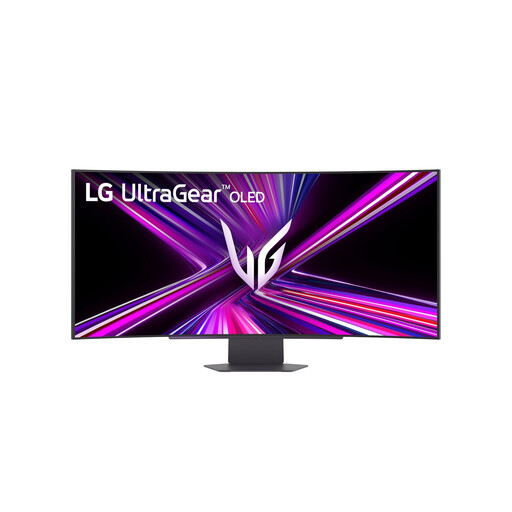
This option is associated with the need to display two computer sources at the same time. Check the display mode and connections required for the exact version.
Features listed in the product name: OLED, 3440 × 1440 and Wide Quad HD.
Not if both versions are open in windows on the same computer. Picture-by-Picture is useful when you want to display two separate video signals at the same time; check the inputs on the specific model.
No. Calibration can’t make up for a colour space that’s too small or an insufficiently uniform display. That’s why EIZO recommends considering the colour space required for your finished work when choosing a screen.
That depends on the capabilities of your laptop’s connection and the monitor’s features and power output. BenQ lists USB-C with DisplayPort Alt Mode and 65 W Power Delivery for the PD3420Q; EIZO lists up to 94 W for the EV3851X. Check that this suits your laptop and the USB connections you need.
Compare the EU energy label and product information for the specific monitor. The European Commission says computer monitors are covered by the rules for electronic displays and describes an energy label scale from A to G. Your running costs also depend on how long you use the monitor and your electricity tariff.
Online purchases in the Netherlands come with a statutory cooling-off period, subject to exceptions. ACM ConsuWijzer states that the 14-day period ends 14 days after delivery. If a product doesn’t conform to the contract, the seller is responsible under the statutory guarantee. A commercial manufacturer’s warranty doesn’t replace that responsibility.