
Colour reviewer
You compare edited versions side by side and want the colour space and monitor profile to suit the work you’re reviewing. Adobe describes using a colourimeter for objective colour checking.


Start by choosing a colour space that suits your finished work, along with a colour profile you can manage. Then use the extra width to compare versions side by side. If two people will be viewing the screen or you’ll be swapping laptops, seating positions, adjustability and the video, USB and charging features your devices actually support also matter. A stated colour coverage figure isn’t a measurement of your individual monitor from both seats.
You compare edited versions side by side and want the colour space and monitor profile to suit the work you’re reviewing. Adobe describes using a colourimeter for objective colour checking.
You assess the same image from different seating positions, taking viewing angles, light and a setup that works for both people into account.
You share a desk and want to connect your display, peripherals and, if needed, laptop power without having to set everything up again each time. Check which features your own laptop supports.
Choose this when: assessing colour differences is your main task. BenQ lists separate sRGB, Rec.709 and P3 modes, as well as DualView, for the PD3420Q.
Trade-off: stated colour coverage and factory calibration figures aren’t measurements of the individual unit you buy.
Choose this when: easy connections and sharing workspace are important. LG lists USB-C power delivery of up to 90 W for the 34BA75QE-B; Dell lists a Thunderbolt hub for the U3425WE.
Trade-off: view a curved screen from both seats and check that its connections suit each laptop.
Choose this when: you want to view lots of windows and images at once, and have enough desk space. EIZO lists a 37.5-inch screen and 3840 × 1600 resolution for the FlexScan EV3895.
Trade-off: a larger screen doesn’t automatically mean it’s suitable for colour-critical work. Check the colour space and how it fits your setup separately.
| Factor to consider | What to look for when buying | Who is this important for? |
|---|---|---|
| Colour comparison and colour management | Choose a colour space that suits your finished work, and check profile management and the calibration process. | When I compare edited versions side by side, I want the screen and workflow to be set up for the same intended colour space. Around 36% of consumers put accurate colour comparison first. |
| Reviewing from two seating positions | View the screen from both seats and look out for reflections and ambient light. | When a colleague is looking at the screen too, I want us both to be able to assess the image clearly in the workspace lighting. Around 29% of consumers prioritise viewing together from two positions. |
| Switching between laptops and peripherals | Check the video signal, power delivery, upstream connections and whether KVM is explicitly listed. | When I switch between laptops and share input devices, I want to know that all the connections I need will work with my devices. Around 21% of consumers put easy switching and connectivity first. |
| Desk fit and comfort | Measure the available width and depth, including the stand, and check adjustability and light. | When desk space is limited, I want the screen and stand to fit my workspace and the screen to be adjustable to suit me. Around 14% of consumers make fit and adjustability their top priority. |
A stated colour space doesn’t automatically mean the software and individual screen are set up correctly for your workflow.
Check that you’re using the right mode and monitor profile. Adobe describes using a colourimeter for objective colour checking; keep lighting conditions consistent during calibration and review.
Colour-critical use can also require time for profile management and possibly a colourimeter.
Video, data, laptop power and switching between computers are separate features. A USB-C port alone doesn’t confirm that all the features you need will work.
Check the video signals supported by each laptop and the power delivery it needs. Also check whether the monitor has the upstream connections and KVM feature you require.
Depending on the combination, you may need additional cables or a separate dock.
A model code can refer to different versions, so check that the full suffix matches the version you’re looking for.
Before choosing a version, compare the full model code and key features with the manufacturer’s product specifications.
BenQ describes the DesignVue PD3420Q as a flat ultrawide for colour work, with separate colour modes, DualView and KVM.
LG says the 34BA75QE-B combines a curved IPS screen with connections suited to a shared laptop workspace.
Dell describes the UltraSharp U3425WE as a curved IPS Black ultrawide with a Thunderbolt hub.
EIZO positions the FlexScan EV3895 for office work, with a larger ultrawide screen and USB-C docking.
iiyama describes the ProLite XUB3493WQSU-B6 as a flat 34-inch IPS ultrawide with PiP/PbP and an adjustable stand.
This selection includes ultrawides for viewing images side by side, sharing a laptop workspace and adding extra screen space.
 No image available
Suitable for a shared laptop workspace where an ultrawide with a USB-C hub and KVM is useful.
According to the product name: webcam, 100 Hz and 90 W USB-C Power Delivery.
 No image available
A curved 34-inch Dual-Mode Business monitor for anyone looking for an ultrawide in a shared workspace.
 No image available
Suitable for anyone looking for extra screen space and wanting to view two image sources side by side or on the same screen.
According to the product name: 5120 × 2160, 100 Hz, 21:9, a flat screen, PIP/PBP and 65 W USB-C Power Delivery.
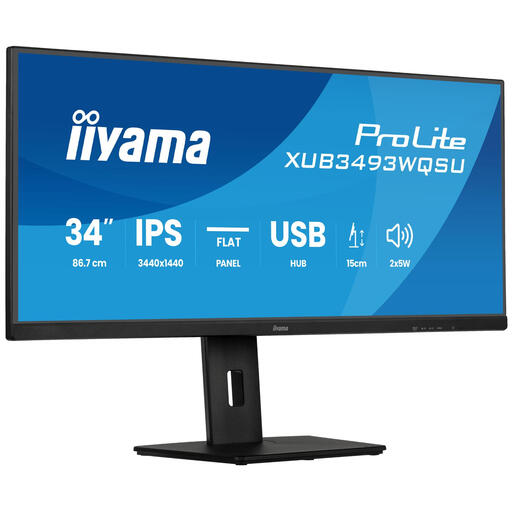 No image available
Suitable for viewing image sources side by side on a flat IPS ultrawide screen.
The product name lists PiP, PbP and a height-adjustable stand.
 No image available
A 34-inch monitor for anyone looking for a wide screen in a shared workspace.
According to the product name: 3440 × 1440 pixels and Wide Quad HD.
No, a percentage alone isn’t enough. Choose the colour space that suits your finished work and make sure the software uses the correct monitor profile. Adobe describes using a colourimeter for objective colour checking; keep lighting conditions consistent during calibration and review.
Check the image from both usual seating positions and reduce direct light and reflections. Adjust the brightness and setup under the office lighting you actually use; for colour-critical work, calibrate under similar lighting conditions.
For a consumer purchase, a manufacturer’s warranty isn’t the same as the statutory guarantee. According to ACM ConsuWijzer, there’s no fixed duration for the statutory guarantee in the Netherlands: what you can reasonably expect from the product is what matters, and the retailer is your point of contact. This guidance on consumer purchases doesn’t automatically apply to business purchases.
Employers are responsible for safe and healthy screen-based work. Arboportaal lists requirements for workspace setup, among other things, and states that if an employee works at a screen for more than two hours a day, the screen and keyboard must not be attached to one another. How this applies depends on the workspace and working situation.
The European Commission says energy labelling rules also cover computer monitors, so compare the label for the version you’re considering. The Dutch government lists options for disposal, including when buying a similar device, at a collection point or at your local council’s recycling centre.