What should you look for when buying?
If you have a small desk, start by checking the available width and depth. Then decide how much screen space, colour management and connectivity you need.
| What to consider |
What should you check? |
Who should prioritise this? |
| Fit on your desk |
Measure the available width and depth, then compare them with the overall dimensions including the stand. Leave room for your keyboard and mouse, too. |
If I have limited space on my desk, I want to know in advance whether the screen and stand will fit. Around 36% of consumers put fit first. |
| Colour assessment |
Check the colour gamut for the exact model and take your own workspace’s colour profile and calibration into account. |
If I assess colours in my photos, I don’t want to rely solely on a factory specification. Around 29% of consumers put colour assessment first. |
| Photos and work panels |
Compare the native resolution with the way you work. The 29-inch LG model we looked at has a resolution of 2560 × 1080 pixels; the 34-inch LG and Philips models we looked at have a resolution of 3440 × 1440 pixels. |
If I often compare photos alongside controls, I want enough room to work with both at once. Around 21% of consumers put having a clear overview first. |
| Connectivity and adjustability |
Check the video output supported by your computer’s port, the power delivery you need and the adjustment options available on the exact model. |
If I connect a laptop or want to set the screen at a particular height, the connections and adjustments need to suit my workspace. Around 14% of consumers put these points first. |
Joybuy products
This selection from Joybuy includes a compact 29-inch ultrawide and larger models for viewing photos alongside work panels. Measure the space available for the screen and stand, and check that a larger model will fit.
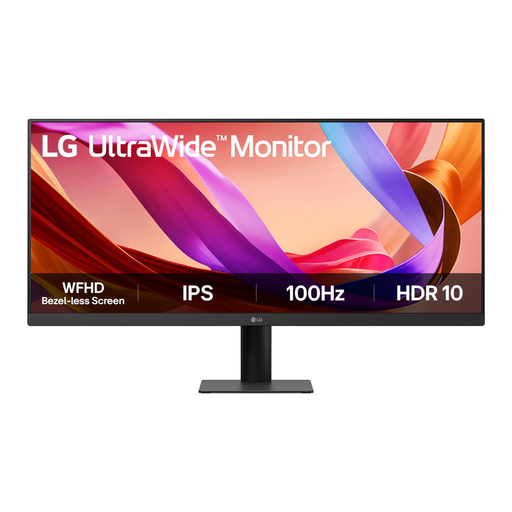 No image available
LG UltraWide 29U511A-B, 29 inches, 100 Hz
A compact option for selecting and organising photos when desk space is limited.
29 inches; IPS; 2560 × 1080 pixels; 100 Hz.
View at Joybuy
 No image available
Dell Pro P3426WEV, 34,1 inches, WQHD IPS
A larger option to consider if you’re looking for an ultrawide with a USB-C hub and webcam, and have enough room on your desk.
Curved screen; USB-C hub; webcam; 100 Hz; 90 W Power Delivery.
View at Joybuy
 No image available
LG UltraWide 34U650A-B, 34 inches
A larger option for viewing your gallery alongside controls, provided the screen fits on your desk.
3440 × 1440 pixels; IPS; USB-C with up to 96 W Power Delivery.
View at Joybuy
 No image available
iiyama ProLite 34-inch UWQHD curved monitor
A larger ultrawide to consider if, alongside a clear view of your gallery, you want to connect a laptop and peripherals.
USB-C dock; LAN; KVM switch; stand with 15 cm height adjustment.
View at Joybuy
 No image available
LG 34WR50QK-B, 34 inches, 3440 × 1440 pixels
A larger ultrawide for viewing photos alongside other windows, provided it fits on your desk.
34 inches; 3440 × 1440 pixels.
View at Joybuy
Frequently asked questions
Is 29 inches enough to put together a photo gallery?
It may be a good fit if you mainly select and organise photos and have limited desk space. The LG 29U511A-B we looked at has a resolution of 2560 × 1080 pixels; the 34-inch WQHD models we looked at have a resolution of 3440 × 1440 pixels, giving you a larger working area. Measure the complete setup before you choose.
Should I calibrate my monitor if the manufacturer says it’s factory calibrated?
When assessing colour, the profile for your own monitor and workflow still matters. Adobe specifically covers calibration and colour profiles in Lightroom Classic’s colour management workflow; a factory calibration statement doesn’t check your current setup.
Can my laptop display and charge through a single USB-C cable?
Only if your laptop supports video output through that port and the power delivery is sufficient. ASUS lists USB-C with DisplayPort Alt Mode and up to 96 W Power Delivery for the PA34VCNV; check your own laptop’s specifications, too.
What are my rights when buying a monitor online in the Netherlands?
ACM ConsuWijzer states that, in general, you have a cooling-off period of up to 14 days after delivery for products bought online, subject to legal exceptions. You also have a statutory guarantee that a product will do what you could reasonably expect under normal use; this right isn’t automatically limited to the manufacturer’s warranty.
Are there Dutch workplace rules that apply to my monitor?
Arboportaal describes employers’ obligations relating to employees’ use of display screens, including requirements for the workplace setup. This isn’t a general minimum requirement for every personal monitor buyer; for an employee’s workspace, what applies depends on the circumstances.


