Start with your setup: the keyboard should be directly in front of you when you’re working both sitting and standing, with relaxed shoulders and straight wrists, while keeping your mouse or trackpad close by. Then choose a compact layout for more space beside the keyboard, a split design to adjust the distance between your hands, or programmable keys if shortcuts are a priority. Check the exact layout and version; an ergonomic product name alone won’t tell you whether a keyboard suits your working posture.
Who is this for?
Designers who use a mouse frequently
If you often switch between your pointer and keyboard while designing, having both within easy reach can make your setup more comfortable. The Occupational Safety and Health Administration advises placing the keyboard directly in front of you, with relaxed shoulders and elbows close to your body.
Designers who use lots of keyboard shortcuts
If you want quick access to shortcuts, arrow keys and function keys, check the layout of the exact version and your design software settings. Figma bases its default shortcuts on US QWERTY and offers settings for other supported layouts.
Designers who want to adjust their hand position
If you want to choose the distance between your hands, compare a split keyboard with a contoured layout. Also keep adjusting the height of your sit-stand desk and the position of your pointing device; Arboportaal describes alternating between sitting and standing as a way to break up sedentary work.
What should you look for when choosing?
Start with your posture and the space available for your pointing device at both desk heights. Then compare the layout, key feel and connection options based on what matters most during your working day.
| What to consider |
What to check when buying |
Who this matters to |
| Reach and hand position |
Try placing the keyboard directly in front of you at both working heights; check that your pointing device stays close and you can keep your wrists straight. |
If I switch between my keyboard and pointing device, I want to keep both within reach without straining my posture. Around 33% of consumers prioritise reach and hand position. |
| Shortcuts and layout |
Compare the combinations you use with the exact layout; also check the arrow keys, function keys and keyboard settings in your software. |
If I use lots of shortcuts, I want to know whether the keys I need are easy to reach on my chosen layout. Around 27% of consumers prioritise shortcuts and layout. |
| Key feel and sound |
Check the switch type and, if possible, try out the sound in the room where you work. |
If I work in a shared space, I want to take the key feel and sound of the exact version into account. Around 20% of consumers make a quiet typing experience their top priority. |
| Connection and switching between devices |
Check which connections, receiver and power options come with your chosen version, and whether they suit your devices. |
If I switch between devices, I want a connection that works with my own equipment. Around 20% of consumers prioritise connectivity and switching between devices. |
Common pitfalls
-
Replacing only the keyboard and leaving the desk height unchanged
A new keyboard won’t automatically fix an awkward arm or wrist position if the desk is too high or too low.
Assess your setup both sitting and standing, including the position of your mouse or trackpad.
-
Choosing a compact layout without checking your shortcuts
A smaller keyboard doesn’t tell you which keys are immediately accessible; the functions you need may be on an Fn layer, and software settings matter too.
Before buying, compare the shortcuts you use most with the layout of the exact version and the settings in your design software.
-
Assuming every version is equally quiet or customisable
According to Logitech, the MX Mechanical Mini is available with different switch types. With the Kinesis Freestyle2, palm supports and tenting may depend on the version or accessories; according to Keychron, hot-swapping on the Keychron K3 Max is available only on the specified RGB Backlight Hot-Swappable version.
Check the full model variant, switch type and what’s included with that version.
Brands to compare
Logitech
The MX Keys Mini, Wave Keys and MX Mechanical Mini come in different shapes and versions for you to compare.
- According to Logitech, the MX Keys Mini is compact, while the Wave Keys offers Bluetooth, a Logi Bolt receiver and Easy-Switch.
- Logitech lists three switch types for the MX Mechanical Mini, each with a different feel and sound. The manufacturer’s ergonomic claims don’t prove that a model will suit every working posture.
Keychron
The Keychron K3 Max is a compact mechanical option for anyone who wants to customise keys and macros.
- Keychron lists a 75% layout and key remapping via Keychron Launcher.
- According to Keychron, hot-swapping is available only on the RGB Backlight Hot-Swappable version. Check the exact variant and layout.
Kinesis
The Freestyle2 for PC is a split option for anyone who wants to adjust the distance between the two halves of the keyboard.
- According to Kinesis, the two halves can be positioned separately.
- Tenting and palm supports depend on the version or accessories. A different hand position doesn’t guarantee that discomfort will go away.
R-Go Tools
According to R-Go Tools, the Compact Break combines a compact design with a break indicator.
- According to the manufacturer, the indicator is powered by R-Go Break Software.
- The manufacturer describes ergonomic benefits, but these aren’t independent proof that the product will reduce discomfort for an individual user.
Keyboards at Joybuy
This selection includes keyboards for interface design, from compact layouts to a full-size model. When choosing, consider the layout, the listed connections and the features that suit your work.
 No image available
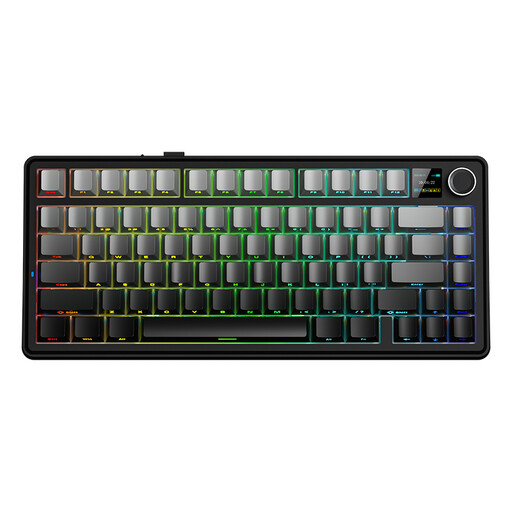
AULA F75 MAX 75%, QWERTY US, Reaper Switch
The 75% layout could suit you if you’re looking for a compact keyboard; check that the keys you use in your design software are easy to reach.
QWERTY US layout. Wired, Bluetooth and 2.4 GHz, according to the product name.
View at Joybuy
 No image available
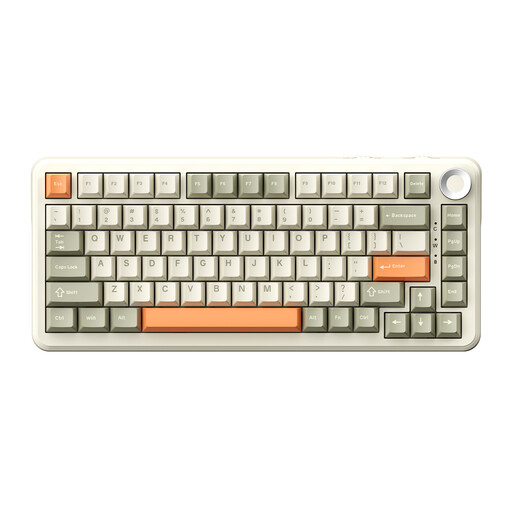
AJAZZ AK820 MAX 75%, QWERTY US, Flying Fish Switches
This compact model may appeal if you’re looking for a 75% layout with mechanical keys; compare the layout with the shortcuts you use regularly.
Tri-mode connectivity. Hot-swappable, according to the product name.
View at Joybuy
 No image available
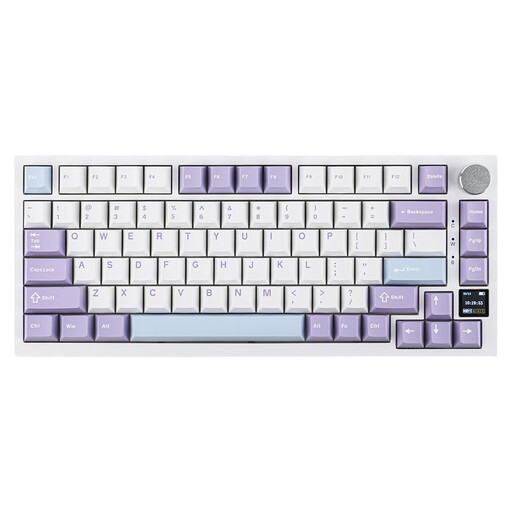
Ajazz AK820 Pro 75%, QWERTY US, purple Flying Fish Switch
The 75% layout could suit you if you’re looking for a compact model; check that the keys you need are easy to reach beforehand.
Tri-mode connectivity, TFT display and hot-swappable, according to the product name.
View at Joybuy
 No image available
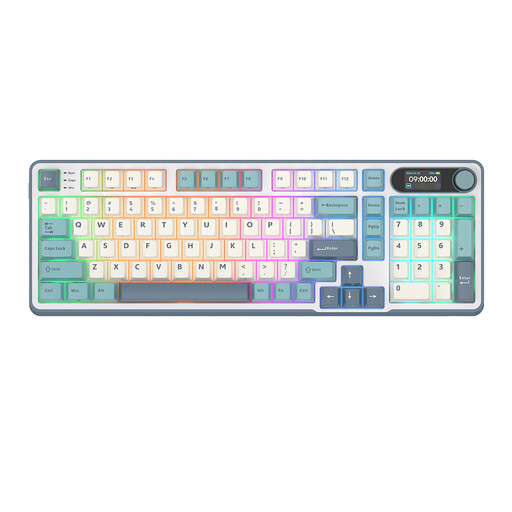
RK ROYAL KLUDGE S98 96%, Snow Emperor Switch
The 96% layout with a numeric keypad could suit you if you want to keep that section; remember to allow space for your pointing device when positioning it.
98 keys. Bluetooth, 2.4 GHz and USB-C, according to the product name. The product name also mentions software control and a smart display with a rotary knob.
View at Joybuy
 No image available
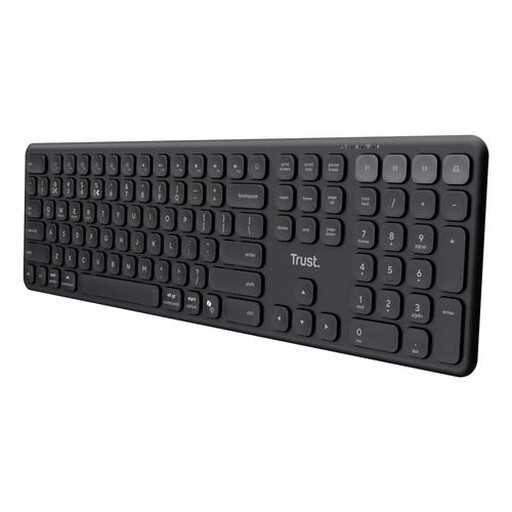
Trust Vaiya wireless full-size keyboard, QWERTY US
This full-size model could suit you if you want a numeric keypad; bear in mind that its layout takes up more space beside the keyboard.
QWERTY US layout and scissor keys, according to the product name.
View at Joybuy
Frequently asked questions
How should you adjust your keyboard when standing?
Place the keyboard directly in front of you and adjust the desk height so your shoulders stay relaxed, your elbows are close to your body and your wrists remain straight. Check your setup again when switching between sitting and standing; alternating between the two is still important.
Do you need to buy a US QWERTY keyboard for Figma?
No, not necessarily. Figma bases its default shortcuts on US QWERTY, but offers settings for other supported layouts. Check that your physical layout is supported and that the shortcuts you use most are easy to access on it.
What can you do if your keyboard doesn’t work or you don’t like it?
First, check the connection and compatibility of the exact version. If you buy online as a consumer from a business in the Netherlands, you’re entitled to a 14-day cooling-off period in many cases, according to the Dutch government; the seller must tell you about the terms and conditions. If the product is faulty, contact the seller about your consumer rights.
Is an ergonomic keyboard required for screen-based work in the Netherlands?
Arboportaal doesn’t specify a particular ergonomic keyboard model. However, workplace requirements apply to employees who work at a screen for more than 2 hours a day; the screen and keyboard must not be attached to each other. Practical advice on working posture is separate from choosing one specific model.


