For a total of two screens, your laptop screen and one external monitor may be enough. Two external monitors are mainly an option if your computer supports that setup and you have enough desk space. Before you buy, check how many external displays your computer can support and whether the connection you choose supports video, charging if needed, and your preferred configuration.
Who is this choice relevant to?
Reading code and test output side by side
If you want to keep your code on one screen and read test output or documentation on the other, you’ll benefit from a setup with plenty of clear, usable screen space. Philips and HP describe monitors in a range of screen sizes and resolutions.
A laptop with limited connectivity
If you use a laptop as your main computer, it’s worth checking whether that exact model supports the number of external displays you want and whether the port you choose can output video. Apple Support recommends checking the specifications for your specific Mac model.
Long days in front of screens
If you spend long periods reading code or test results, consider how your screens are positioned and whether they can be adjusted. Arboportaal recommends placing a screen directly in front of you.
What should you look for when choosing?
First, choose a screen layout that works with your computer and desk. Then compare the monitor’s usable screen space, connections and adjustment options.
| What to consider |
What should you check? |
Who is this important for? |
| Readable screen space |
Compare the screen size and native resolution, and consider whether text is comfortable to read from your usual viewing distance. |
If I’m reading code and test output at the same time, I want enough space without the text becoming too small. Around 33% of consumers put usable, readable screen space first. |
| Connections and display support |
Check your exact computer model, how many external displays it supports, and whether the port you choose supports video and, if needed, charging. |
If I’m not sure whether my laptop can handle the screen setup I want, I’d like to check the connections first. Around 27% of consumers prioritise compatibility. |
| Adjustability |
Check the exact model for height adjustment, tilt and any pivot adjustment. |
For long reading sessions, I want to be able to position my main monitor comfortably. Around 20% of consumers start by looking at adjustability. |
| Desk space and setup |
Measure the available space and compare a laptop plus monitor with two external displays or one larger screen. |
If my desk space is limited, I want to know which screen layout will fit and what connections I’ll need. Around 20% of consumers put available space and the complete setup first. |
Common mistakes when choosing
-
Assuming USB-C automatically means two displays and laptop charging
Your computer, port, monitor and connection all need to support the screen setup you choose. USB-C alone doesn’t tell you whether your laptop can handle the number of external displays you want.
Check the capabilities of your exact computer model and monitor before choosing a setup.
Depending on the setup you choose, you may need a different cable or dock. Check which connections you already have.
-
Comparing resolution alone
A higher resolution doesn’t, by itself, determine whether text will be comfortable to read at your desk. Screen size, viewing distance and scaling settings also matter.
Compare screen size and resolution together, and check how text looks where you plan to use the monitor.
-
Confusing an extended warranty with your statutory rights
According to the Dutch government, you’re entitled to a product that works as it should, and you should be able to contact the seller if something goes wrong. An additional warranty package doesn’t replace your statutory rights.
Read what specific cover an additional warranty provides and who to contact if there’s a fault.
Brands to consider
Philips
Philips describes the 27E1N5600AE/00 as a 27-inch QHD USB-C monitor for a compatible notebook.
- Philips says this model can combine video, data and charging through a single USB-C connection.
- Check what your notebook supports. This monitor information doesn’t confirm that your computer can drive two external displays.
HP
HP’s Series 5 Pro range includes, among other models, the 24-inch WUXGA 524pn and the 27-inch QHD USB-C 527pu.
- HP lists DisplayPort out and USB-C for the 527pu, and describes the 524pn as being used with a dock.
- These features apply to the models mentioned. Also check that your computer and connection will work with your preferred setup.
Dell
Dell lists a 27-inch QHD screen for the Pro 27 Plus QHD USB-C hub monitor P2725DE.
- Dell specifies 90 W USB-C power delivery for this model.
- Check that the charging power and video connection meet your computer’s needs.
LG
LG lists the 27UP850K-W as a 27-inch 4K USB-C monitor.
- LG lists height, tilt and pivot adjustment for this model’s stand.
- A 4K resolution doesn’t, by itself, determine whether text will be comfortable for you to read; bear scaling settings in mind too.
Joybuy monitors for this workspace
This selection includes screens for anyone looking for an extra monitor to use alongside a laptop, or wanting to arrange windows on one larger screen.
 No image available
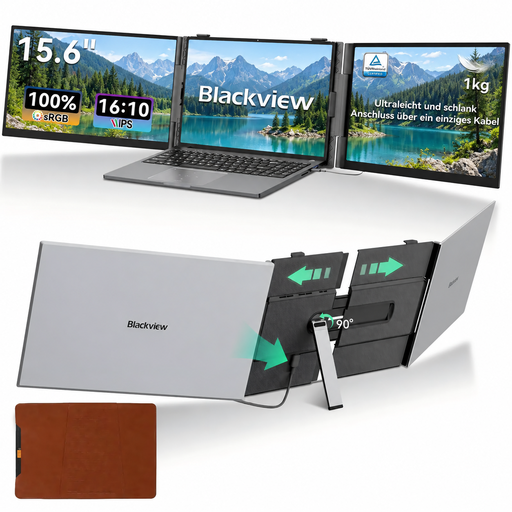
Blackview DCM6 PRO portable 14-inch Full HD monitor
An option if you’re looking for an extra screen to use alongside a laptop.
14 inch; Full HD; suitable for 13–17.3-inch laptops according to the product name.
View at Joybuy
 No image available
MSI Modern MD272UPHG
An option if you want to arrange code and test output on one larger screen.
27 inch; 3840 × 2160 pixels; 4K Ultra HD.
View at Joybuy
 No image available
Iiyama ProLite 34-inch curved UWQHD monitor with USB-C dock
An option if you want to arrange several work windows on one larger screen.
34 inch; UWQHD; curved screen; USB-C dock, LAN and KVM switch according to the product name; 15 cm height-adjustable stand.
View at Joybuy
 No image available
LG 34WR50QK-B
An option if you want to view code and test output side by side on one widescreen.
34 inch; 3440 × 1440 pixels; Wide Quad HD.
View at Joybuy
 No image available
Philips E Line 346E2CUAE/00
An option if you want to arrange several windows on one ultra-wide screen.
34 inch; 3440 × 1440 pixels; Wide Quad HD+.
View at Joybuy
Frequently asked questions
Do I need two external monitors for a two-screen workspace?
No. Your laptop screen and one external monitor also give you two physical screens. If you want to connect two external monitors, first check how many external displays your computer model supports.
Can I connect a second monitor to the DisplayPort output on the first?
Only if the complete setup supports the required daisy-chaining feature. A DisplayPort output on the monitor isn’t enough on its own; check that your computer and the connection you’ve chosen support it too.
Does USB-C mean your monitor will display video and charge your laptop?
Not automatically. Check whether the USB-C port on your exact computer model supports video and whether the monitor’s charging power is suitable for your laptop. Also check that your computer can handle the number of external displays you want.
How should you position your main screen?
Arboportaal recommends placing the screen directly in front of you, with the top just below eye level. Position a second screen according to how often you look at it.
Are there Dutch workplace rules that determine which monitor you should buy?
There isn’t one prescribed monitor model. Arboportaal sets out rules for applicable screen-based work by employees; whether they apply to you depends on your working situation.


