Who is this setup for?

Accessibility tester working with two windows

This user wants to see the test page and reference materials or tools at the same time, without assuming that two screens alone guarantee accessibility. The W3C Web Accessibility Initiative highlights visible focus and predictable focus movement, among other things.

Laptop user adding a second screen

This user wants to decide whether the laptop screen and one external monitor will be enough, and check which video output the laptop has. Microsoft Support explains how to arrange multiple screens in Windows.

Tester with a permanent desk setup

This user wants to position the screens comfortably and check which rules apply to their working situation. Arboportaal outlines the Dutch rules for screen-based work in a workplace context.

What should you consider when choosing?

Laptop plus one external monitor

Suitable when: the laptop screen works well for notes or tools, and you want to use one larger screen for the test page.

Worth considering: check that your laptop has a suitable video output, and bear in mind the difference in size and height between the two screens.

Two external monitors

Suitable when: you want to view the test page and reference materials or tools on separate external screens.

Worth considering: check that your computer or dock supports two separate video signals. This setup also needs more desk space and connections.

Two external monitors daisy-chained

Suitable when: your connection plan relies on daisy-chaining and your computer, connection and first monitor support the required video output.

Worth considering: a USB-C input alone doesn’t confirm daisy-chain support. Check the entire connection before buying.

What to consider What should you check? Who is this important for?
Connections Check the video outputs on your computer or dock, and the inputs on the monitor. Count the laptop screen too; don’t assume daisy-chain support without checking it explicitly. If I want to use two screens at once, I want to be sure my equipment supports the setup I’ve chosen. Around 33% of consumers give connection compatibility top priority.
Visible focus Consider the screen size and resolution at your preferred text size. Test focus visibility, focus order and keyboard navigation using Tab and Shift+Tab on the website. If I want to follow the focus and content easily during testing, I look for a readable display and test the interface separately. Around 27% of consumers prioritise focus visibility and readability.
Adjustability Check the available height, swivel and pivot adjustments, the dimensions of the screen and stand, and the space available on your desk. If I’m working with two screens for long periods, I want to position them comfortably in my workspace. Around 20% of consumers give adjustability top priority.
Complete setup Plan how everything will connect and check which cables, dock (if needed) and mounting options you’ll need. Don’t look at just one monitor specification. If I want a straightforward, complete setup, I want to know in advance which components I’ll need. Around 20% of consumers prioritise keeping extra purchases to a minimum and choosing a simple setup.

Common pitfalls

  • Assuming USB-C guarantees support for two screens

    A USB-C connection doesn’t prove that a monitor can pass the picture on to a second screen. The setup also depends on your computer and its actual video outputs.

    Map out the connections from your computer to both screens and check what each port does, including the one on the first monitor.

    If your existing connections aren’t sufficient, you may need a suitable adapter or dock.

  • Expecting a monitor to guarantee keyboard accessibility

    Visible focus and keyboard controls are features of the interface you’re testing, not of the screen. The W3C Web Accessibility Initiative highlights visible focus as something to consider in an interface.

    Choose a setup that lets you follow the content, then carry out the keyboard test separately.

  • Looking at the monitor alone

    A two-screen setup also needs suitable connections and enough space. A monitor on its own won’t tell you whether the complete desk setup will work.

    Measure the available space and check the connections and cables you’ll need, as well as whether you need a dock or monitor arm.

    Depending on the setup you choose, you may need an extra cable, dock or monitor arm.

  • Confusing an additional warranty with all your legal rights

    ACM ConsuWijzer distinguishes between the legal guarantee and a commercial warranty from the seller or manufacturer.

    Check what any additional cover offers, without assuming that it replaces your legal rights.

Brands and models to consider

Dell

The UltraSharp U2725QE is a documented 27-inch 4K hub option. Dell lists adjustability and a Thunderbolt connection for this model.

  • The connections and adjustments listed may be useful if your setup needs these features.
  • Check that the extra hub features are compatible with your computer and chosen connection setup.

Lenovo

Lenovo describes the ThinkVision T27h-30 as a 27-inch QHD model with USB-C docking and a DisplayPort output.

  • Lenovo specifies a resolution of 2560 × 1440, a DisplayPort output and an adjustable stand for this model.
  • Check that your computer, cables and monitor work together to support the daisy-chain connection you want.

BenQ

BenQ describes the GW2790QT as a 27-inch QHD model with USB-C and a DisplayPort output.

  • BenQ lists DisplayPort output with MST, plus height and pivot adjustment, for this model.
  • The specified USB-C power delivery is 65 W; check that this suits your laptop. A USB-C input alone doesn’t confirm daisy-chain support.

HP

HP describes the E27k G5 as a 27-inch 4K model with USB-C and adjustability.

  • HP lists a resolution of 3840 × 2160 and adjustability for this model.
  • Check the connections and features of the exact version to make sure it suits your setup.

Philips

Philips describes the Business Monitor 27B2U3601/00 as a 27-inch QHD model with an IPS screen and SmartErgoBase.

  • Philips lists QHD and SmartErgoBase for this model.
  • Don’t assume that the presence of USB-C means video can be daisy-chained; check the specifications for the exact version.

Joybuy monitors for one external screen

These Joybuy models are designed to be used as one external screen alongside your laptop screen. Check your computer’s video output and make sure the listed connections suit your setup.

Philips Evnia 27M2N3500NF 27-inch QHD monitor

Philips Evnia 27M2N3500NF 27-inch QHD monitor

Can be used as an external screen alongside a laptop screen; check whether one of the listed inputs is compatible with your computer.

27 inch, QHD, IPS, 144 Hz, DisplayPort 1.4 and HDMI 2.0.

View at Joybuy

LG Ultragear 27GX704A-B.AEU 27-inch OLED QHD monitor

LG Ultragear 27GX704A-B.AEU 27-inch OLED QHD monitor

Could be considered as an external screen alongside a laptop screen; check your computer’s output and the cable you’ll need.

27 inch, OLED, QHD 2560 × 1440, 240 Hz, 2 × HDMI 2.1 and 1 × DisplayPort 1.4.

View at Joybuy

INNOCN 2751S PLUS 27-inch Mini LED QHD monitor

INNOCN 2751S PLUS 27-inch Mini LED QHD monitor

An option for use as an external screen alongside a laptop; check which input your computer supports.

27 inch, QHD, IPS, HDMI and DisplayPort; the title specifies a height-adjustable stand.

View at Joybuy

KTC H27E6S 27-inch QHD monitor

KTC H27E6S 27-inch QHD monitor

Can be used as an external screen alongside a laptop screen; match the input to your computer’s video output.

27 inch, QHD 2560 × 1440, HDMI 2.0 and DisplayPort 1.4. The listed refresh rate is 240 Hz, overclockable to 275 Hz; the title specifies a height-adjustable stand.

View at Joybuy
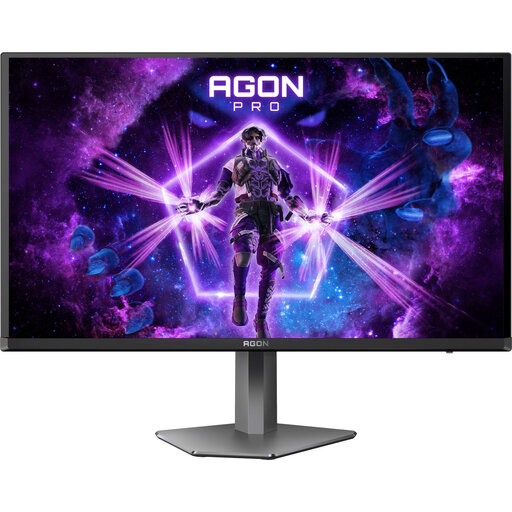
AOC AGON PRO AG276QZD2 27-inch QHD monitor

AOC AGON PRO AG276QZD2 27-inch QHD monitor

Can be used as an external screen in a setup with a laptop screen; check that the listed inputs are compatible with your computer.

27 inch, QHD 2560 × 1440, 2 × HDMI and 2 × DisplayPort. The title specifies height, pivot, swivel and tilt adjustment.

View at Joybuy

Frequently asked questions

Do I need two external monitors for two-screen testing?

No. Your laptop screen can be the first screen and one external monitor the second. Check that your laptop can drive the external monitor, then set the screens to extended display if you want separate workspaces. Microsoft Support explains how to arrange multiple monitors in Windows.

Can I automatically daisy-chain two external monitors via USB-C?

No, a USB-C input alone doesn’t confirm that. Check explicitly that the first monitor has a video output or daisy-chain function, and that the entire computer and connection chain supports it.

How do I test keyboard navigation once the screens are connected?

Arrange the screens in your operating system, then navigate the interface using your keyboard. Check that focus is visible and that Tab and Shift+Tab move logically between interactive elements. The W3C Web Accessibility Initiative highlights visible focus as something to consider in an interface.

What rules apply to a screen-based workstation in the Netherlands?

For employees who work with screens for more than two hours a day, Arboportaal notes, among other things, that the screen and keyboard must not be attached to each other. These workplace rules don’t necessarily apply to every private buyer.

What warranty applies if a monitor develops a fault too soon?

For a consumer purchase in the Netherlands, the seller is responsible under the legal guarantee if the product doesn’t do what you could reasonably expect when used normally. According to ACM ConsuWijzer, a commercial warranty doesn’t replace this right; there is no general fixed two-year period for the legal guarantee.
