If you want to see the line directly beneath your pen and use your other screen for references, choose a pen display that works with your computer. If you’d rather use a screenless tablet while looking at an existing monitor, that type of device may suit you better. Whichever option you choose, check the screen layout, pen mapping, connections and compatibility with your drawing app and computer.
Who is this choice for?
Artists with a reference screen
Want to draw cartoon expressions directly on a pen display and use your existing screen for references? Check whether your computer supports the extra screen and the connection required by your chosen model. Huion Support and XPPen describe pen displays for this type of workflow.
Artists with two existing monitors
If you already have two screens and are considering a screenless pen tablet, check which screen the pen controls. Wacom Support explains that, when several monitors are connected, you can map the active area to those screens.
Artists with limited desk space
If you want enough room for lines and details without cluttering your desk with unnecessary equipment, compare the active drawing area and external dimensions of specific models. The stated dimensions vary between the Huion, XPPen and Wacom models reviewed.
What should you look for when choosing?
First decide whether you want to draw directly on the screen or look at a monitor while drawing on a separate surface. When comparing your options, also consider how your two screens are set up and how much desk space you have.
| Factor to consider |
What should you check? |
Who is this important for? |
| Drawing directly on the screen |
Check whether the model is a pen display, its screen size and the video and data connections your computer requires. |
Want to draw cartoon eyes, mouths and other details directly beneath the pen tip, while using your other screen for references? Around 36% of consumers consider drawing directly on the screen their top priority. |
| Using the pen on the right screen |
Choose whether to extend or mirror your screens, then check in the tablet software which screen is mapped to the pen’s active area. |
If you want your drawing app on one screen and references on the other, check that the pen controls the right monitor. Around 29% of consumers pay most attention to their two-screen setup. |
| Control over fine lines |
Compare the drawing area, included pen and customisable buttons of the exact model; don’t treat pressure-level specifications as proof of better performance. |
If you want to work on short lines and varied brush strokes when drawing expressions, pay attention to the pen and active area. Around 21% of consumers put line control first. |
| Space and connections |
Compare the external dimensions with the space available on your desk, and check the required connections and included accessories for the version you’ve chosen. |
If you want to know in advance whether the setup will fit on your desk and connect to your computer, check the model’s dimensions and connection requirements. Around 14% of consumers are mainly concerned about space and what they’ll need. |
Common buying mistakes
-
Assuming an LCD writing tablet is a computer-compatible pen display
The term ‘drawing tablet’ doesn’t tell you on its own whether a device works as an extra computer screen or as an input device for your drawing.
Check that the product explicitly supports the computer connection you need for your drawing workflow. Don’t automatically assume that a standalone LCD writing tablet is a pen display.
-
Connecting an extra screen without setting up the pen’s active area
After extending your desktop, the pen may respond on a different screen from the one you intend to use. Huion Support explains how to set the active area in the tablet software.
Check your computer’s screen layout, then select the screen you want to draw on in the tablet driver.
-
Comparing only pressure levels or a software offer
The stated number of pressure levels doesn’t tell you on its own how a pen will work in your drawing app. Wacom lists registration and duration conditions for certain Intuos software offers.
First compare the device type, drawing area, connections and app compatibility. For software, read the offer terms for the exact model.
Relevant brands for pen displays and drawing tablets
Huion
The Kamvas 13 (Gen 3) is a pen display for anyone who wants to draw on its own screen. Huion provides instructions for extending your screen and mapping the pen when using multiple screens.
- Huion lists a 13.3-inch FHD screen, PW600L pen and customisable shortcuts for the Kamvas 13 (Gen 3).
- These specifications aren’t an independent user test. Check the connection required for the version you choose.
Wacom
Wacom offers two different types of device here: the Wacom One DTC141 pen display and the screenless Intuos S pen tablet.
- Wacom lists a 14-inch screen and an included battery-free pen for the DTC141. For the Intuos S Bluetooth model reviewed, Wacom specifies an active area of 152 × 95 mm.
- These specifications apply to the models listed, not the entire Wacom range.
XPPen
The Artist 12 (2nd Gen) is a compact pen display worth comparing if you already have a computer screen.
- XPPen lists an 11.9-inch screen, an included pen and customisable shortcut keys.
- The manufacturer’s claims about pen responsiveness aren’t an independent performance measure. Check the cables and connection required for the version you’re buying.
Joybuy product picks for drawing with a stylus
These Joybuy picks include a pen display, a screenless pen tablet, tablets and an LCD writing tablet with a stylus. For each model, check that the device type and connection suit your drawing app and the way you want to work across two screens.
 No image available
Wacom One pen display 14.0"
Suited to anyone who wants to draw directly on a pen display. Check that your computer and drawing app work with the chosen connection and operating system.
The product information lists an active drawing area of 309 × 174 mm, 4096 pressure levels and USB-C. The operating systems listed are Windows 10 or later, macOS 13 or later and ChromeOS.
Joybuy
 No image available
Wacom Intuos Pro Large Pen Tablet
Suited to anyone who wants to draw on a screenless tablet while viewing their work on an existing monitor; this model doesn’t add a screen of its own.
The product information lists an active area of 349 × 195 mm, 8192 pressure levels, tilt recognition, programmable ExpressKeys, a Touch Ring and USB-C or Bluetooth connectivity. The description says you’ll need to install the Wacom driver to use all the pen and shortcut key features.
Joybuy
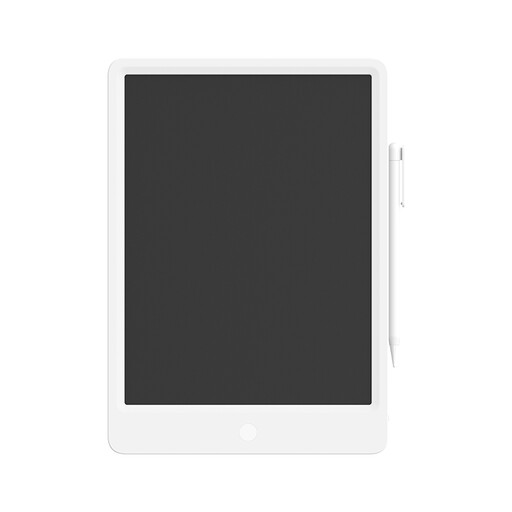 No image available
Mi LCD Writing Tablet 13.5" Digital
The product name describes an LCD writing tablet with a stylus. Check that this device suits the drawing app and workflow you need; don’t assume it’s a pen display for your computer.
Joybuy
 No image available
TECLAST ArtPad Pro Tablet, 12.7-inch 2K
Suited to anyone considering a tablet with a stylus for drawing and sketching. Check that the available drawing app and pen controls fit the way you work across two screens.
The product name lists a 12.7-inch 2K screen, 20 GB (8 GB + 12 GB Virtual) RAM and 256 GB storage.
Joybuy
Frequently asked questions
Should you mirror or extend the two screens?
Choose extend if you want to show your drawing app and references on separate screens; mirror displays the same image on both screens. Then map the pen to the screen you’re drawing on in the tablet driver.
What if the cursor appears on the other monitor?
Check your computer’s screen layout, then select the intended pen active area in the tablet driver settings. Huion explains how to do this for its own driver; if you have another brand, refer to the instructions for that model.
Does a screenless drawing tablet have a second screen of its own?
No. You draw on the tablet surface and view the result on an existing screen. If you have multiple monitors, you can set up the pen mapping.
Is a manufacturer’s warranty the same as the Dutch statutory guarantee?
No. According to the Dutch government, there’s no fixed time limit for the statutory guarantee in the Netherlands: you’re entitled to a product that meets what you can reasonably expect from it. A manufacturer’s or seller’s warranty is additional; if a product is faulty, the seller is your point of contact.
Can you buy a drawing tablet online and cancel the purchase?
If you buy remotely from a business as a consumer, the Dutch government says you’ll often have a 14-day cooling-off period. Check the terms and any applicable exceptions for your purchase.


