
Map-maker who needs two work views
You want to see a map alongside a second view or work panels. QGIS documentation describes additional 2D map views and a floating, dockable 3D map panel.


For two map views, or a map alongside tools, two similar QHD screens make a sensible setup. If you want to examine fine map details on one screen, consider a 4K main screen alongside a second monitor. QGIS documentation describes additional 2D map views and a floating 3D map panel. Before choosing, check that your computer supports both screens at the resolutions you want, and bear in mind scaling settings and differences in colour reproduction.
You want to see a map alongside a second view or work panels. QGIS documentation describes additional 2D map views and a floating, dockable 3D map panel.
You want to check terrain details on the main screen and pay attention to resolution and the colour features stated by manufacturers. These claims are not an independent measurement of colour consistency between two screens.
You want to expand your existing setup and need to check how each connected screen can be configured, as well as which connections your computer supports.
First decide whether you mainly want two similar work views or extra detail on the main screen. Then check that your computer supports your chosen screens and connections.
| What to consider | What to look for when buying | Who is this important for? |
|---|---|---|
| Space for maps and tools | Decide what you’ll use each screen for, then compare screen size, resolution and the desk space available. | If I want to see maps and tools at the same time, I want to use both work views side by side without losing clarity. Around 40% of consumers give top priority to having workspace for maps and tools. |
| Map detail and colour reproduction | Compare the resolutions of the exact models and check their colour settings; a manufacturer’s claim does not prove that two screens will match. | When I’m checking fine terrain details on the main screen, I want to choose a resolution that suits the task and compare colour claims carefully. Around 30% of consumers prioritise map detail and colour reproduction. |
| Connecting two screens | Check the video outputs on your computer or dock, the inputs on both monitors and the resolution supported by each connection. For USB-C, also check video support and charging power. | If my laptop needs to run two screens, I want to know in advance which connections and, if needed, which dock will work. Around 20% of consumers base their choice mainly on the available connections. |
| Positioning and adjustment | Measure your workspace and check the exact model’s height adjustment, swivel and any VESA mounting options. | For a setup where I split maps and work panels across two screens, I want to be able to position and adjust them to suit my needs. Around 10% of consumers give positioning and adjustability top priority. |
When screens have different resolutions, you may need to adjust the scaling separately to keep text and work panels easy to read.
Decide in advance what you’ll do on each screen, then check the resolution and scaling you want for each one.
A monitor’s features don’t automatically tell you what your computer or the entire connection chain can support.
Check video support, available outputs and the connections between your computer, any dock and both monitors.
Depending on the connections available, you may need a suitable dock or cable.
A manufacturer’s claim for one monitor doesn’t show that its colours will match those of another screen in your setup.
Check the colour settings on both screens and assess the final map view on the screen you’ll use to check it.
Dell Netherlands lists the P2725D as a 27-inch QHD monitor, which could be a good starting point for a similar two-screen setup.
LG lists the 27UP850K-W as a 27-inch 4K monitor for anyone considering a more detailed main screen.
BenQ lists a 27-inch 4K screen with colour modes and USB-C features for the PD2705U.
The ASUS ProArt PA278CV is a QHD alternative with colour features and adjustability stated by ASUS.
The monitors below are options for a second work view. Their product titles include terms such as QHD or 2K; compare the resolution, size and connections of each model with your first screen and computer.
 No image available
A QHD option if you’re looking for a screen with a stated resolution of 2560 × 1440 for map views and work panels.
The product title lists 2560 × 1440, 2 HDMI 2.0 ports and 1 DisplayPort 1.4 port.
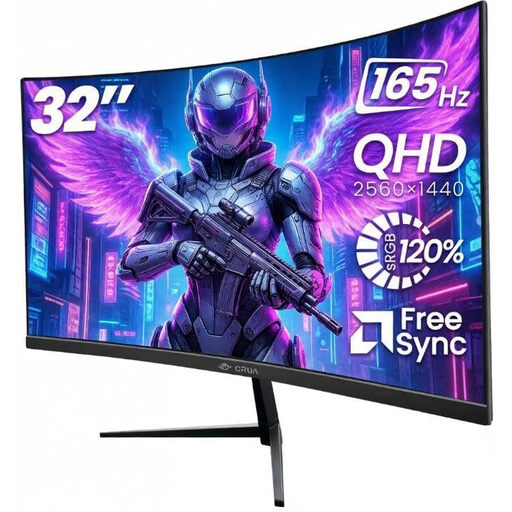 No image available
A larger QHD screen to consider if you want plenty of room to arrange map views and work panels.
The product title lists 2560 × 1440 resolution and VESA 100 × 100 mm mounting.
 No image available
A 27-inch QHD option if you’re looking for a second screen with a stated resolution of 2560 × 1440.
The product information lists an IPS panel and HDMI and DisplayPort inputs.
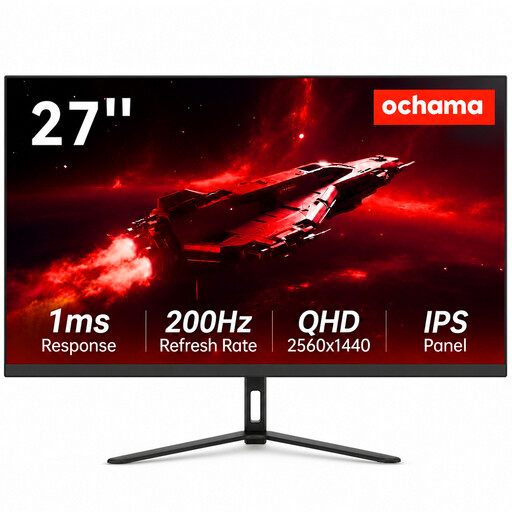 No image available
A 27-inch option to compare if you want to use a second work view alongside your existing screen.
The product title lists 2K and a slim-bezel design.
 No image available
A 27-inch QHD option if you want to arrange map and work views on a screen with a stated resolution of 2560 × 1440.
The product title lists an IPS panel and HDMI and DisplayPort connections.
No, not necessarily. Microsoft Support explains that you can select and configure connected screens individually in Windows. If their resolutions differ, compare how easy maps, text and work panels are to read.
QGIS documentation describes additional 2D map views and a floating, dockable 3D map panel. Connect the screens and check your display arrangement before spreading the windows across both screens.
Not without checking compatibility. BenQ lists DisplayPort Alt Mode and 65 W Power Delivery for the PD2705U; ASUS lists these features for the PA278CV. Also check that your computer’s USB-C port supports video and that its charging power is suitable for your laptop.
If a product is faulty, the Dutch Government says you’re entitled to a product that works properly, and the seller is your point of contact about the fault. The cooling-off period for distance purchases is separate and is usually 14 days; check the information on the terms and exceptions that apply to your purchase.