What should you consider when choosing?
First decide which screen you’ll use to make your final colour decisions. Then choose the second screen’s features to suit what you’ll actually use it for.
| What to consider |
What to look for when buying |
Who is this important for? |
| Colour for skin tones and prints |
Check the colour gamut and calibration features of the exact model. Use suitable monitor and output profiles for your workflow. |
If I edit portraits for print, I want to assess skin tones carefully on my main screen. Around 40% of consumers prioritise colour accuracy. |
| Working with two screens |
Check that your computer and monitors support the connections you need. Set up display settings and profiles for each screen you use to assess colour. |
If I compare images across two screens, I want to know whether differences in how they look could affect my assessment. Around 30% of consumers prioritise working across two screens. |
| Detail on the main screen |
Compare resolution at the same screen size and decide which screen will display the image you’re editing. |
If fine retouching details are my top priority, I look at the resolution of the screen I’ll be working on. Around 20% of consumers prioritise detail. |
| Features of the second screen |
Decide whether the second screen will mainly show palettes and references, or whether you’ll also make final colour decisions on it. Check the connections and required features for each screen. |
If I mainly need extra workspace, I don’t want to automatically buy the same features for both screens. Around 10% of consumers mainly want to decide which features the second screen needs. |
Monitors at Joybuy
This selection includes monitors for a detailed main screen and for a dual-monitor portrait retouching setup. Check how each model’s features suit the way you divide your work and the computer you use.
 No image available
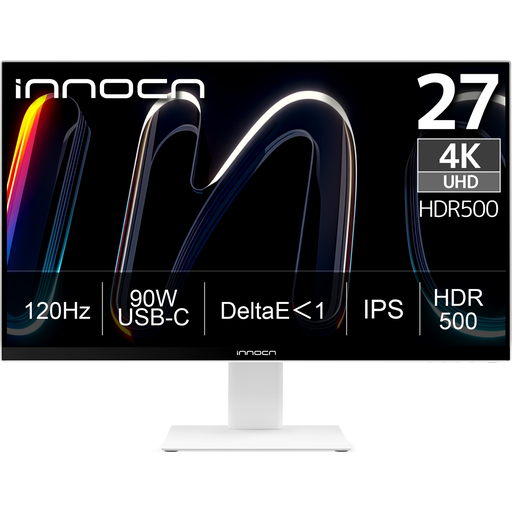
INNOCN CB27U1 27-inch 4K UHD monitor
An option if you’re looking for a detailed main screen and want to use picture arrangement features on your monitor.
27 inch; 3840 × 2160; IPS; 120 Hz; HDR500; FreeSync; PIP and PBP; USB-C with 90 W PD; HDMI and DisplayPort connections; height-adjustable; white.
View at Joybuy
 No image available
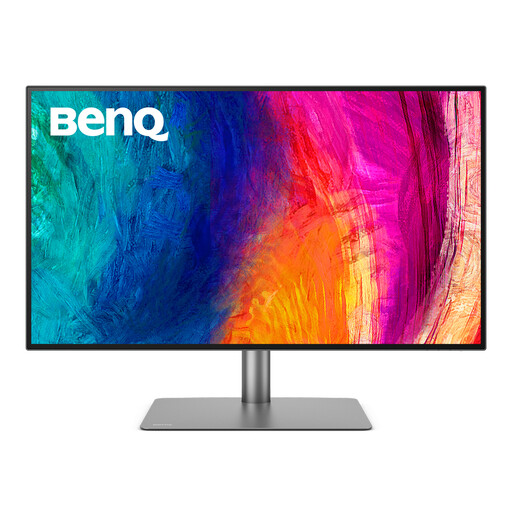
BenQ PD3225U 32-inch 4K monitor
The 32-inch size is worth considering if you’d like a larger main workspace for retouching.
32 inch; 3840 × 2160 pixels; 4K Ultra HD; LED; black.
View at Joybuy
 No image available
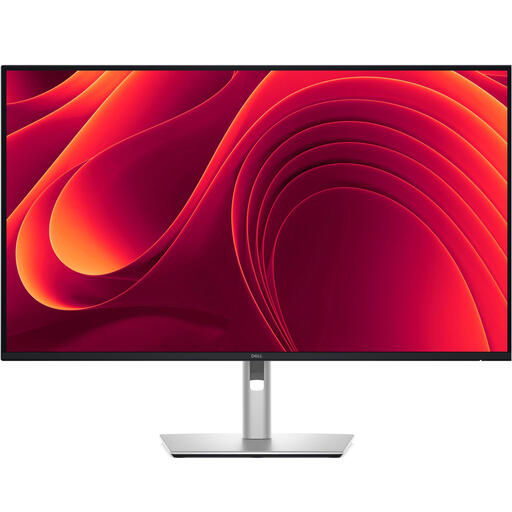
Dell Pro Plus P3225QE 31.5-inch 4K monitor
The stated screen size and resolution may be worth considering if you’re looking for a large main screen for retouching.
31.5 inch; 3840 × 2160 pixels; 4K Ultra HD; LCD; black and grey.
View at Joybuy
 No image available
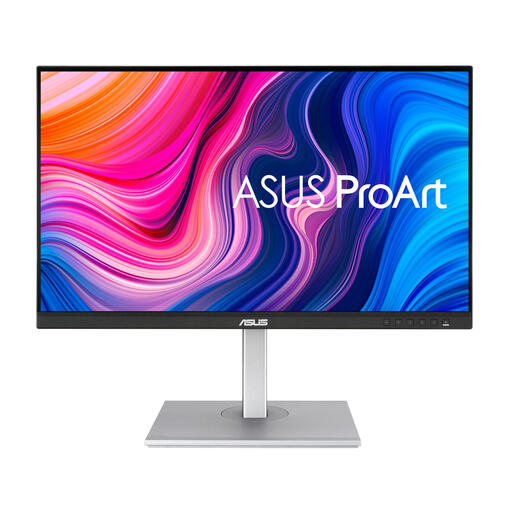
ASUS ProArt PA278CV 27-inch QHD monitor
This QHD model could work well as a screen for palettes or references; decide whether you’ll also use it to make final colour decisions.
27 inch; 2560 × 1440 pixels; ASUS specifies 100% sRGB for this model.
View at Joybuy
 No image available
ASUS ProArt Display PA24ACRV 23.8-inch QHD monitor
The 23.8-inch QHD model is worth considering if you’re looking for a more compact screen for your setup.
23.8 inch; 2560 × 1440 pixels; Quad HD; LCD; black.
View at Joybuy
Frequently asked questions
Do both screens need to be the same model?
No, not necessarily, if you use one screen for final colour assessment and the other mainly for palettes or selections. If you assess colour on both screens, check their display and profiles separately; the same model name doesn’t guarantee they’ll look the same.
How do I use the second screen in Lightroom Classic?
Lightroom Classic can display a second window on a connected second screen. According to Adobe, commands and edits are applied to the photo or photos selected in the main window, regardless of what’s selected in the second window.
Is factory calibration enough for portraits I’m printing?
Also check the current monitor profile and, for printing, the output profile for the printer, ink and paper combination you’re using. Adobe describes these profiles as separate parts of colour management; a stated factory figure doesn’t show how your complete workflow will perform.
What protection do I have when buying online in the Netherlands?
ACM ConsuWijzer says that, in most cases, you have a statutory 14-day cooling-off period after delivery when buying online as a consumer, with some exceptions. The statutory guarantee also applies if a product doesn’t perform as you could reasonably expect under normal use; this is separate from any manufacturer’s warranty.
Which EU product information is relevant when buying a monitor?
Applicable EU rules on CE marking apply to electronic equipment. The European Commission also lists energy labelling and ecodesign requirements for electronic displays, including computer monitors. Check the information for the specific model; general rules don’t confirm that an individual listing is compliant.


