Choose two similar photo monitors that can be adjusted independently if you want to assess colour in photos on both screens. If you’ll mainly use the second screen for selecting images and tools, one colour-focused main screen paired with a work screen may be enough. First check how many external displays your computer supports and whether its connections are compatible with both monitors. BenQ warns that even screens of the same model won’t necessarily show identical colours.
Who is this setup for?
Photo editor using two colour displays
You want to assess photos on both monitors, so you’ll need to consider the adjustment options and the ability to check each screen’s colour reproduction separately. BenQ emphasises that even monitors of the same model can show different colours.
Gallery creator using a main screen and a work screen
You assess photos on one main screen and use the second for selecting images, windows or tools. In that case, plenty of workspace and two working display connections are important.
Laptop user with two external displays
You want to know whether your laptop can drive both monitors at the same time and whether the connection setup supports the required resolution and any power delivery. Apple Support notes that the number of external displays depends on the Mac model, as well as the resolution and refresh rate being used.
What should you look for in two monitors?
Two similar photo monitors
Choose this if: you want to assess the colour of the same photos on both screens or move them between screens.
Bear in mind: you’ll need to adjust each screen separately, and allow space and budget for calibration equipment.
One colour-focused main screen and a work screen
Choose this if: you assess colour and detail on one screen and mainly use the second for selecting images or tools.
Bear in mind: a different panel may show the same photo differently, so assess the final colour on your adjusted main screen.
First decide what role each screen will play. Then check colour adjustment, available space and how your computer will connect.
| Consideration |
What should you check? |
Who is this important for? |
| Colour reproduction |
Compare the colour gamut and calibration method for each exact model. Adjust the screens separately if you’re using them for the same photo work. |
If I assess the colour of photos on both screens, I want to be able to adjust each one separately; around 36% of consumers say matching colours are their main concern. |
| Connections |
Check how many external displays your computer supports and which inputs, outputs and connections the monitors require. |
If you work from a laptop, you’ll want to know in advance whether it can drive two screens at the same time; around 29% of consumers prioritise connectivity. |
| Workspace |
Measure the available desk and viewing space. Compare resolution and adjustability, and decide which screen will be your main display. |
If you use the second screen for selecting images and tools, you’ll want to arrange photos and windows clearly; around 21% of consumers consider workspace layout the most important factor. |
| Setup costs |
Budget for two screens and check whether you already have the required cables and calibration equipment. |
If you don’t want to pay for the same specialist features on both screens, the role of the second screen will be key; around 14% of consumers prioritise the total cost of their setup. |
Things to consider before buying
-
Two identical models won’t automatically show identical colours
BenQ says that colour reproduction can vary even between screens of the same model. So don’t rely on the model name alone if you plan to use both screens for assessing colour.
Check both monitors for the colour gamut you need, and find out what calibration equipment is required for the exact model.
Adjusting each screen separately can take extra time, and you may also need calibration equipment.
-
A DisplayPort output doesn’t guarantee a working daisy chain
Whether monitors can be daisy-chained also depends on the computer, the connection and the displays involved. The number of supported external displays also varies by computer model.
Check your exact computer model and the complete connection setup before relying on daisy-chaining.
You may need a different cable or connection setup.
-
A manufacturer’s warranty is not the same as your statutory rights
According to the Dutch government, the Netherlands has no fixed statutory warranty period. If a product is faulty, contact the seller; a manufacturer’s warranty is separate from this.
Keep your proof of purchase and contact the seller if your product is faulty.
Relevant brands to consider
BenQ
The PhotoVue SW272U is an option for a colour-focused photo display or two similar photo monitors.
- BenQ specifies a 27-inch 4K display, 99% Adobe RGB and hardware calibration for the SW272U.
- These specifications don’t prove that two units will show the same colours. Check the calibration requirements and software compatibility.
EIZO
According to its own product information, EIZO’s ColorEdge CS2740 is designed for photography and image editing with hardware calibration.
- EIZO lists a 4K resolution on a screen of around 27 inches for this model, with calibration via ColorNavigator.
- If you use two screens, you’ll need to adjust each one; brand claims about precision are not an independent comparison.
ASUS
According to ASUS, the ProArt PA279CRV combines a wide colour gamut with connectivity options for a dual-screen setup.
- ASUS lists a 27-inch 4K display, 99% Adobe RGB, USB-C with 96 W power delivery and DisplayPort connections for daisy-chaining.
- Whether daisy-chaining works also depends on your computer and the complete connection setup.
LG
The UltraFine 27UP850K-W is worth considering if 4K, adjustability and USB-C are important to you.
- LG lists a 27-inch 4K display, typically 95% DCI-P3 and USB-C power delivery up to 96 W. LG says it supports hardware calibration.
- According to LG, Calibration Studio is not included. A stated colour gamut doesn’t prove that two screens will show the same colours.
Dell
Dell positions the UltraSharp U2725QE as a 27-inch 4K Thunderbolt hub monitor for a workspace with multiple connections.
- Dell lists features including an adjustable stand and Thunderbolt hub functionality.
- Check the connection setup for your computer separately. These specifications don’t prove that this model is the best choice for colour-critical photo editing.
Joybuy monitors for a dual-screen setup
These Joybuy products are suited to extending a laptop setup or creating a monitor setup for selecting photos and gaining workspace. Check whether each model is right for the role of main screen or work screen.
 No image available
Blackview DCM6 PRO portable 14-inch Full HD laptop monitor extender
The product title describes this model as a portable second monitor for laptops measuring 13–17.3 inches.
14 inches; Full HD.
View on Joybuy
 No image available
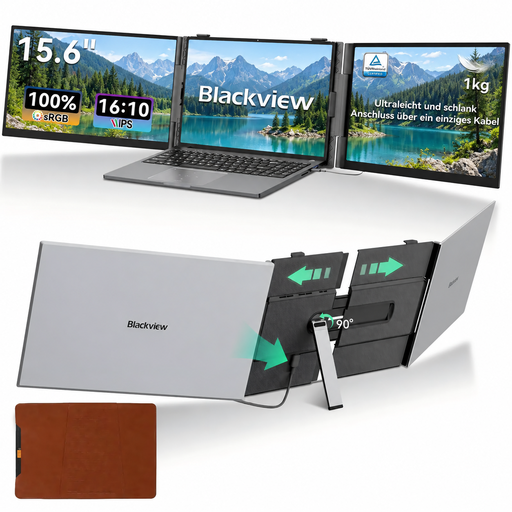
Blackview DCM8 Pro 15.3-inch FHD dual-screen portable monitor
The product title describes this as a portable dual-screen monitor for laptops, with a USB-C connection.
15.3 inches; FHD; USB-C; 1.2 kg.
View on Joybuy
 No image available
PM14R portable 14-inch FHD monitor
The title describes this model as a portable laptop monitor extender; the listed connections are Type-C and Mini-HDMI.
14 inches; 1920 × 1200; IPS.
View on Joybuy
 No image available
Philips 27E1N1800AE/00 27-inch 4K UHD IPS monitor
A 27-inch monitor for a dual-screen computer setup; the title lists a height-adjustable stand.
4K UHD; 3840 × 2160; 60 Hz; 4 ms; HDMI and DisplayPort.
View on Joybuy
 No image available
MSI Modern MD272UPHG 27-inch 4K UHD monitor
The product title lists a 27-inch 4K monitor. Check the colour settings and connections on this exact model before choosing it as your main screen for assessing photos.
27 inches; 3840 × 2160; 4K UHD.
View on Joybuy
Frequently asked questions
Do the two monitors need to be the same model?
No. If you assess colour on both screens, you’ll need to be able to adjust them appropriately and check each one separately. BenQ notes that even two units of the same model can show colours differently. If you use one screen only for windows, it doesn’t need to serve the same colour-related role.
Can I always connect the second screen to the first?
No. Daisy-chaining requires support from the computer, the connection and the monitors involved. According to Dell’s connection guide, daisy-chaining is not supported via HDMI; also check how many external displays your exact Mac model supports.
How do I set up two screens after installation?
First choose whether you want to extend your desktop or show the same image on both screens. Apple Support explains that you can set this up on a Mac under System Settings and Displays. Calibrate each screen you use to assess colour separately for your intended workflow.
What warranty do I have when buying in the Netherlands?
According to the Dutch government, you’re entitled to a product that works as it should, and the Netherlands has no fixed statutory warranty period. If a product is faulty, contact the seller; any manufacturer’s warranty is separate from this.
Can I return a monitor bought online?
According to the Dutch government, eligible distance purchases from a business generally come with a 14-day cooling-off period. Before ordering, check the returns information provided and whether your purchase is covered by these rules.


