
Print designer
You assess photos and colours for a printed magazine and want to decide which display will be your dedicated screen for colour decisions.


For magazine layout, one colour-critical main display is often enough, with a second screen for text, references and panels. Choose two screens for colour assessment if you make colour-critical decisions on both. Set the correct profile for each display you use for colour work: Adobe recommends an ICC profile that matches the monitor and its active display settings. Also check that your computer can run both displays at your preferred resolution.
You assess photos and colours for a printed magazine and want to decide which display will be your dedicated screen for colour decisions.
You keep spreads, text, references and layout panels open at the same time and mainly want a clear, readable setup across two displays.
You want a layout workstation with minimal cable swapping and need to check the video outputs, any USB-C power delivery and screen positioning against your computer.
Choose this when: you assess print colours on one dedicated display and mainly use the second for text, references or panels.
Bear in mind: the second display doesn’t need the same colour features, but colour won’t automatically look the same across two different screens.
Choose this when: you assess colour-critical images or spreads on both displays and manage the settings and profile for each one.
Bear in mind: the same stated colour space doesn’t prove that two displays will look the same, and calibration features don’t mean the screens are already set up for your workspace.
Choose this when: the second display is mainly for text, windows and controls. Compare its resolution, screen size, connections and adjustability with your workspace.
Bear in mind: high resolution or USB-C can’t replace a properly set-up colour workflow, and doesn’t by itself confirm that your computer can run two displays.
| What to consider | What should you check? | Who is this important for? |
|---|---|---|
| Colour for print | Check the stated colour space for the exact model and its calibration options; decide which display you’ll use to make colour decisions. | When I assess colours for print, I want to know which display is set up for the job and how its profile is configured. Around 29% of consumers say colour assessment is their top buying priority. |
| Space for spreads and text | Compare screen size, native resolution, aspect ratio and desk space; check how text looks at your preferred display scaling. | When I’m viewing spreads, text and multiple windows at once, I want enough readable workspace without losing sight of the scaling. Around 23% of consumers prioritise reading space. |
| Connecting two displays | Check whether your computer supports two external displays at your preferred resolution and whether the connection also provides the power you need. | If I want to use two displays with my laptop, I want to know in advance which connections and any dock I’ll need. Around 18% of consumers prioritise connectivity and cable management. |
| An adjustable workstation | Check for height adjustment or a suitable VESA mount, available desk width and potential reflections. | When I’m working on spreads for long periods, I want to position the screens properly and read text comfortably. Around 18% of consumers put workstation comfort first. |
| Cost of the second display | First decide what each display will be used for and check whether you’ll also need an arm, dock or extra cable. | If my second display is mainly for references and panels, I don’t want to pay for features I don’t need for those tasks. Around 12% of consumers say purchase cost is their top priority. |
A wide stated colour gamut alone won’t make colours match. The active profile needs to match the monitor settings.
Choose one dedicated display for colour-critical decisions and manage the appropriate profile for each screen you use for that purpose.
Separate settings and calibration can take extra time.
A monitor’s stated Power Delivery capability doesn’t tell you how many external displays your computer can support at once.
Check the capabilities of your exact computer and the complete signal path, including any dock.
Your chosen setup may require a different cable or a suitable dock.
Dell states that the U2724D has a resolution of 2560 × 1440 pixels; Philips lists 3840 × 2160 pixels for the 27E1N1800AE/00. Readable text size also depends on your display scaling settings.
Compare the native resolution and the magnification you’ll actually use for reading and layout work.
These models are a useful starting point for comparing displays for different tasks; the features listed apply to the specific product ranges.
The ColorEdge CS2400S is worth considering if you’re looking for a colour-critical main display for design and image editing.
According to BenQ, the SW272U combines features for colour work with a 27-inch 4K workspace.
The ProArt PA279CRV is a 27-inch 4K model to compare if page detail and connectivity are both important to you.
The 27E1N1800AE/00 is worth considering for reading space, references and supporting panels.
The UltraSharp U2724D is a 27-inch alternative to compare if QHD is enough for your layout work.
These monitors could suit a two-screen magazine layout setup, from viewing page detail and supporting windows to connections and workspace; check that each model is right for the role of the display.
 No image available
Worth considering for a layout workstation where you want to view page detail on a 27-inch screen.
The product name lists a 27-inch 4K IPS display.
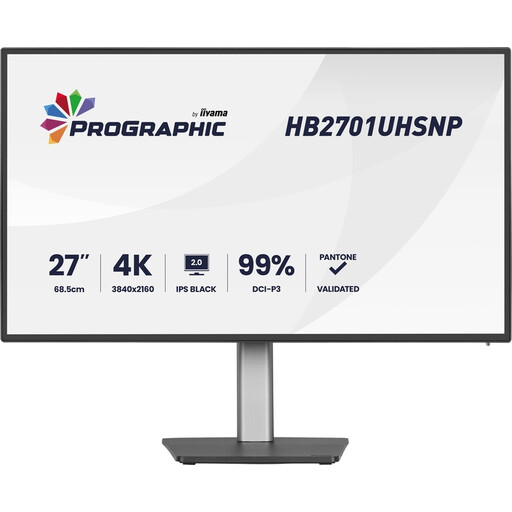 No image available
The product information mentions work and content creation; compare the connections with your computer before choosing it as a second display.
The product name lists a 27-inch 4K UHD IPS-Black display with a 60 Hz refresh rate.
 No image available
The height-adjustable stand could be useful if you want to adjust the position of a display used for text or supporting windows.
The product name lists a 27-inch 4K UHD IPS display with 3840 × 2160 resolution, a 60 Hz refresh rate and a height-adjustable stand.
 No image available
Worth comparing if you’re looking for both 4K resolution and multiple connection options for your layout work.
The product information lists a 27-inch IPS display with 3840 × 2160 resolution, USB-C with 90 W Power Delivery and PIP/PBP display.
 No image available
The product information mentions using it as two separate screens, which could suit a workspace with windows side by side.
The product name lists a 49-inch display with 5120 × 1440 pixels; the product information also mentions KVM control for two connected computers.
No, not if the second display is only for text, references and panels. If you assess colours on both screens, set each one up appropriately and manage its corresponding profile; having the same model number doesn’t guarantee they’ll look the same.
First, choose which display you’ll use for colour assessment and make sure its active profile matches the monitor settings. Adobe describes colour management for printing as converting document colours to the output colour space. Discuss the required colour profile and output conditions with your printer; a monitor can’t replace checking the final print process.
You can’t tell from a USB-C port on a monitor alone. Check whether your exact computer and any dock support two external displays at once, with the resolution, video signals and laptop power you need.
EU Regulation 2019/2013 sets out rules for energy labelling and supplementary product information for electronic displays; compare the information for the specific model. Consumer purchases in the Netherlands are also covered by the statutory guarantee: according to the Dutch government, there is no fixed statutory guarantee period, and the retailer is your point of contact if a product is faulty. This doesn’t apply to a separate business purchase.
Position the display you use most where you can read it comfortably and adapt the setup to your workspace. Arboportaal recommends, among other things, reducing reflections, changing your posture and taking breaks from screen work; its guidance on statutory workplace obligations is aimed at employers and employees.