
App testers checking scaling behaviour
You want to move a desktop app between screens with different display settings and check its readability and window behaviour. Microsoft Learn describes this use case for Windows desktop apps.


Choose a second monitor that suits what you want to test. Matching screens give you a comparable everyday setup, while a different resolution or scaling setting can help you see how a Windows desktop app behaves under different display conditions. First, check how many screens your computer supports and which resolutions it can handle, then look at the connections and the space on your desk. If you want to test moving an app between two separately recognised screens, one ultrawide monitor is not a substitute for two displays.
You want to move a desktop app between screens with different display settings and check its readability and window behaviour. Microsoft Learn describes this use case for Windows desktop apps.
You’re looking for a second screen that can be configured separately, and want to check whether your computer can run both displays. Microsoft Support explains how to set up multiple displays in Windows.
You want to connect and position two screens without treating USB-C, a dock and video daisy-chaining as interchangeable solutions. For connection options, consult information from Dell Support, Apple Support and BenQ.
Start with the purpose of your test: decide whether you want a comparable display or a mix of resolutions and scaling. Then check whether your computer can run the two screens you need.
| What to consider | What should you check? | Who is this important for? |
|---|---|---|
| Resolution and scaling | Compare the native resolution and screen size with your existing display. Decide which separate scaling settings you want to test. | If I want to see how a Windows desktop app responds when I move it between screens with different scaling factors, I need that variation. Around 36% of consumers prioritise testing scaling behaviour. |
| Connections | Check the video outputs on your computer and dock, the inputs on both screens, and support for the resolutions you want to use. | If I need a second screen that will actually work with my computer, I want to check the entire connection chain rather than just looking at the monitor port. Around 29% of consumers prioritise reliable connectivity for two screens. |
| Readable workspace | Consider resolution, screen size and scaling settings together. Decide whether you also want to display documentation or test materials alongside the app. | If I want to see the app and test information at the same time, I’m looking for a setup where both fit on screen and are easy to read. Around 21% of consumers prioritise having workspace for both at once. |
| Positioning and adjustability | Check the width, stand dimensions and adjustment options of the exact model, then work out how both screens will fit on your desk. | If my desk needs to accommodate two screens, I’ll consider the available space and how I can position them. Around 14% of consumers prioritise positioning and adjustability. |
Displaying windows side by side won’t necessarily let you test moving an app between separately configurable screens.
If switching screens or using different scaling factors is part of your test, use two displays that the computer recognises separately.
The setup that works depends on your computer, any dock, the cables and both monitors. Dell Support, Apple Support and BenQ describe requirements that can vary depending on the connection chain or device.
Check the full combination for the resolutions you want to use. Don’t rely solely on the presence of a USB-C connector or DP output.
The P2725D and P2725QE offer 27-inch QHD and 27-inch 4K options for exploring different resolutions and connection requirements.
The 27UP850K-W is a 27-inch 4K model to consider if high resolution, USB-C and adjustability suit your testing setup.
The GW2790QT is a 27-inch QHD model for anyone considering USB-C and potential DisplayPort daisy-chaining.
The 24E1N1300AE/01 is a more compact Full HD model with USB-C to consider as a second screen alongside an existing display.
This Joybuy selection includes Full HD desktop monitors and portable laptop monitors in Full HD or 2.5K for anyone looking to test a second, separate display. Check that the connections on each model suit your computer.
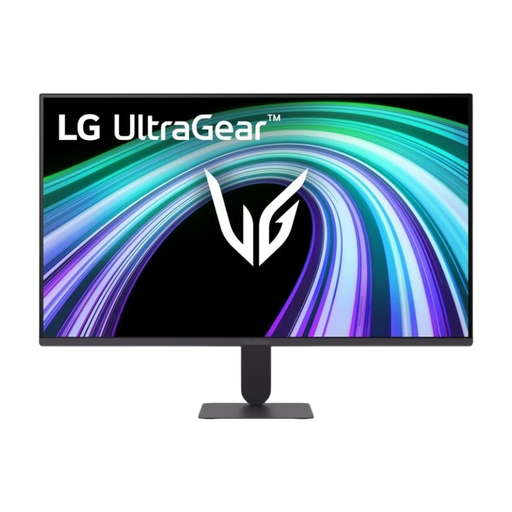 No image available
Could be a good fit if you want to use a Full HD display alongside your existing screen to test a different display condition.
27 inches; Full HD; 144 Hz; IPS.
Check that your computer’s video output is compatible with this model’s connections.
 No image available
Could be a good fit if you want to use a portable second screen with a laptop and test a different screen aspect ratio.
16 inches; Full HD; 16:10; 144 Hz; IPS; two USB-C ports and Mini HDMI.
Check which of these connections can receive a video signal from your computer.
 No image available
Could be a good fit if you want to assess a different resolution and screen aspect ratio on a portable second screen.
16 inches; 2.5K; 16:10; 144 Hz; IPS; two USB-C ports and Mini HDMI.
Check that your computer can output video through the connection you want to use.
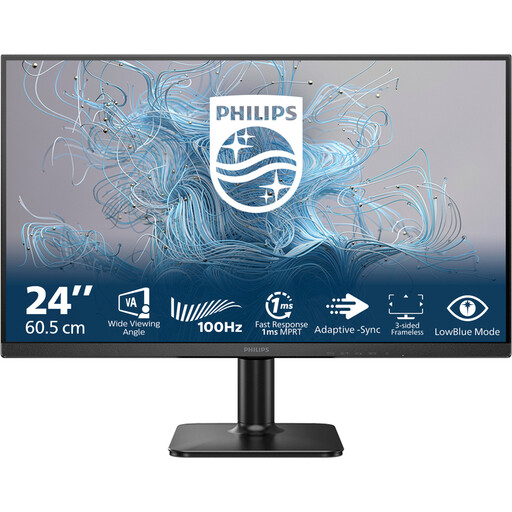 No image available
Could be a good fit if you want to use a 24-inch Full HD screen as a separate display alongside your existing monitor.
24 inches; 1920 × 1080; 100 Hz; VA panel.
Check that this model’s connections match your computer’s video output.
 No image available
Could be a good fit if you’re looking for a Full HD screen that you can position alongside a second display.
24 inches; 1920 × 1080; IPS; DisplayPort 1.4; height and tilt adjustment.
Check that the DisplayPort connection is compatible with your computer or dock.
Connect both screens, then use the display settings in Windows to identify them and arrange their positions. Choose the resolution and scaling you want for each screen, then move the app between the displays to check how it behaves.
No, it depends on the computer and the connection chain. Check how many displays the computer supports, whether the port outputs a video signal, and what any dock or daisy-chain setup can handle at your chosen resolutions. If you have a Mac, check the display specifications for your exact computer model.
For employees who work at a screen for more than two hours a day, Arboportaal states that the screen and keyboard must not be attached to each other. This rule doesn’t determine which monitor model a private buyer should choose.
Check whether any cables, an adapter or a dock you need are included with the product. According to the Dutch government, online consumer purchases are often covered by a 14-day cooling-off period. There is no fixed two-year term for the statutory guarantee in the Netherlands; any manufacturer’s guarantee is in addition to your statutory rights against the seller.