
Watching a specific lecture
You want to check first whether your particular lecture will play on your TV, either through the relevant app or a supported playback method.


First, check whether the specific lecture plays on your current TV through a working TV app or supported casting feature. If it does, you may not need an extra device. If not, an HDMI stick is a good fit when space is limited and the Wi-Fi connection is usable. A separate player with Ethernet is worth considering mainly if you can connect a wired internet connection by the TV. Google Store Netherlands lists Ethernet for the Google TV Streamer (4K). For any option, also check the app, connections, power supply and any costs for accessing the lecture.
You want to check first whether your particular lecture will play on your TV, either through the relevant app or a supported playback method.
Your TV has an HDMI port, but you want to keep visible equipment to a minimum, so you’ll also check there’s room for the power supply and cables.
You want to assess the connection where your TV is set up. If there’s a network socket nearby, you could consider a player with built-in Ethernet.
Choose this option if: the lecture video already plays through a working TV app or supported casting feature.
Consider: you won’t need an extra device, but having an app on your phone doesn’t mean it’s also available on your TV.
Choose this option if: your current TV won’t play the video, there’s little space around it and the Wi-Fi connection is usable.
Consider: check the space around the HDMI port, the power supply and what’s included in the box.
Choose this option if: the Wi-Fi connection by the TV isn’t good enough and a network socket is available.
Consider: a box and cables need more space for connections and placement. For the Google and Apple players reviewed, you’ll need to buy an HDMI cable separately.
Start by checking how you can access the lecture video, then consider connections, network options and picture quality. The percentages below show which of these factors consumers in this scenario consider the highest priority.
| Buying priority | What should you check? | Which consumers? |
|---|---|---|
| Access to the lecture | Find the video and check that it works on your exact TV or player through the app or a supported playback method. Also check whether access requires a purchase or subscription. | If I mainly want to know whether this particular lecture will play on my TV, I first check the provider and playback method; around 36% of consumers give access to the lecture the highest priority. |
| Compact set-up | Check the HDMI port, the space around it, access to a power socket, and which cables and power supply are included with the exact version. | When space around my TV is limited, I also want to know where the power supply and cables will go; around 29% of consumers prioritise a compact set-up. |
| Connection by the TV | Test the Wi-Fi where your TV is set up, and check whether the exact version has built-in Ethernet if you want a wired connection. | If the connection where my TV is set up is my biggest concern, I compare Wi-Fi with the option of using a network cable; around 21% of consumers give the network connection the highest priority. |
| Picture and subtitles | Check the resolution of the video and your TV, and see whether subtitles are available for the specific video. | If I want to read slides or subtitles clearly, I consider the video and my TV together; around 14% of consumers prioritise suitable picture quality or subtitles. |
A working app on your current TV may be all you need. A separate player won’t automatically give you access to the video; the service may also require a purchase or subscription.
Find the specific lecture first and try the permitted playback method on your current TV. Only then check whether you need an extra device.
This helps you avoid buying a player you don’t need, or finding out that you can only access the video after making a separate payment.
Your TV and the content also need to support 4K. A player’s output resolution alone doesn’t determine how the lecture video looks.
Check the source resolution and your TV’s capabilities before treating 4K as a deciding factor.
Your set-up needs to suit your TV, the available space around the HDMI port and access to a power socket. For the Google TV Streamer (4K) and Apple TV 4K reviewed, you’ll need to buy an HDMI cable separately.
Compare the connections and box contents for the exact version before making your choice.
The Google TV Streamer (4K) is a separate player with Cast and built-in Ethernet. It’s worth considering if you’d also like the option of a wired connection.
The TV Stick 4K (2nd Gen) is a compact Google TV stick to consider if the Wi-Fi connection by your TV is usable.
The LEAP-UNA+ is a compact Google TV stick with stated Full HD output, for a set-up where 4K isn’t needed.
The Apple TV 4K is a separate player to consider if your chosen video plays through a supported TV app or via AirPlay from an Apple device.
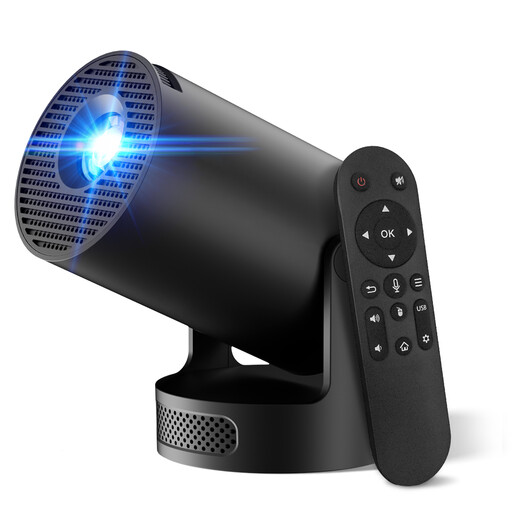
This Joybuy product is a projector with built-in apps, as an alternative to a separate streaming stick. Check in advance that the app and specific lecture are available on the projector.
 No image available
The built-in apps and Play Store offer one possible way to play a lecture directly. Check that the service and video you want are available on this device.
The product name lists WiFi 6, Bluetooth, automatic picture correction and 180° rotation. It also specifies a screen size of 50–200″ and digital zoom of 50%–100%.
The product description warns of eye injury: don’t look directly into the lens. For wireless equipment, also check that the version on offer carries the required CE marking.
No, not if the specific video already plays on your TV through a working app or supported casting feature. First find out who provides the video and try the playback method; an extra device won’t automatically give you access to the lecture.
Check that there’s a free HDMI port, enough space around it, a power socket and the right cables. Google says an HDMI cable is required separately for the Google TV Streamer (4K); Xiaomi lists a power adapter and HDMI extension cable with the TV Stick 4K (2nd Gen).
Chrome can cast most web content to a supported Cast receiver, but some content may not work. Apple says AirPlay from an iPhone or iPad requires a compatible receiver and the same Wi-Fi network. Also check that the specific lecture video supports that playback method.
First check whether the video itself offers subtitles. YouTube says the subtitles button won’t be available for a video without subtitles; a different streamer won’t make missing subtitles appear automatically.
Check that the specific wireless version carries the required CE marking. The Netherlands Authority for Digital Infrastructure explains that radio equipment must meet the applicable requirements before the manufacturer applies the CE marking.