
Presenter with historical photos
You want to control the order of the slides and their captions during the presentation. So check how you’ll connect the slideshow and whether the text will be readable from the seating area.


Choose a TV that fits the available space and is easy to view from the seating area. Then check how your slideshow plays on that exact model. Connecting a laptop via HDMI is an alternative if USB playback or wireless sharing doesn’t work with your files and devices. A stand means you won’t need to mount the TV on the wall, but it does need a suitable surface.
You want to control the order of the slides and their captions during the presentation. So check how you’ll connect the slideshow and whether the text will be readable from the seating area.
You’re looking for a screen and setup that fit the room and the furniture. A stand can avoid the need for wall mounting, but the dimensions and stability of the setup still matter.
If guests will also be sitting at an angle to the screen, consider the viewing angle and reflections as well as the screen size.
Suitable when: you want to control the order, captions and transitions from your laptop, and the TV has a suitable HDMI input.
Bear in mind: you’ll need a suitable cable or adapter, as well as space for the laptop.
Suitable when: you want to play the slideshow without a laptop and the exact model’s manual confirms support for your storage device, photo format and preferred controls.
Bear in mind: a USB port alone doesn’t confirm that the TV can display photos. Support can vary by model and file type.
Suitable when: you want to present from a phone and your TV model and phone are compatible.
Bear in mind: sharing options aren’t automatically available on every TV model or phone. Have a wired connection you’ve checked in advance as a backup.
| What to consider | What should you check? | Who is this most important for? |
|---|---|---|
| Readability | Measure the viewing distance and available furniture width, then view a sample slide from the seating area. Consumentenbond suggests around 2.4 times the screen diagonal as a guide to a comfortable viewing distance, not as a threshold for reading small captions. | If you want guests to be able to follow the photos and captions from their seats, make readability your priority. Around 36% of consumers give the readability of photos and captions top priority. |
| Playback | For each model, check the HDMI connection or the supported USB photo formats and controls. Beforehand, test a copy of the slideshow using the devices you plan to use. | If you want to make sure your own presentation works, check the connection method and files in advance. Around 29% of consumers give reliable playback top priority. |
| Placement | Measure the TV with its stand and check that the furniture is stable enough. If you’re considering wall mounting, assess the wall and check the rules that apply to your rented home. | If space is limited, you’ll want the screen and setup to fit without unnecessary alterations. Around 21% of consumers give finding a suitable place for the TV top priority. |
| Viewing from the side | View photos from the planned seats at the side and look out for reflections from the room’s lighting. | If your guests will be sitting in different places, check in advance how the picture looks from the seats at the side. Around 14% of consumers prioritise viewing from different seats. |
A USB connection doesn’t prove that a TV can play media files. LG says that file support can vary by model; Philips documentation for other models explains that USB may be intended for software updates only.
Check the manual for the exact model and try your files before the event.
The TV and stand dimensions, available furniture space and viewing distance all affect whether the setup will fit. Wall mounting isn’t always an option in a rented home.
Measure the space and the TV with its stand. If you’re using a bracket, check the wall and the rules for your home.
Consumentenbond notes that the difference between 4K and Full HD isn’t always visible, and that no screen technology is better in every respect. Captions can also be affected by viewing distance, font size and source quality.
Assess your own photos and captions from the intended seats, and consider viewing angles and reflections too.
LG Netherlands lists the 32LQ63006LA as a 32-inch Full HD smart TV with webOS.
Philips lists the 32PFS6000/12 as a 32-inch Full HD TV with Titan OS.
Samsung lists the UE32H5000FKXXN as a 32-inch HD smart TV with Tizen.
These Joybuy options range from 24 to 40 inches and include models with HDMI or wireless sharing options. Measure the available space and check that your files and devices work with your chosen model before buying.
 No image available
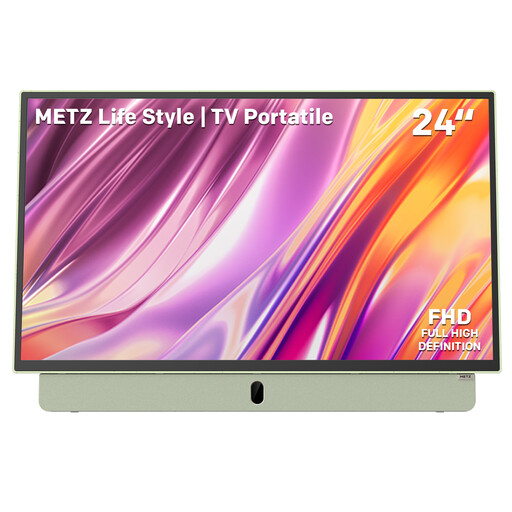
The 24-inch size may suit a space-saving setup; check that the screen is large enough for your captions when viewed from the seats.
The product name lists FHD, HDMI, USB, anti-glare, Google TV, Bluetooth and Wifi 5. Check your laptop’s HDMI connection and whether the TV can play your USB photos.
 No image available
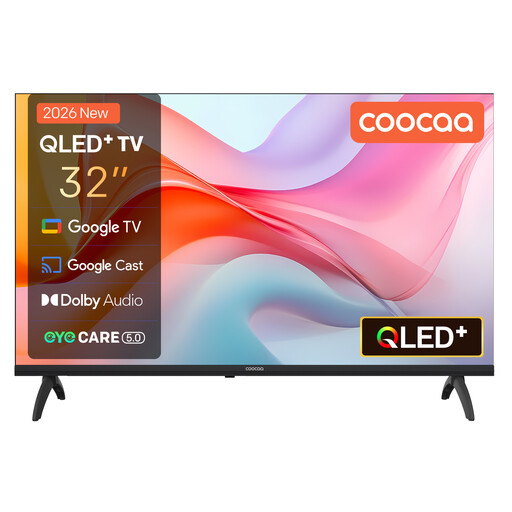
The 32-inch size gives you a starting point for comparing the TV with your furniture space and viewing distance; check readability with a sample slide.
The product name lists Google TV, Google Cast, HDR10, Dolby Audio, Bluetooth 5.1 and a triple tuner (DVB-T2/C/S2). Check that your phone and files work with your preferred sharing method.
 No image available
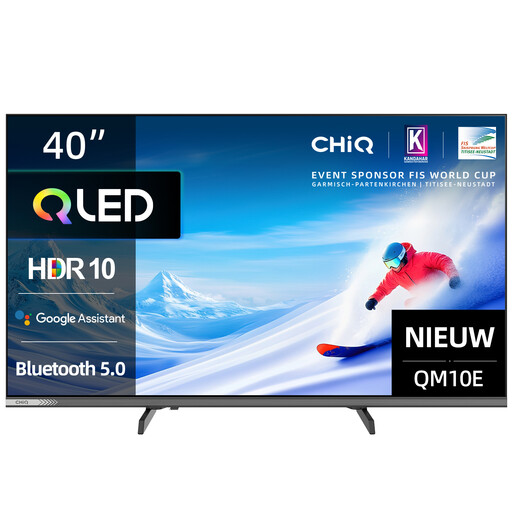
In a compact rented home, this 40-inch model calls for extra care when checking the available space and distance from the seats.
The product name lists FHD, QLED and 60 Hz. Measure your setup and see whether the screen offers the readability you need for your slides.
 No image available
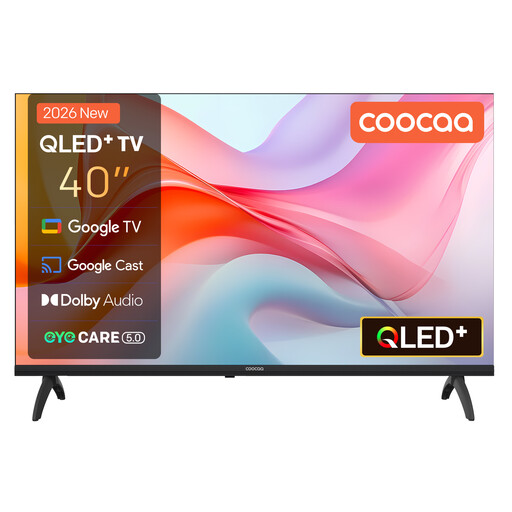
For this 40-inch model, check that the available space and viewing distance work for your compact room.
The product name lists FHD, Google TV, Google Cast, HDR10, Dolby Audio, Bluetooth 5.1 and a triple tuner (DVB-T2/C/S2). Check that your device is compatible with your preferred sharing method.
 No image available
The 32-inch size gives you a way to check how the TV will fit your available furniture space and how far your guests will sit from the screen.
The product name lists Chromecast, HDR10, Dolby Audio and a DVB-T/T2/C/S/S2 tuner. Check that your device and slideshow work with your preferred sharing method.
Measure the distance from the seats to where you plan to put the TV, as well as the available furniture width. Consumentenbond suggests around 2.4 times the screen diagonal as a comfortable general viewing distance; also check small captions using a sample slide from the actual seats.
It depends on the exact TV model and the photo files. Check the model manual to see whether it can play media and which formats and controls are supported; a USB connection alone doesn’t confirm this. LG says that file support can vary by model.
Use a suitable HDMI input on the TV and connect it to the laptop’s HDMI output, using an appropriate adapter if needed. Check the connections on both devices before buying.
Don’t assume that every installation can be done without consultation. The Dutch government distinguishes between changes you can undo and more substantial alterations; filling in drill holes is given as an example. Consider the installation in your home and, if in doubt, check the agreement with your landlord.
Compare the stated energy consumption in kWh per 1,000 hours on the energy label. According to ACM ConsuWijzer, the legal guarantee in the Netherlands depends on what you could reasonably expect from the product; the retailer is your point of contact. ACM ConsuWijzer states that online purchases come with a 14-day cooling-off period from delivery.