
Teacher with bound journals
You mainly scan bound pages and want to capture text and images close to the spine without pressing the journal unnecessarily flat.


If you mainly scan bound travel journals, first check how the open page sits and how close the text is to the spine. A book scanner may be a good option if a standard flatbed cannot capture these areas properly. A compact flatbed may be enough for the occasional A4 page, while a model with an automatic document feeder is most useful if you also handle lots of loose sheets. Before saving or sharing scans, check how your school handles personal data and other people’s material.
You mainly scan bound pages and want to capture text and images close to the spine without pressing the journal unnecessarily flat.
You occasionally scan journal pages at a small workstation and want a manageable scanner for A4 pages.
You handle both journals and loose sheets, and want to decide how to store scans so they are easy to find and appropriately protected.
| What to consider | What should you check? | Who is this important for? |
|---|---|---|
| Bound pages and the spine | Compare the journal’s thickness and stiffness with the scanner lid, then test-scan text close to the spine. | If I scan bound journals, I want to capture text near the spine without forcing the binding. Around 36% of consumers rank this concern first. |
| Workspace and positioning | Measure both the space where you’ll store the scanner and the room needed while the journal is open. Also check where the USB port is. | At a small desk, I want to be able to position the scanner and open the book comfortably while scanning. Around 29% of consumers prioritise space and positioning. |
| Finding and storing scans | Check that the software works on the classroom computer, can create searchable PDFs and clearly shows where files are saved. | For a class archive, I want to be able to find scans later and control access to them. Around 21% of consumers put this need first. |
| Journals and loose sheets | Assess each type of material separately. Only compare feed speeds when the feed method and scan settings are the same. | If I regularly handle loose sheets as well as journals, I want to know whether a document feeder would be practical. Around 14% of consumers prioritise this combination. |
The quoted scan time does not automatically include transferring files, turning pages, positioning each page or checking the results.
Test the scanner with a representative journal and assess the whole process. Only compare speeds using the same scan settings and feed method.
Allow time for manually positioning and turning pages, and checking the scans.
The scan area tells you the size of the image captured, but not whether a thick or stiff journal will sit properly near the spine.
Measure the open page and assess the binding, lid and glass. Test-scan a page to check that important text and images are fully captured.
If a page doesn’t sit properly, the edges may be cut off or you may need to scan it again.
Journals may contain pupils’ personal data or copyright-protected material. You should therefore give separate consideration to how you store and share scans.
Decide who needs access and which storage method the school has approved. Also check what permissions or arrangements apply before sharing scans.
The OpticBook 4800 is a book scanner for anyone who regularly scans bound journals and text close to the spine.
The CanoScan LiDE 400 is a compact A4 flatbed for occasional pages and photos in a small workspace.
The Perfection V39II is a compact A4 flatbed for photos and documents, ideal when desk space and storage matter.
The ScanJet Pro 3600 f1 combines a flatbed with an automatic document feeder, making it a good fit if you handle lots of loose sheets as well as journals.
This Joybuy selection focuses on flatbed scanners for bound material, with models featuring an automatic document feeder for additional loose sheets.
 No image available
The combination of a flatbed and automatic document feeder suits anyone handling bound journals and loose documents. Use the glass for bound material.
The automatic feeder can handle up to 50 sheets. Its quoted duplex scan speed is up to 20 pages per minute, and output to editable PDF is listed.
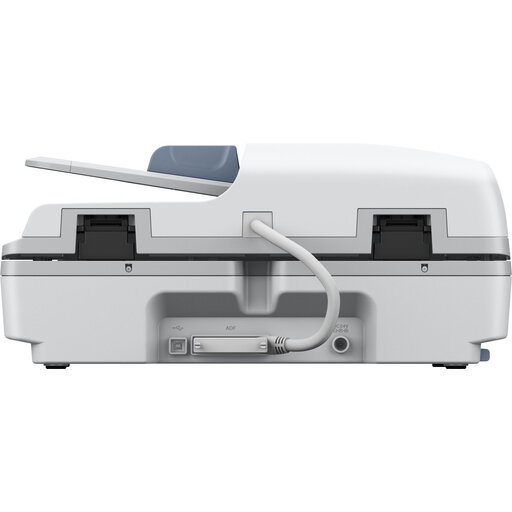 No image available
This model combines a flatbed with a document feeder, making it suitable for a workspace where loose sheets are handled alongside bound material.
The document feeder holds 100 sheets and has a quoted speed of up to 25 pages per minute. Searchable PDF output is listed; bound pages need to be scanned manually on the flatbed.
 No image available
The product description says the flatbed is designed for items including books and bound documents, making this model worth considering if you want to scan them on the glass.
Listed connections include Wi-Fi and USB. The automatic document feeder has a quoted speed of 25 pages per minute; this speed does not apply to bound journal pages.
Not necessarily. First check that the book fits on the scan area and that the text and images are legible. Coolblue says 300 dpi is suitable for everyday scanning and notes that you may need more detail for photos you plan to edit or enlarge. So, the highest optical resolution isn’t necessary for every page.
Use the glass for a bound journal. An automatic document feeder is designed for suitable loose sheets and won’t turn the pages of a book for you.
Check that the required drivers and software work on the classroom computer, and confirm which USB connection you need. Clean the glass before scanning. If there’s a fault, check the seller’s terms and the applicable warranty. Canon says that commercial manufacturer warranties exist alongside statutory consumer rights.
If scans contain pupils’ personal data, the school must comply with the GDPR. The Dutch Data Protection Authority says that schools have, among other things, an accountability obligation. This does not give general permission to share every journal: assess the purpose, access and storage method for each specific use.
According to the Dutch Government, making a private copy for your own use is not the same as having permission to distribute copies or make them available to the public. The Dutch Government also notes that Stichting Reprorecht collects fees for uses including digital use in schools. For material belonging to others, check which permission or arrangement applies to your intended use.