For a travel journal, transcript and index that you want to view at the same time, a 34-inch ultrawide gives you extra horizontal space. A 27-inch 4K monitor is a better fit when fine details in scans are your priority. Check the text scaling and video connection on your own computer, and take your available desk space into account too: a larger screen doesn’t guarantee a better working posture or greater productivity.
Who is this choice relevant to?
Anyone indexing multiple records
If you regularly want to see a travel journal, transcript and index field at the same time, having enough horizontal workspace is important. Microsoft Support explains how to arrange windows on one computer; choosing a wider screen also depends on how much desk space you have.
Anyone reading details in scans
If you compare small handwritten letters or image details with a record, you may want to prioritise resolution and text scaling that remains comfortable to read. Philips specifies a 4K resolution of 3840 × 2160 pixels for the 27B1U3900/00.
Anyone using a laptop at a fixed workstation
If desk space is limited, screen width, height adjustment and a suitable connection are important factors to consider. Check the connections on both the monitor and laptop; Dell specifies USB-C power delivery of up to 90 W for the P3425WE.
What should you prioritise?
Start by considering the windows you want to read at the same time. Then check that the resolution, connection and screen setup suit your computer and desk.
| What to consider |
What should you check? |
Who is this important for? |
| Room for multiple windows |
Compare the screen aspect ratio and resolution, measure the available desk width, and try arranging your windows at your preferred text scaling. |
If you want to see a journal, transcript and entry field together while indexing, horizontal space is the main consideration; around 36% of consumers prioritise this need. |
| Readable scan details |
Check the resolution, try different text scaling and scan magnifications, and make sure your computer supports the chosen resolution through the connection you intend to use. |
If you need to compare small letters or details in scans accurately, resolution may matter more than maximum screen width; around 29% of consumers prioritise scan details. |
| Workspace and screen position |
Measure the available space and consider your viewing position; check height adjustment, reflections and where the screen will sit. |
If you have a fixed or limited workspace, you’ll want to weigh space and adjustability against extra width; around 21% of consumers give this workspace consideration top priority. |
| Connection and laptop power |
Compare the video outputs on your laptop and monitor, the power delivery required, the cables included and the energy information for the exact model. |
If you want to use your existing laptop with your preferred cable setup, compatibility is crucial; around 14% of consumers start by checking connections. |
Common buying mistakes
-
Confusing PBP with two windows from one computer
To display two application windows on one Windows computer, you can use Windows’ window layout feature; you don’t automatically need picture-in-picture or PBP.
First decide whether you want to arrange windows from one computer or display two separate video sources at the same time.
-
Choosing an ultrawide without considering screen height
An ultrawide gives you extra width. If you usually read one long page or need plenty of vertical space, that width may not suit the way you work.
Try out your preferred window widths and compare the horizontal and vertical space available on your desk.
-
Assuming USB-C always provides video and enough power
A USB-C connection on the monitor alone doesn’t confirm that your laptop supports the video output and power delivery you need through that connection.
Compare the specifications of both devices and check which cables are included with the exact model.
Depending on your laptop and the cable included, you may need a separate power adapter or a different cable.
-
Confusing an extended warranty with your statutory guarantee
In the Netherlands, there is no fixed statutory time limit for the legal guarantee. If a product is faulty, the retailer is your point of contact, according to the Dutch Government.
Before buying an extended warranty, compare the extra cover it provides with your statutory rights.
Brands to consider
LG
LG offers models for wide window layouts and workstations with screen-management software.
- LG specifies a 34-inch IPS screen with 3440 × 1440 pixels for the 34U650A-B.
- LG says OnScreen Control can divide the workspace on the 34WQ73A-B; some features may not work properly depending on your PC. Don’t assume every LG model has the same software feature.
Dell
The range includes both a wide USB-C hub monitor and a less wide 27-inch QHD monitor.
- Dell specifies a resolution of 3440 × 1440 pixels and USB-C power delivery of up to 90 W for the P3425WE.
- According to Dell, the U2724D has 2560 × 1440 pixels, so it doesn’t offer the same horizontal pixel space as the ultrawide mentioned above. These are model specifications, not a comparison of measured reading performance.
Philips
Philips’ range includes a 27-inch 4K model and an ultrawide work monitor.
- Philips specifies 4K resolution and USB-C for the 27B1U3900/00.
- For the 346B1C/00, Philips notes that certain USB hub settings limit the supported refresh rate. Check the connection details for the exact model.
Joybuy monitors for this type of work
This selection includes wide monitors for viewing multiple record windows side by side, as well as 27-inch screens for anyone with a more limited workspace or who prioritises scan details.
 No image available
Philips 34B2U5900C/00 34-inch curved Dual-Mode Business Monitor
This wide monitor is an option for viewing multiple record windows side by side.
34 inch; curved; Dual-Mode.
View at Joybuy
 No image available
LG 34WR55QK-B 34-inch monitor
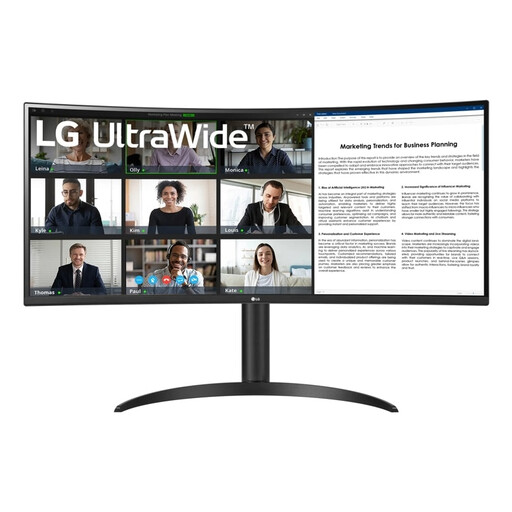
This 34-inch ultrawide is designed for anyone who wants to view a journal and index side by side.
3440 × 1440 pixels; 100 Hz; 21:9 aspect ratio.
View at Joybuy
 No image available
Dell UltraSharp U4924DW 49-inch monitor
This wide screen may suit a workspace where you need to view lots of records at once; measure your available desk width first.
49 inch; 5120 × 1440 pixels; stated product width is 121,49 cm.
View at Joybuy
 No image available
Philips 27E1N1800AE/00 27-inch 4K UHD IPS monitor
This 27-inch option suits anyone who prioritises scan details and needs less physical screen width than an ultrawide provides.
3840 × 2160 pixels; 60 Hz; 4 ms; HDMI and DisplayPort; height-adjustable stand.
View at Joybuy
 No image available
ASUS ProArt PA278CV 27-inch Quad HD monitor
This 27-inch QHD option is worth considering if a less wide workspace matters more to you than the extra resolution of a 27-inch 4K screen.
2560 × 1440 pixels; Quad HD.
View at Joybuy
Frequently asked questions
Do I need a monitor with PBP for two record windows?
Not if both windows are running on the same Windows computer: Windows can snap application windows side by side, as Microsoft Support explains. PBP is useful if you want to display two separate computers as video sources at the same time.
What should I check when connecting and setting up the monitor?
Check that your computer’s video output supports the chosen resolution through the connection you intend to use. Then adjust the text scaling and window layout to suit the scans you work with, and check the screen height and reflections. A USB-C connection alone doesn’t confirm that your laptop is fully compatible.
How can I make my setup comfortable during long indexing sessions?
Take breaks from screen work, reduce distracting reflections and make sure the text is easy to read in your lighting. The Arboportaal outlines points to consider when working with screens; a monitor feature is no substitute for a suitable workstation setup.
How do I compare energy use and guarantees in the Netherlands?
Compare the energy information and EU energy label for the exact models; your own energy use also depends on how long you use the monitor and your electricity tariff. According to the Dutch Government, there is no fixed statutory time limit for the legal guarantee in the Netherlands, and the retailer is your point of contact if a product is faulty.


