
Journal indexer
You want to view text, photos and index details at the same time, without constantly switching between windows.


A 27-inch QHD monitor is a well-founded choice if you mainly want to view a travel journal, photos and an index side by side; 4K is worth considering if fine photographic detail matters. For a laptop setup, check that your laptop, cable and monitor work together to support the display, charging and hub features you need. A monitor doesn’t create a backup: you’ll need separate storage and a separate backup routine for that.
You want to view text, photos and index details at the same time, without constantly switching between windows.
You connect a laptop and peripherals, and want to know which monitor connections can make your setup simpler, without mistaking a USB hub for a backup.
As well as reading your journal, you assess detail or colour in your travel photos and want to weigh up the extra screen requirements.
Start by working out how much space you need to view a journal, photos and an index at the same time. Then decide whether you’ll also be assessing fine detail or colour, and check that the connections suit your laptop and backup storage.
| What to consider | What to look for | Who is this most relevant to? |
|---|---|---|
| Workspace for your journal and index | Compare screen size and resolution with the space available on your desk and the text size you use. | If I want to view my journal, photos and index at the same time, having enough workspace comes first. Around 33% of consumers prioritise workspace. |
| Connections for your laptop and backup setup | Check video support, charging power, the cable and the ports your external drive needs. | I want to connect my laptop and local backup equipment conveniently, while handling the backup itself separately. Around 27% of consumers prioritise convenient connections. |
| Photo detail and colour | Decide whether you’ll only be indexing photos or also assessing their detail and colour; then compare the resolution and colour information for the specific model. | If I consider fine detail or colour more important than other factors, I look at those features on the specific screen. Around 20% of consumers prioritise photo assessment. |
| Reading comfort and setup | Try the text size you want and check the screen position, lighting and desk space. | For extended reading, I want text to be comfortable to view and the screen to be positioned appropriately. Around 20% of consumers prioritise reading comfort and setup. |
A connection isn’t a copy of your travel journals or photos.
Arrange storage and check your backup separately from buying a monitor. An external drive can provide separate storage for this purpose.
For display, charging and connected devices, your laptop, cable and monitor all need to work together.
Check your laptop’s video support, the charging power required and the port specifications of the exact monitor model you’re considering.
Depending on the combination, you may also need a different cable, an adapter or a separate power supply.
Extra pixels or colour features may be useful for photo work, but readable text and a suitable setup matter for text indexing too.
Choose based on your main task and compare QHD and 4K using the text size you’ll actually use.
The Pro 27 Plus P2725DE is a QHD option for indexing at a laptop workstation.
According to LG, the 27BA65QB-B is a QHD IPS monitor with an adjustable stand, suited to a workstation with lots of text and windows.
The ProArt PA279CV is a 27-inch 4K option if your travel photos are more than just material to index.
The 27E1N5600AE/00 is a QHD USB-C option for a compatible laptop.
These monitor options are suited to viewing travel journals, photos and index details side by side, with laptop connections and separate local backups in mind. A monitor doesn’t replace storage or a backup routine.
 No image available
An option for viewing several windows side by side at a compatible laptop workstation.
The product name lists a curved WQHD IPS screen, webcam, 100 Hz, USB-C hub and 90 W Power Delivery. USB-C features depend on compatible equipment; the monitor doesn’t create or check backups.
 No image available
An option if you want to view fine photo details as well as your index.
The product name lists 3840 × 2160 pixels, 60 Hz, 4 ms, HDMI, DisplayPort and a height-adjustable stand. The monitor doesn’t create or check backups.
 No image available
An option for viewing fine travel photo details alongside your journal and index.
The product name lists 3840 × 2160 pixels, IPS, 120 Hz, HDR500, PIP and PBP, USB-C with 90 W Power Delivery and a height-adjustable stand. Check your laptop’s compatibility; you’ll still need separate storage for backups.
 No image available
A 27-inch QHD option for viewing your journal, photos and index side by side.
The product name lists 2560 × 1440 pixels. A monitor doesn’t create or check backups; arrange separate storage and a separate routine for that.
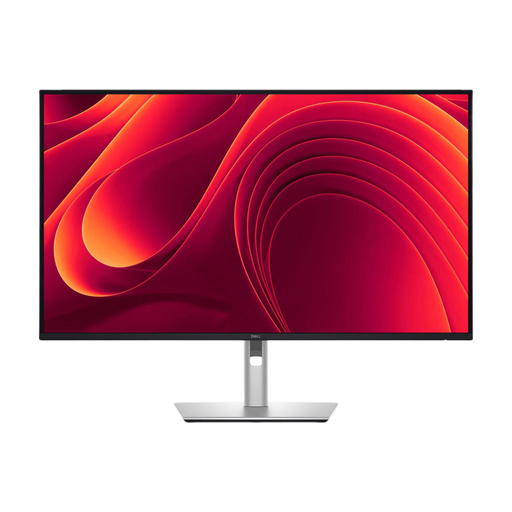 No image available
An option with a spacious screen for viewing text, photos and index details side by side.
The product name lists 2560 × 1440 pixels. Check that it has the connections your laptop and backup drive need; the monitor doesn’t replace separate storage.
No. A backup is a copy of files that you can store, for example, on an external drive. A monitor hub can make it easier to connect devices, but it doesn’t create or check that copy.
Not necessarily. Check your laptop’s video support and power requirements, the cable, and the ports your drive needs. The stated features vary by monitor model and need to be compatible with your equipment.
Keep a copy on separate storage and check that you can find and open the files you need. VeiligInternetten lists an external hard drive as one possible backup location, and encryption as an extra safeguard.
According to the Dutch Data Protection Authority, keeping a private collection or sharing within a very limited circle may fall under the exception for personal or household use. That exception doesn’t apply to wider sharing; processing identifiable images then requires a legal basis under the GDPR. Consider each specific publication separately.
In addition to any manufacturer’s or seller’s warranty, statutory consumer rights apply: with normal use, the product must do what you could reasonably expect of it. If it breaks unexpectedly early, the seller is responsible for providing an appropriate solution free of charge, according to ACM ConsuWijzer. There isn’t one fixed statutory warranty period for every monitor.