
Those indexing scans and fields
You want to read a journal page, transcript and metadata fields side by side. So look for a suitable screen layout, legible text and an adjustable setup.


For viewing text, scans and metadata fields side by side, an adjustable QHD work monitor is a practical starting point; check that your software layout remains easy to read on screen. Consider a 4K monitor if you also want to see fine details in travel photos, and opt for colour-focused features only if colour assessment or print preparation is genuinely part of your work. No monitor creates custom fields or indexes them for you.
You want to read a journal page, transcript and metadata fields side by side. So look for a suitable screen layout, legible text and an adjustable setup.
You want to view details in images and may also need to assess colour when editing photos. A standard 4K screen and a colour-focused monitor do not necessarily serve the same purpose.
You want to work on a larger screen with as few separate connections as possible. Check that your laptop and monitor support the same video and charging features over USB-C.
Choose this if: you mainly want to read and edit text, scans and metadata fields at the same time.
Bear in mind: QHD has fewer pixels than the 4K models mentioned for viewing fine image details; also test how legible your software layout is.
Choose this if: you regularly view detailed scans or travel photos as well as indexing content.
Bear in mind: adjust the text scaling if needed, and treat manufacturers’ colour claims as specifications rather than independent measurements.
Choose this if: colour assessment or preparing photo prints is an important, separate task.
Bear in mind: specialist photo features are not needed to read metadata fields and do not, by themselves, guarantee a particular print result.
| What to consider | What to look for | Who should prioritise this? |
|---|---|---|
| Readable workspace | Test your own software with a scan, transcript and fields; check the screen size, resolution and text scaling. | If I want to read source material and input fields at the same time, a legible layout comes first. Around 36% of consumers prioritise workspace. |
| Detail and colour | Decide whether you only view photos or also assess colour for editing or printing; check the specifications of the exact model. | Those assessing travel photos and image scans mainly for detail or colour have different requirements from those who only enter data. Around 29% of consumers prioritise image quality. |
| Adjustable workstation | Check the height adjustment, screen position, desk space, readability and reflections in your lighting. | When entering data repeatedly, I want to adjust the monitor to suit my workstation and minimise reflections. Around 21% of consumers prioritise adjustability. |
| Laptop connection | Check the video output and USB-C power delivery of both your laptop and the exact monitor model, as well as which cable you need. | If I want to connect my laptop with a single cable, that combination needs to support video and the power delivery I need. Around 14% of consumers prioritise convenient connectivity. |
Arboportaal advises setting up the workstation to suit the user and taking reflections into account. The screen resolution and scaling setting should work together to keep your own software easy to read.
A monitor displays source material and fields, but custom fields are created and indexed in the application you use.
Check your software’s features separately from the screen resolution, and test whether your work windows fit side by side and remain easy to read.
A single-cable connection only works with compatible devices; the presence of a USB-C port alone does not confirm that every feature will work.
Compare your laptop’s video output and power specifications with those of the exact monitor model.
Depending on the connections available, you may need a different cable or port, or a separate laptop power supply.
Hardware calibration and wide colour gamuts claimed by manufacturers are intended for colour work and are not needed to read custom fields.
Only make photo editing a deciding factor if you actually do that work; otherwise, consider readability and your workstation first.
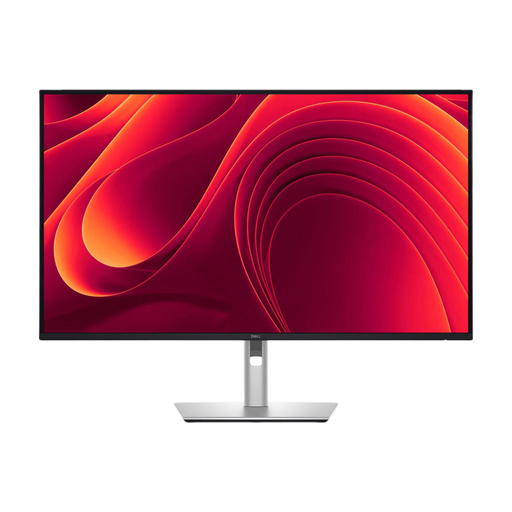
The Pro Plus P2725DE is a QHD work monitor with a USB-C hub, suited to viewing text and fields alongside source material.
The UltraFine 27UP850K-W is a 4K option for metadata work alongside detailed travel images.
According to Philips, the 27E1N5600HE/00 combines a 27-inch QHD screen with a built-in webcam and USB-C.
The SW272U is designed for photography, for those who also edit travel photos or prepare them for printing.
The ProArt PA279CRV is a 27-inch 4K option for colour-focused image work, with an adjustable stand.
These Joybuy monitors are suited to working with journal text, scans and images; check which resolution, screen layout and connection work with your software and laptop.
 No image available
The 27-inch 4K resolution and PIP/PBP may suit a multi-window workspace.
3840 × 2160 pixels; USB-C with 98 W; KVM; adjustable stand.
 No image available
This 27-inch 4K monitor is described as having PIP/PBP for viewing multiple sources at the same time.
3840 × 2160 pixels; IPS; 120 Hz; USB-C with 90 W; HDMI and DisplayPort; height-adjustable stand.
 No image available
The 31.5-inch QHD screen is described as providing workspace for multiple windows.
2560 × 1440 pixels; USB-C with 90 W; RJ45; 100 Hz; adjustable stand.
 No image available
The 27-inch QHD screen may suit a workspace with text, scans and fields.
2560 × 1440 pixels; USB-C with 65 W; HDMI and DisplayPort; stand with height and tilt adjustment.
 No image available
The 21:9 layout and PBP are described as allowing work windows or sources to be viewed at the same time.
34 inch; 3440 × 1440 pixels; 100 Hz; Reader Mode and Flicker Safe.
No. A monitor displays the application; fields are created and indexed in software. Microsoft, for example, explains how Access uses an index on one or more database fields. Check which features your journal or archiving application offers.
If you use Windows, select the external screen in display settings and adjust the scaling for text and apps. Microsoft generally recommends using the resolution marked as recommended.
No, it depends on the compatibility of the laptop and monitor. Philips says the single-cable features of the 27E1N5600HE/00 require a compatible device, so check the specifications of both products.
For an online product purchase, you generally have a statutory cooling-off period of up to 14 days after delivery, with some exceptions; ACM ConsuWijzer explains this period. A product must also meet what you could reasonably expect from it. If a product is faulty, the seller is responsible for providing a solution. This applies to consumer purchases and does not automatically apply to business purchases.
For employees who work with display screens, Arboportaal says the employer must ensure that the work does not endanger their safety or health. This does not mean that every individual buyer has to choose one specific monitor model.