
Photographer uploading large files
You want to send lots of photos to cloud storage during your train journey. So, first compare mobile upload speeds and your data allowance, then look at the router’s Wi-Fi features.


First, see whether the train Wi-Fi or your phone’s hotspot is good enough for uploading your photos. A separate router is mainly useful if you want to share your own mobile connection and battery with several devices. When choosing between 4G and 5G, consider your provider’s expected upload speed and coverage along your route, your data allowance and how long you need to use it. A 5G router cannot guarantee an uninterrupted connection on a moving train.
You want to send lots of photos to cloud storage during your train journey. So, first compare mobile upload speeds and your data allowance, then look at the router’s Wi-Fi features.
You want to use a phone, tablet or laptop over a single mobile connection. Check the SIM, the number of supported connections and the battery.
You want to find out whether the train Wi-Fi or your phone’s hotspot is good enough before buying a router and a separate data plan.
Choose this if: you want to get started without an extra device and can resume an upload later if needed. NS offers Wi-Fi on almost all Intercity trains and many Sprinters, but not on every train.
Bear in mind: availability varies by train and route.
Choose this if: your phone and plan provide enough mobile data, and you usually connect just one device.
Bear in mind: a hotspot uses your phone’s data allowance and battery, and still depends on mobile coverage.
Choose this if: you want a separate SIM and battery, or want to upload from several devices over one connection, and the expected 4G upload speed along your route suits your needs.
Bear in mind: TP-Link lists a maximum upload speed of 50 Mbps for the M7350 and M7450 V3. These are manufacturer maximums, not measurements taken on a train.
Choose this if: you often send large numbers of photos and your provider is expected to offer usable 5G coverage and a suitable upload speed along your route.
Bear in mind: the network connection and your plan both affect your experience on the move. The TP-Link product page for the M8550 gives conflicting figures for the number of connected devices.
| What to consider | What to check before buying | Who should pay particular attention? |
|---|---|---|
| Uploading during the journey | Compare the maximum upload speed of the exact model with your provider’s expected mobile upload speed and coverage along your route. | If you want to send lots of photos before you arrive, the upload connection comes first. Around 33% of consumers say uploading during the journey is their main reason for buying. |
| Data allowance | Estimate how much data you’ll use based on file size and the number of photos. Also check your allowance and any roaming conditions. | If you regularly send large files, you’ll want to know how much data you can use. Around 27% of consumers focus mainly on having enough data and the associated costs. |
| Battery life | Check the battery life and charging options for the exact version. Manufacturer claims are no guarantee of long-lasting use while uploading. | If you don’t want to rely on a power socket while travelling, battery life is a key consideration. Around 20% of consumers give it top priority. |
| Several devices | Check the number of supported devices, the SIM type and the details for the exact hardware version. | If you want to connect a phone and laptop at the same time, for example, a dedicated router may be more practical than repeatedly using your phone’s hotspot. Around 20% of consumers mainly choose a separate connection so they can share it across several devices. |
Sending photos requires a mobile upload connection. A high maximum download speed doesn’t tell you what speed you’ll get during a train journey.
Compare the upload speed listed for the exact model with your provider’s expected upload speed along your route. Don’t treat manufacturer maximums as real-world measurements.
A router uses the mobile connection provided by the SIM inside it; a suitable data plan isn’t automatically included. A separate plan may involve recurring costs.
Before buying, check which SIM type and plan you need, and estimate how much data your photo uploads will use.
Acer Store Netherlands lists the Connect M4, while the Joybuy product listing uses the name M4E and refers to the M4 in its description. The names alone don’t confirm that they are the same version.
Ask for confirmation of the exact model variant and relevant specifications before comparing them.
In the Netherlands, TP-Link documents portable 4G models such as the M7350 and M7450 V3, as well as the M8550 5G router.
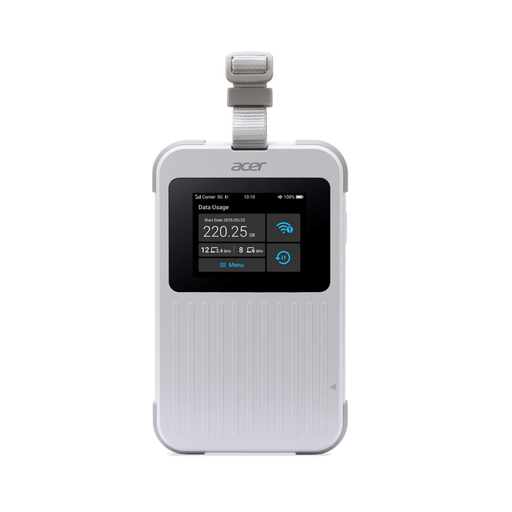
Acer Store Netherlands lists the Connect M4 as a portable 5G router with physical and virtual SIM options.
NETGEAR Netherlands provides documentation and firmware support for the Nighthawk M6 MR6150 mobile 5G hotspot.
These products are mobile and portable routers for use on the move. Check whether each model’s connection and SIM options suit the mobile upload speeds you need.
 No image available
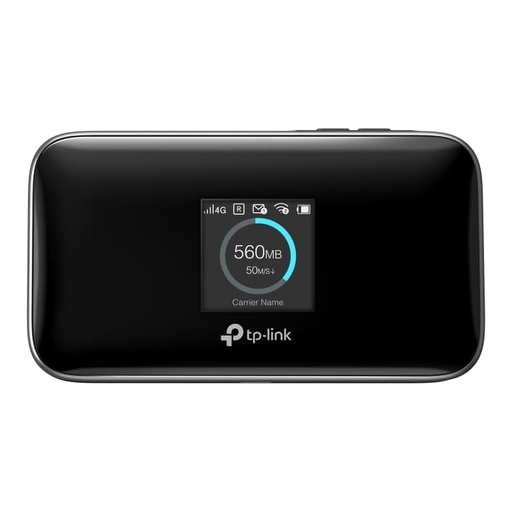
A portable 4G router for anyone who wants to share their own mobile connection with several devices while travelling.
The product name lists a 2000 mAh battery, up to 8 hours of use and support for up to 10 devices. TP-Link lists a maximum upload speed of 50 Mbps for the M7350; this isn’t a guaranteed speed on the train.
 No image available
A portable 5G router for anyone who wants to share a mobile connection with several devices.
The product name lists 5G, Wi-Fi 6E, dual-band, Nano SIM and support for up to 32 devices. Check that the SIM and plan are compatible with your provider, and find out what upload speeds to expect along your route.
 No image available
An option to consider if you’re looking for a mobile network router to use on the move.
Before buying, check which mobile connection, SIM configuration and upload options are available with this version.
 No image available
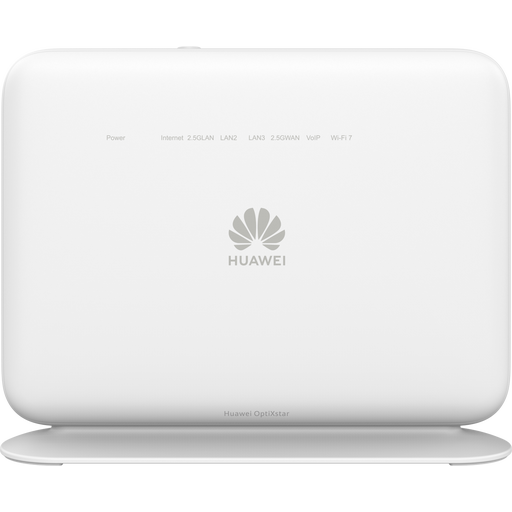
A 4G router to consider if you need a mobile connection for several devices.
The product name lists dual-band Wi-Fi 7. Check the SIM options and upload specifications for the exact version before choosing it for uploading photos on the move.
 No image available
A portable travel router to consider if you need a Wi-Fi network while travelling.
The product name lists Wi-Fi 6, dual-band and up to 1500 Mbps. Check whether this version can use a mobile connection if you need your own mobile upload connection.
A MiFi provides a network connection, but it doesn’t automatically upload photos from your camera. Check whether your camera or an intermediary device supports the transfer method and cloud service you want to use.
A mobile router still depends on mobile coverage. Keep your photos stored locally and use an upload method that lets you resume transfers. Check which mobile connection works best on your usual route.
Insert a compatible, active SIM, switch on the device and connect your phone or laptop using the MiFi’s network name and password. Follow the instructions for charging, battery care and firmware in the guide for the exact version.
Check the size and terms of the data plan you’ll use with the router. According to Your Europe, fair-use policies may apply when roaming within the EU; a roaming data limit may apply to unlimited or low-cost data plans.
Yes. According to the Dutch Radiocommunications Agency, radio equipment can only be sold in Europe if it has a CE marking. Check the version being offered and its product information; a marking on a different version doesn’t automatically confirm that your device complies.