First, choose a card reader that matches your trail camera’s card type and the port on the computer you’re allowed to use at the library. If you don’t know whether the computer has USB-C or USB-A, a reader with both connectors gives you more options. Always check in advance whether the library allows you to connect your own equipment. A higher stated USB speed doesn’t guarantee that your photos will open or copy any faster.
Who is this choice relevant to?
Library visitor unsure which computer port is available
You may not know whether the computer you’re allowed to use has USB-C or USB-A. A reader with both connectors can be useful, but check with the library first to see whether you can connect your own equipment. Utrecht Library says visitors can use a computer at many of its branches; this doesn’t tell you which ports are available at your workstation.
SD and microSD card user
If you use different cards or cameras, check that the reader supports the card formats and variants you actually have. The product specifications from ACT, StarTech.com and UGREEN list support for various SD and microSD types.
Managing images on a shared computer
You want to view images without leaving unnecessary copies behind or casually sharing pictures of identifiable people. The Dutch Data Protection Authority considers images of identifiable people to be personal data, so it’s important to use the computer carefully, whatever card reader you choose.
What should you look for when choosing?
First, check whether you’re allowed to connect the card reader to the library computer and which port is available. Then make sure the reader is compatible with your card and consider whether speed really matters for the way you use it.
| What to consider |
What should you check? |
Who is this important for? |
| Computer connection |
Check whether the available computer has USB-C, USB-A or both, and ask whether you’re allowed to connect your own card reader. |
I want to make sure my reader will fit the computer I’m allowed to use, even if I don’t yet know which port it has. Around 36% of consumers prioritise the computer port. |
| Card format |
Check the label on the card or your camera’s manual, then compare it with the card types supported by the reader. |
I want to read my SD or microSD card without choosing the wrong slot or card variant. Around 29% of consumers prioritise card compatibility. |
| Using a shared computer |
Check where files are saved, view or copy only what you need, and sign out when you’re finished. |
I want to view my images carefully and avoid leaving unnecessary copies on a computer used by other people. Around 21% of consumers prioritise handling images carefully. |
| Transfer speed |
Check that the card, reader and computer support the same relevant interface; don’t treat the stated maximum as a measured speed. |
I want to transfer lots of images and make sure the card and reader are compatible before choosing based on speed. Around 14% of consumers prioritise transfer speed. |
Common buying mistakes
-
Choosing based only on ‘USB-C’ in the product name
The library computer may have a different connection from the one you expect, and a compatible plug doesn’t automatically mean the library allows you to use your own card reader.
Check the port and the library’s rules before making a decision. If you don’t yet know which connection is available, compare a USB-C reader with a model that also has USB-A.
If the connection isn’t compatible, you may need a different reader or a suitable adapter.
-
Assuming a USB speed rating is the speed of your card
The stated speed of a USB connection isn’t a measure of how your card, card reader and computer will perform together. The SD Association describes different card interfaces, and the card you use matters too.
Check the card interface and what the reader and computer support. If you need a particular card interface, don’t choose based only on a USB rating.
-
Copying files to a shared computer without checking where they’re saved
A card reader gives you access to files, but it doesn’t control where copies are saved. According to the Dutch Data Protection Authority, images of identifiable people are personal data.
Check where you save your files, don’t casually share images of identifiable people, and sign out when you’re finished.
Brands to compare
ACT
The AC6375 combines USB-C and USB-A and is designed for use with SD and microSD cards.
- ACT lists support for SD, SDHC, SDXC and microSD. The stated USB 3.2 Gen 1 speed of up to 5 Gbps is a maximum, not a measurement of photo transfer speed.
- Having both connectors doesn’t automatically mean you’re allowed to use the reader on a library computer.
UGREEN
According to the product information, Model 50706 combines USB-C and USB-A with SD and microSD slots.
- UGREEN lists support for SDXC, microSDXC and UHS-I, among other formats, as well as simultaneous access to two cards.
- The stated 5 Gbps doesn’t guarantee how quickly your card and computer will transfer images. Check the full model details before buying.
StarTech.com
The FCREADMICRO3V2 has a cable, a USB-C plug, an integrated USB-A adapter, and slots for SD, microSD and CompactFlash.
- StarTech.com lists UHS-I support and support for the write-protect switch on SD cards.
- The extra CompactFlash slot isn’t needed if you only use SD or microSD cards. The product specification isn’t an independent real-world test.
Trust
The Dalyx 24136 is a USB-C card reader for SD and microSD cards.
- Trust lists a maximum speed of 104 MB/s for compatible UHS-I cards.
- According to the product information, this model has USB-C and no built-in USB-A option. The stated maximum speed is a manufacturer claim.
Card readers on Joybuy
This Joybuy card reader is designed to read SD and microSD cards using the supplied USB-C cable.
 No image available
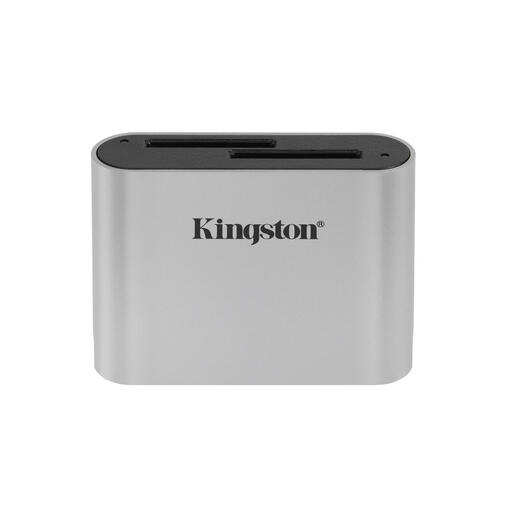
Kingston Technology USB3.2 Gen1 Workflow Dual-Slot SDHC/SDXC UHS-II Card Reader
An option if you want to read SD or microSD cards using the supplied USB-C cable.
The product information lists two card slots, SD and microSD cards, and compatibility with Mac and Windows. The title specifies SDHC/SDXC and UHS-II.
According to the product information, don’t remove the reader during data transfer, as this could result in data loss or damage. Check with the library branch whether you’re allowed to connect the reader to the computer.
Joybuy
Frequently asked questions
Can I use my card reader with any library computer?
No, don’t assume you can. Utrecht Library says visitors can use a computer at many of its branches, but this doesn’t confirm which ports are available or whether you’re allowed to connect your own card reader. Check with the branch.
Do I need to install software to open the photos?
That depends on the card reader and the computer. StarTech.com says the FCREADMICRO3V2 works with the listed operating systems without drivers or software. This doesn’t automatically mean a managed library computer will accept external storage or open every image and video format.
How do I safely remove a card from a Windows computer after use?
Wait until reading or copying is complete. Microsoft says Windows 10 version 1809 and later use Quick removal by default. If you don’t know which setting is in use, use the safe removal feature where possible.
What are my rights if a card reader I bought online doesn’t work properly?
Online purchases generally come with a statutory cooling-off period of up to 14 days after delivery, although exceptions may apply. This cooling-off period is separate from your statutory guarantee: according to ACM ConsuWijzer, the seller must offer an appropriate solution if a product doesn’t perform as you could reasonably expect under normal use.
Can I share trail camera images that clearly show people?
Don’t assume you can share images of identifiable people freely. The Dutch Data Protection Authority considers these images to be personal data. Reading a memory card doesn’t in itself give you permission to publish the images.


