What should you look for?
First, measure how much room you have for the device itself and for moving a mouse. Then consider which type of control and connectivity best suit the way you work on presentations.
| What to consider |
What should you check? |
Who is this important for? |
| Room to move |
Measure the clear space beside your keyboard and compare it with the room you need to move a standard mouse. |
If my desk is already crowded, I want to move the cursor without shifting the mouse itself. In this buying context, around 36% of consumers consider room to move the most important factor. |
| Hand position |
Check your hand size and which hand you use, and see whether thumb or finger control feels comfortable. |
When working for long periods, I want to choose controls that suit my hand and set up my workstation properly. Around 29% of consumers prioritise hand position. |
| Cursor and navigation |
Check the available cursor speeds, scroll wheel or scroll ring, and whether you can assign buttons to functions in your presentation software. |
When I’m editing slides precisely and navigating overviews, I look at cursor control and scrolling. Around 21% of consumers in this buying context put these factors first. |
| Quiet operation and connectivity |
Check for Bluetooth support and a USB receiver, if applicable, and see whether the mouse offers quiet clicks and device switching. |
At a shared workstation, I want to click quietly and switch between my devices. This is the main priority for around 14% of consumers in this buying context. |
Mice on Joybuy
These models are suited to working on presentations at a small desk, from a stationary trackball to standard mice that need room to move.
 No image available
Logitech ERGO M575S - Graphite
A stationary option if you have little room to move a mouse; control the cursor with your thumb.
The version described is for right-handed use. The product description lists customisable buttons and Bluetooth or a Logi Bolt receiver.
View on Joybuy
 No image available
AJAZZ AJ159 PRO Wireless Gaming Mouse
A standard wireless mouse for a setup with enough room to move the device.
The product title lists 2.4G, USB-C and Bluetooth, a PAW3395 sensor and 26K DPI. The magnetic base contains magnets; keep it away from pacemakers, medical implants and payment cards.
View on Joybuy
 No image available
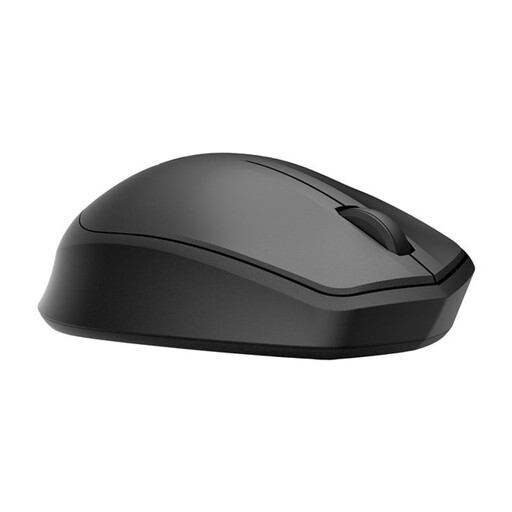
HP 285 Silent Wireless Mouse
A standard mouse for anyone who values quiet clicks and has room to move it.
The product description lists quiet clicks, a 2.4GHz connection via USB dongle and compatibility with Windows and ChromeOS. Check that you have a suitable USB port available.
View on Joybuy
 No image available
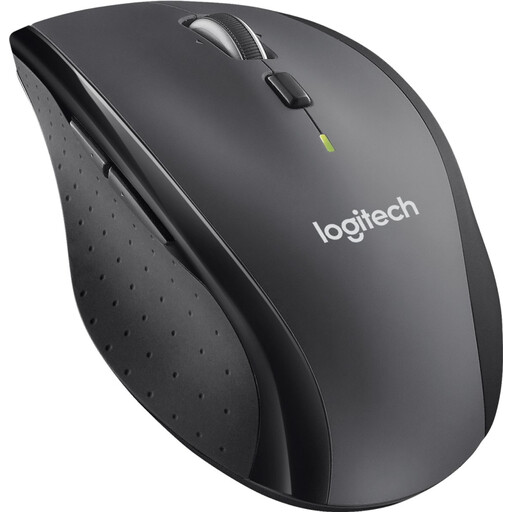
Logitech M705 Wireless Mouse Black
A standard mouse for presentations or documents with lots of scrolling, provided there’s enough room to move it.
The product description lists fast scrolling and a Unifying receiver. This model does not use Bluetooth and requires a USB port for the receiver.
View on Joybuy
 No image available
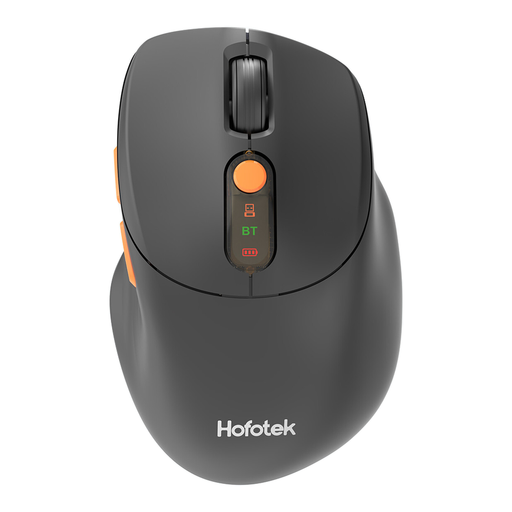
HOFOTEK M311 2.4G+BT Silent Office Mouse
A compact standard mouse for anyone who wants to switch between devices and has room for short mouse movements.
The product description lists 2.4GHz and Bluetooth, quiet clicks, adjustable DPI and switching between up to three devices. The title lists 1 × AA battery.
View on Joybuy
Frequently asked questions
Is a trackball automatically better for your wrist?
No, a trackball isn’t automatically better for everyone. The device itself doesn’t need to move across the desk, but the controls should suit your hand. Arboportaal also recommends a suitable working posture and varying your tasks; a mouse alone cannot prevent discomfort.
Do you need to install software to set up presentation buttons?
For basic use, Kensington describes the Orbit Wireless as plug-and-play; for personalised button functions, Kensington recommends KensingtonWorks. Check that the feature you want works with your operating system and presentation software.
Which connections should you check before buying a mouse?
Check whether your computer supports Bluetooth, which USB port is available and which receiver comes with the version you’ve chosen. Logitech, for example, states that the Logi Bolt receiver is not included with the MX Anywhere 3S; Bluetooth is another connectivity option.
What are your rights when buying a mouse online in the Netherlands?
According to the Dutch government, when you buy online from a business, you generally have 14 days to change your mind. This is separate from your right to a product that meets legal requirements; if a product does not, the seller must provide a solution. The Dutch government states that the Netherlands does not have one fixed statutory guarantee period covering all products.
Do Dutch workplace health and safety rules apply to your workstation?
For employees who work with display screens, employers have certain obligations. The Working Conditions Decree requires, among other things, that screen work is alternated with other work or a break. Arboportaal also lists requirements for workstation layout for employees who spend more than two hours a day working with display screens. This does not create a separate obligation to buy a particular type of mouse, and it does not automatically apply in the same way to every private user.


