Start with the controls your plotting software requires: check whether you can reliably select small points and whether you need to scroll horizontally through wide tables. Then consider your hand size, preferred hand and available space. A vertical mouse changes your grip, while a trackball or centrally positioned mouse may reduce how far you need to reach sideways. None of these designs guarantees that discomfort will go away.
Who is this guide for?
Precise chart editor
You often select points on tide charts or work with wide tables. So, first try out cursor control and scrolling in the software you use. Arboportaal highlights precise pointing and frequent mouse movements as considerations when working with a screen.
User mindful of hand position
You spend long periods working at a sit-stand desk and want a design that suits your hand and posture. A mouse design cannot guarantee freedom from discomfort; Logitech describes the Lift as suitable for small to medium-sized hands.
Worker with limited mouse space
You have little room beside your keyboard or want to reach less far to the side when pointing. Kensington describes the SlimBlade Pro as a stationary trackball, while Contour Design positions the RollerMouse Pro centrally in front of the keyboard.
What should you look for when choosing?
First, test the cursor movements and navigation your plotting work requires. Then check that the design, connection and cable routing suit your workstation at both sitting and standing heights.
| What to consider |
What should you check? |
Who is this important for? |
| Cursor control and navigation |
Try making small cursor adjustments in your plotting software and check whether you need to scroll horizontally through wide tables. |
If I want to select chart points precisely and navigate wide tables, I want to try these actions out for myself first. Around 36% of consumers put chart controls first. |
| Hand fit and posture |
Check the fit, which hand the mouse is designed for and whether the grip suits you. Adjust your workstation when switching from sitting to standing. |
When I work at my sit-stand desk for long periods, I look for a mouse design that suits my hand and posture. Around 29% of consumers prioritise hand position. |
| Space and reach |
Measure the space around your keyboard and try whether a trackball or central rollerbar lets you select small points comfortably. |
If there is little room beside my keyboard or I want to reach less far to the side, I look for a control that stays in one place or sits centrally. Around 21% of consumers say limited mouse space is their main reason for choosing one. |
| Connection and cable routing |
Check which ports or Bluetooth connections are available, what is included and, for a wired mouse, how the cable runs at both desk heights. |
If I want to keep using my existing computer and adjustable desk, the connection needs to suit them. For around 14% of consumers, the connection is their main reason for buying. |
Common mistakes
-
Assuming ‘ergonomic’ means you won’t experience discomfort
The mouse design is only one part of your workstation. Precise pointing, prolonged screen work and standing still for long periods are still things to bear in mind.
Consider grip and controls alongside desk height and the need to vary your activities. If discomfort starts, seek support from a workplace health and safety officer or occupational physician if necessary, as Arboportaal advises.
-
Confusing a product range with the right version for your hand
Logitech offers a left-handed version of the Lift, but that does not mean every Lift model is suitable for left-handed users.
Before ordering, check which hand the chosen version is designed for and confirm its full model name.
-
Focusing only on the mouse, not the desk
A trackball stays in place, while a central rollerbar needs space in front of the keyboard. A wired mouse needs a cable route that works at both desk heights.
Check your whole setup and try the controls at both sitting and standing heights.
Brands to consider
Logitech
The Lift and MX Master 4 offer different mouse designs and controls among the models discussed.
- Logitech positions the Lift for small to medium-sized hands and also lists a left-handed version. The MX Master 4 has scroll controls for navigation.
- According to iCreate’s independent review, the Lift may take some getting used to and can get in the way when you reach for the keyboard. The same review describes the MX Master 4’s hand position as relatively flat. These comments apply to the models reviewed, not all Logitech mice.
Kensington
The SlimBlade Pro is a stationary trackball for anyone with little room to move a mouse beside their keyboard.
- Kensington specifies a 55 mm ball and describes the trackball as suitable for both left- and right-handed use.
- Using a ball feels different from moving a mouse. Try it out to see whether you can make small adjustments in your charting software comfortably; any comfort benefits are claims made by the manufacturer.
Trust
The wired Verto is a vertical mouse with adjustable cursor speed for anyone looking for a USB connection.
- Trust lists settings of 1000 or 1600 DPI and a 1.5-metre cable.
- Whether the cable is long enough and runs smoothly depends on the position of the port and the two desk heights. The manufacturer’s claim that it reduces strain is not a guaranteed result for every user.
Contour Design
The RollerMouse Pro offers central rollerbar controls as an alternative to using a mouse beside the keyboard.
- Contour Design describes it as centrally positioned and supplied with interchangeable wrist rests.
- Check that your keyboard, rollerbar and desk fit together, and that you can get used to the controls. The manufacturer’s claims about reducing strain are no guarantee of an individual outcome.
Joybuy mice for this type of use
These mice are aimed at navigating wide tables, trying a vertical grip or adjusting cursor speed. The right controls for you depend on your software and workstation.
 No image available
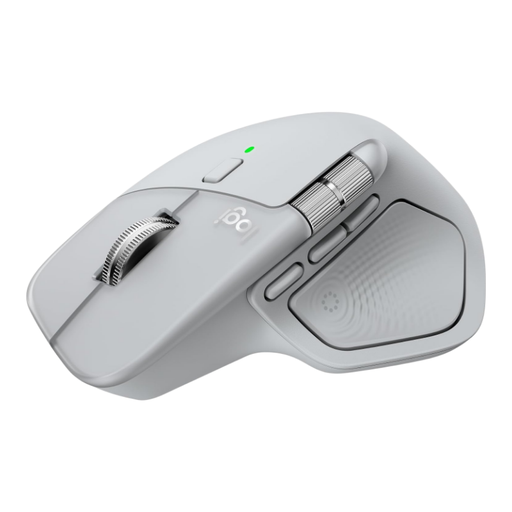
Logitech MX Master 4 Light Grey
Could suit you if you want to combine scrolling and pointing while plotting. Check that the controls work with your software and preferred hand.
The product description mentions horizontal scrolling, MagSpeed scroll modes and programmable buttons. The design described is for right-handed use.
View at Joybuy
 No image available
Ergonomic vertical wireless mouse with USB-C
An option if you want to try a vertical grip. Check that the design suits your hand and that the connection works with your computer.
The product title lists USB-C, Bluetooth and 2.4 GHz. The product description mentions six buttons and three DPI levels: 800, 1200 and 1600.
View at Joybuy
 No image available
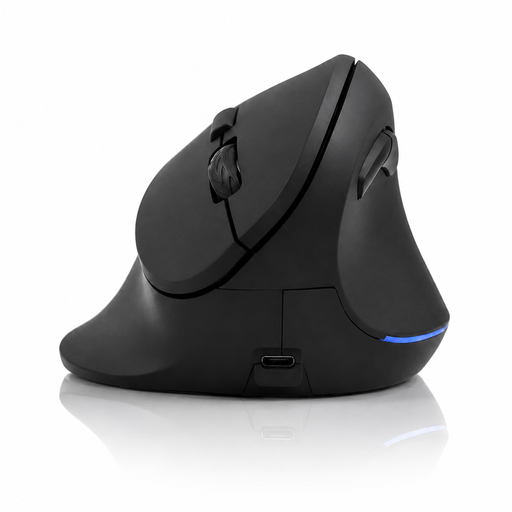
Vertical wireless mouse with 6 buttons
Could suit you if you want to try a vertical design. Check the connection and whether the controls feel comfortable when making small cursor adjustments.
The product title lists 2.4 GHz, USB-C and three DPI levels from 800 to 1600 DPI.
View at Joybuy
 No image available
AJAZZ AJ159 PRO, White
Could suit you if you want to consider a wireless mouse with adjustable DPI. Try the cursor controls in your own plotting software.
The product title lists a PAW3395 sensor, 26K DPI and 2.4 GHz, USB-C or Bluetooth connectivity. The description mentions adjustable DPI. The product information warns you to keep the magnetic charging base at least 15 cm away from pacemakers.
View at Joybuy
 No image available
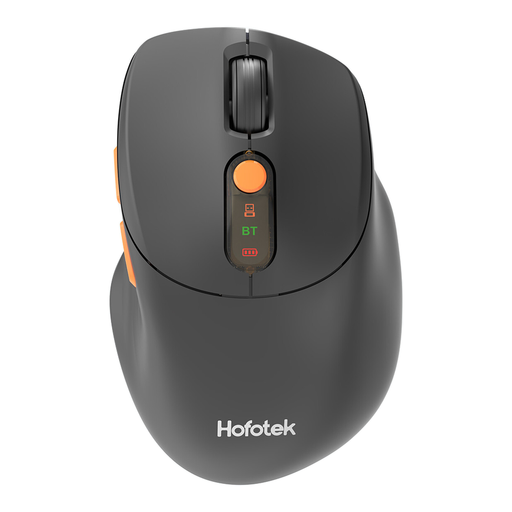
HOFOTEK M311, Black-Orange
Could suit you if you want adjustable DPI and a wireless connection. Check which connection works with your computer.
The product description mentions optical tracking and several DPI settings. The product title lists 2.4 GHz, Bluetooth and 1 × AA battery.
View at Joybuy
Frequently asked questions
Is a vertical mouse automatically better for selecting points on a tide chart?
No. The design alone does not determine how comfortable it is to make small cursor adjustments in your software. Try it on your own screen with your usual settings; Arboportaal highlights precise mouse pointing as something to bear in mind when working with a screen.
How should you use a mouse at a sit-stand desk?
Set up your workstation to suit your body and vary your posture and tasks. Arboportaal notes that precise pointing with a mouse requires attention; standing still for long periods is not the aim of a sit-stand desk either. A mouse cannot replace these workplace measures.
What should you check when connecting and setting up the mouse?
Check that the connection and hand orientation suit your computer and how you plan to use the mouse. For the wired Trust Verto, the manufacturer specifies a 1.5-metre USB cable; check that it runs smoothly at both sitting and standing heights.
Can you return a mouse bought online if the grip doesn’t suit you, and what about the warranty?
For online consumer purchases in the Netherlands, you generally have a statutory cooling-off period of up to 14 days after delivery, subject to legal exceptions. You also have a statutory guarantee if the product does not meet what you could reasonably expect under normal use; there is no general fixed period of exactly two years. ACM ConsuWijzer explains these rights. Also check the return terms for the mouse you choose.


