What should you look for when buying?
First compare your software and recording with the components installed. Then check the storage, connections and anything else you need for your workstation.
| What to consider |
What to look for |
Who should pay particular attention? |
| Editing performance |
Note your software version, resolution, codec and effects. Compare these with the processor, graphics card and amount of RAM actually installed; consider proxies for suitable high-demand source media. |
If you edit multiple camera angles or add effects, you’ll want to match the components to your timeline rather than pay for capacity your project won’t use. Around 33% of consumers make editing performance their top buying priority. |
| Storage for recordings |
Work out how much space you need for source files and working files, and check the included SSD and options for adding fast storage. Adobe recommends fast storage for media and discusses using a separate SSD for cache. |
For long recordings, you’ll want to know in advance where your media, project files and cache will fit. Around 25% of consumers prioritise project storage. |
| Software compatibility |
Check your software version and any plug-ins against the operating system and configuration of the exact model. |
If you want to keep using a familiar editing programme or existing plug-ins, first check that they’re compatible with the operating system. Around 25% of consumers give compatibility their highest priority. |
| Complete workstation |
Compare the connections with your monitor and drives, and check which components are actually included. |
If you want to use your current monitor and equipment, you’ll need to know whether everything can be connected and what else you need. Around 17% of consumers focus mainly on having a complete workstation. |
Desktop options at Joybuy
These desktop options are worth comparing for editing work, with memory, storage, operating system and the complete workstation in mind.
 No image available
ASUS ROG G700TF-07265F666W
A Windows desktop PC to consider if you’re looking for a configuration with 32 GB of RAM and a 1 TB SSD for editing work.
Listed specifications: Intel Core Ultra 7 265F, 32 GB DDR5, 1 TB SSD and NVIDIA GeForce RTX 5070 with 12 GB. For Premiere 26.x, Adobe recommends 32 GB or more for 4K and above; also compare your software’s graphics requirements.
Joybuy
No image available
ASUS ROG G700TF-05225F170W
This Windows desktop PC is worth comparing if you want to weigh 32 GB of RAM and a 1 TB SSD against the requirements of your editing project.
Listed specifications: Intel Core Ultra 5 225F, 32 GB DDR5, 1 TB PCIe 4.0 SSD and NVIDIA GeForce RTX 5070 with 12 GB. For Premiere 26.x, Adobe recommends 32 GB or more for 4K and above; also check your software’s graphics card requirements.
Joybuy
 No image available
MSI Modern AM273Q AI 1UM-058EU
The all-in-one design may suit you if you also need a monitor with your computer. Check that the connections are compatible with your equipment.
Listed specifications: Intel Core Ultra 7 155H, 32 GB DDR5-SDRAM, 1 TB SSD, Windows 11 Pro and a built-in 27-inch QHD screen with a resolution of 2560 × 1440 pixels.
Joybuy
 No image available
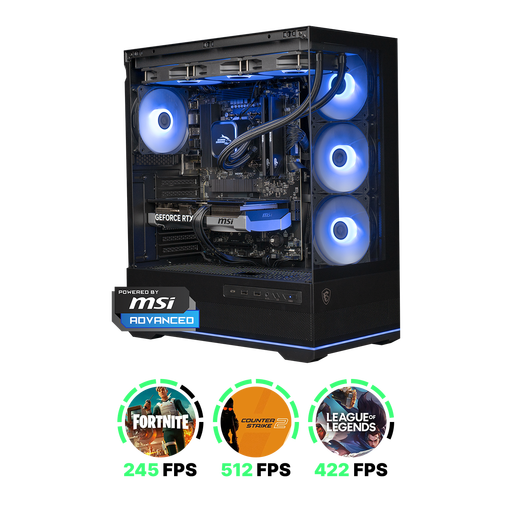
Shark Ultimator R700 RTX5070/R7/16GB/1TB
A desktop PC to consider for HD editing if the listed 16 GB of RAM and 1 TB SSD suit your project.
The product name lists RTX5070, R7, 16 GB of RAM and a 1 TB SSD. For Premiere 26.x, Adobe recommends 16 GB of RAM for HD and 32 GB or more for 4K and above; compare the full configuration with your software requirements.
Joybuy
 No image available
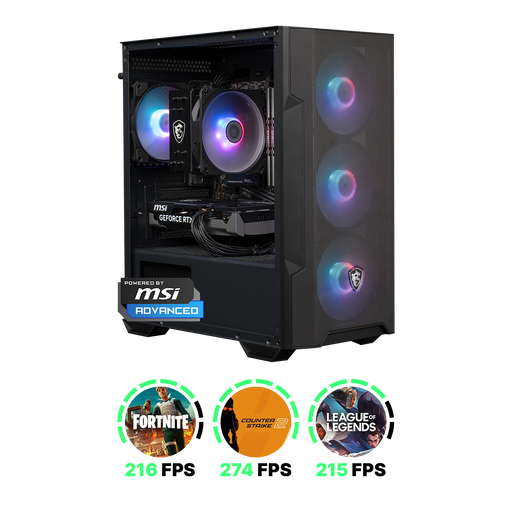
Shark Max Bite R501 RTX5060/R5/16GB/1TB
This desktop PC is worth comparing for an HD workflow if 16 GB of RAM and a 1 TB SSD suit your software and source files.
The product name lists RTX5060, R5, 16 GB of RAM and a 1 TB SSD. For Premiere 26.x, Adobe recommends 16 GB of RAM for HD and 32 GB or more for 4K and above; check the full configuration for your editing project.
Joybuy
Frequently asked questions
Is 16 GB of RAM enough for your theatre recording?
It depends on your software and footage. For Premiere 26.x, Adobe recommends 16 GB of RAM for HD and 32 GB or more for 4K and above. Also check how much memory is actually included in the version you choose.
How should you set up storage for video editing?
For Premiere, Adobe recommends fast SSD or NVMe storage for media and, ideally, a separate SSD for the cache. With two drives, Adobe says you can store media and cache together on the second drive. Work out in advance how much space your source files will take up.
Can proxy files help during an evening editing session?
For suitable video clips, Premiere can create proxies: lower-resolution copies that can make editing demanding media easier. The source media must remain available, and creating proxies takes time and storage in advance. Adobe notes that there are limitations for some types of footage, including captioned clips and growing files.
What can you do if your desktop develops a fault as a consumer in the Netherlands?
According to the Dutch government, if a product is faulty, the seller—not the manufacturer—is responsible for providing a solution. The Netherlands has no fixed statutory warranty period for all products; any additional manufacturer’s or seller’s warranty is in addition to your legal rights.
Can you publish identifiable visitors or performers in a theatre recording?
Choosing a computer doesn’t give you permission to film identifiable people or publish footage. The Dutch Data Protection Authority says that an organisation needs a lawful basis under the GDPR to publish identifiable footage it has captured at an event; an exception may apply to strictly personal use within a very limited circle. Ondernemersplein also explains that performing artists have neighbouring rights when their performance is recorded and made available to the public. What you need to do depends on who is recording, what is captured and how the edited footage is used.


