Start by choosing your editing software and checking whether it runs on macOS or Windows. Then match the configuration to the resolution and file types of your footage. A compact Mac desktop could be a good fit if your software runs on macOS and you arrange a screen and enough storage, while a Windows tower gives you more choice over the configuration. Adobe’s memory recommendations apply specifically to Premiere 26.x on Windows; they’re not a general requirement for every theatre reel.
Which desktop is right for you?
Short-form reel editor
You mainly want to select, edit and export footage. The software you use and the resolution of your footage determine which configuration is right for you. Lenovo also points out that your choice depends on your editing workflow.
Multi-camera editor
You work with footage from multiple cameras or use more demanding effects, so playback performance, memory, graphics hardware and fast media storage are especially important. Lenovo describes multi-camera editing as a distinct workflow.
Workshop footage manager
You keep original footage and project files for handover or future edits. Adobe recommends fast storage for active media; the Consumers’ Association describes backing up to a separate external drive as one way to keep your files safe.
What should you consider when choosing?
Compact Mac desktop
A good fit if: your editing software and plug-ins run on macOS and you’re looking for a compact computer for the workshop.
Bear in mind: you’ll need a separate screen and enough internal or external storage. Specifications alone won’t tell you how well your timeline will perform.
Configurable Windows tower
A good fit if: you use Windows software or want to tailor the configuration to multiple camera streams, source resolution and effects.
Bear in mind: check the components of the exact configuration you choose. For Premiere 26.x on Windows, Adobe recommends 16 GB RAM for HD media, 32 GB or more for 4K and 8 GB of GPU memory as a recommended GPU specification. These aren’t universal minimum requirements for buying a computer.
| What to consider |
What should you check? |
Who is this important for? |
| Basic editing |
Check that your editing software runs on the operating system, then compare its requirements with your source resolution and memory. |
If you mainly want to edit a short reel without paying for capacity you don’t need, focus on software, resolution and memory. Around 33% of consumers say basic editing is their main concern when buying. |
| More demanding editing |
Consider the number of camera streams, resolution, codec and effects. For Premiere 26.x on Windows, Adobe recommends 32 GB RAM or more for 4K and lists 8 GB of GPU memory as a recommended specification. |
If you want to work with multiple camera streams, 4K footage or effects, compare the full configuration with your software requirements. Around 25% of consumers prioritise more demanding editing. |
| Storage and transfer |
Allow space for original footage, cache and exports; check the connections available for transferring files and plan a backup in a separate location. |
If you want to keep workshop footage and share it with others later, look beyond the computer’s working storage. Around 25% of consumers give storage and transfer top priority. |
| Workspace setup |
Measure the available desk space and check that the video output is compatible with your screen. Allow room for a keyboard and any external storage too. |
If your editing setup needs to fit into a shared workshop, consider both the computer and the equipment around it. Around 17% of consumers say limited workspace is their main concern when buying. |
Pitfalls to avoid when buying a desktop for editing
-
Assuming a workstation name guarantees a particular editing specification
Configurations can vary within the same product range. For example, Lenovo lists ThinkStation P3 Tower Gen 2 configurations with integrated graphics and different memory options.
Compare the full component list for the exact configuration with your editing software’s requirements and the files you want to work with.
-
Looking only at the internal SSD
Original files and cache take up storage space as well as the software itself. Adobe recommends fast storage for software and active media, and a working drive isn’t a separate backup.
Allow space for original footage, cache and exports, and keep a separate backup of any footage you don’t want to lose.
You may need separate storage devices for active media and backups.
-
Budgeting for a compact computer as if it were a complete editing setup
A compact computer takes up little space, but you’ll still need a suitable screen, the right connections and possibly external storage.
Before you buy, check which screens, input devices, cables and storage are already available in the workshop.
If you don’t already have a suitable screen or external storage, you’ll need to arrange those for your workspace too.
Brands to compare
Apple
Mac mini for a compact editing setup when your required software runs on macOS.
- Apple lists hardware acceleration for H.264, HEVC and ProRes on the Mac mini M6.
- These specifications aren’t an independent performance test. Compare the memory and SSD configuration you’re considering, and arrange a suitable external screen.
HP
Z desktops, including the Z2 Tower G1i, for anyone comparing Windows workstation configurations for HD or 4K editing.
- HP positions the Z2 Tower G1i for tasks including HD and 4K video editing, and lists configurable components.
- That product positioning doesn’t guarantee that every configuration will meet your editing software’s requirements.
Lenovo
ThinkStation P3 Tower Gen 2 for anyone considering a configurable tower with a choice of memory and graphics options.
- Lenovo lists P3 Tower Gen 2 configurations with options including 16 GB memory and a 512 GB SSD.
- Configurations vary, so the product range name doesn’t mean every model has the same graphics hardware.
Dell
Pro Max Tower T2, a configurable desktop you can tailor to your editing workflow.
- Dell lists a range of processor, power supply and operating system options.
- Dell warns that changing a configuration may affect other specifications, so assess the final model rather than just model FCT2250.
Joybuy products for your editing setup
This selection includes compact Mac desktops and configurable Windows towers for editing in a workshop.
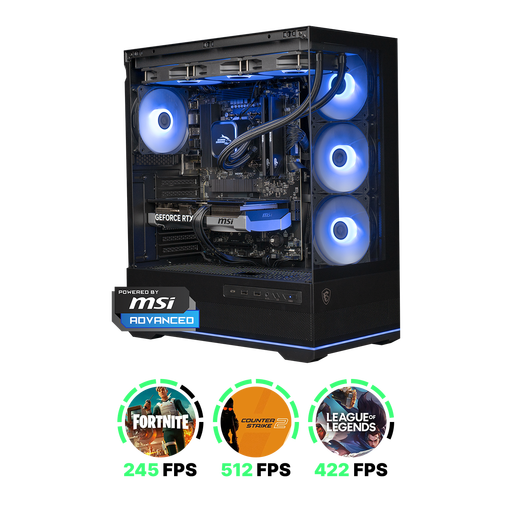 Image unavailable
Shark Ultimator R700 Gaming PC, Powered by MSI
This Windows tower is an option if your editing software supports Windows and you want to keep your working files locally.
This configuration lists a Ryzen 7 7800X3D, RTX 5070 with 12 GB, 16 GB DDR5 and a 1 TB NVMe SSD.
Joybuy
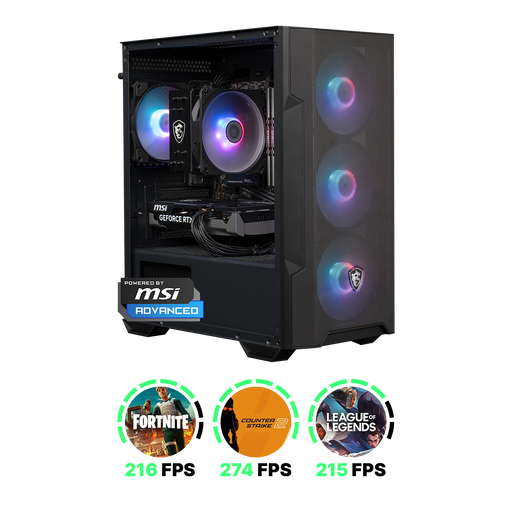 Image unavailable
Shark Max Bite R501 Gaming PC
This Windows desktop is an option if you’re looking for a configuration with discrete graphics and local storage for your editing files.
This configuration lists a Ryzen 5 processor, RTX 5060 with 8 GB, 16 GB DDR4 and a 1 TB NVMe SSD.
Joybuy
 Image unavailable
Apple Mac mini M6, 12-core CPU and 12-core GPU, 16 GB, 256 GB SSD
This compact Mac desktop is suited to editing software that runs on macOS. Check beforehand that the storage capacity you choose is right for your original footage and working files.
This configuration lists 16 GB memory and a 256 GB SSD. Apple lists hardware acceleration for H.264, HEVC and ProRes on the Mac mini M6.
Joybuy
Image unavailable
Apple Mac mini M6, 12-core CPU and 12-core GPU, 16 GB, 512 GB SSD
This compact Mac desktop is suited to editing software that runs on macOS. Compare its internal capacity with the space needed for your original footage and working files.
This configuration lists 16 GB memory and a 512 GB SSD. Apple lists hardware acceleration for H.264, HEVC and ProRes on the Mac mini M6.
Joybuy
 Image unavailable
Panoramic Gaming PC, Ryzen 7 5700X, RTX 5060 Ti, 16 GB DDR4, 480 GB NVMe
This Windows desktop is an option if you’re looking for a configuration with discrete graphics and NVMe storage for your editing files.
The title lists an RTX 5060 Ti with 8 GB, 16 GB DDR4 and a 480 GB NVMe SSD. Windows 11 Home is pre-installed but not activated.
Joybuy
Frequently asked questions
Do you need 32 GB of RAM for this theatre reel?
No, 32 GB isn’t a general requirement for every theatre reel. For Premiere 26.x on Windows, Adobe recommends 16 GB RAM for HD media and 32 GB or more for 4K and higher resolutions. Choose your configuration once you’ve identified your editing software and source footage.
How should you set up storage while editing?
Use fast storage for your software, cache and active media files, and keep a separate backup of irreplaceable footage. Adobe recommends a fast SSD for quick start-up and opening programmes; an extra folder on the same computer isn’t a separate backup.
Should you buy an extended warranty for your desktop?
No, you don’t need to pay for an extended warranty to have statutory rights. According to the Dutch government, there’s no fixed statutory warranty period in the Netherlands; if a consumer product is faulty, the retailer is your point of contact. Check what additional rights an extended warranty actually offers.
Can the workshop publish a reel showing identifiable visitors?
That depends on the legal basis for filming and publishing. The Dutch Data Protection Authority says there must be a legal basis for showing identifiable people. Consent may be appropriate, but it isn’t the only possible legal basis. Review the specific footage and how you plan to use it before publishing.
Can you use existing music in your theatre reel and share it?
Don’t assume you can use existing music for free. According to the Dutch government, you need the creator’s permission to use music protected by copyright. BumaStemra points out that performers and producers may also have rights. Check which rights apply to your chosen recording and how you plan to share it.


