What should you look for when choosing?
Start with the format and condition of the programme; then check the scanning area and the output format you need.
| What to consider |
What should you check? |
Who is this important for? |
| Bound pages |
Measure the open page and check whether the model offers book correction; compare the scanning area with the page. |
When I scan a bound programme, I want to capture text near the spine clearly without having to place the booklet on a flatbed scanner every time. Around 36% of consumers prioritise the readability of bound pages. |
| Fragile originals |
Check whether a representative copy can sit in the chosen scanning position without being forced. |
With a fragile copy, I want to be able to position the booklet carefully. For around 29% of consumers, handling the original with care is the main priority. |
| Workspace |
Measure both the storage space and the clear surface needed to scan the booklet open. |
With limited desk space, I want to know how much room the scanner and the open booklet will take up. Space for use and storage is the main consideration for around 21% of consumers. |
| Searchable text |
Check that your preferred output format is available and test OCR on a page with similar typography. |
If I want to find names in programme text, searchable text is more useful than an image alone. This is the main priority for around 14% of consumers. |
Joybuy products for theatre programmes
This selection includes compact document scanners and a flatbed model with an automatic document feeder. For bound or fragile booklets, check whether the feed method and stated maximum thickness are suitable for your copy.
 No image available
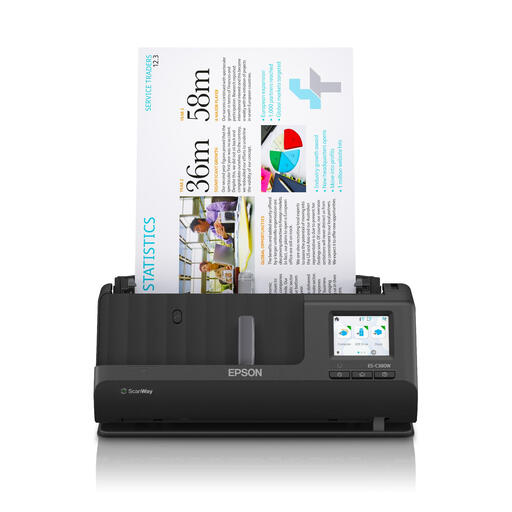
Epson ES-C380W ADF + Sheet-Fed Scanner, 600 x 600 DPI, A4, Black
The product description mentions a compact U-shaped paper path and booklets up to 5 mm thick; check whether your copy is suitable for feeding through the scanner.
The product name lists a maximum resolution of 600 × 600 dpi and A4 size.
View at Joybuy
 No image available
Epson DS-C330 ADF + Sheet-Fed Scanner, 600 x 600 DPI, A4, Black, White
The product description mentions a compact U-shaped feed path and booklets up to 5 mm thick. Before use, check whether a bound or fragile booklet can pass through the feeder.
The product name lists A4 and 600 × 600 dpi; the description also mentions paper protection for originals.
View at Joybuy
 No image available
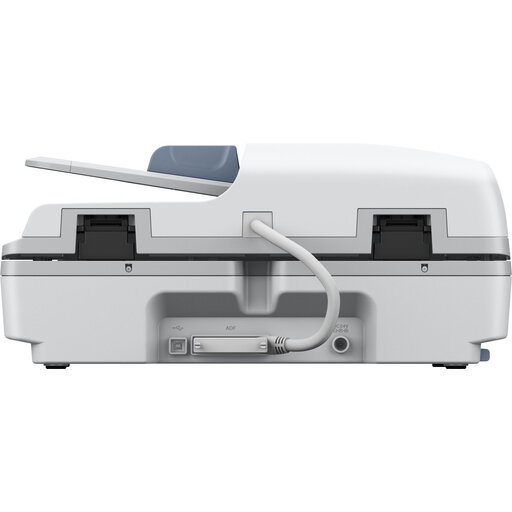
Epson WorkForce DS-6500 Power PDF
The product description lists a flatbed with an automatic document feeder, making it worth considering if you scan both flat sheets and fed documents.
The description lists automatic double-sided scanning and a 100-sheet input tray.
View at Joybuy
 No image available
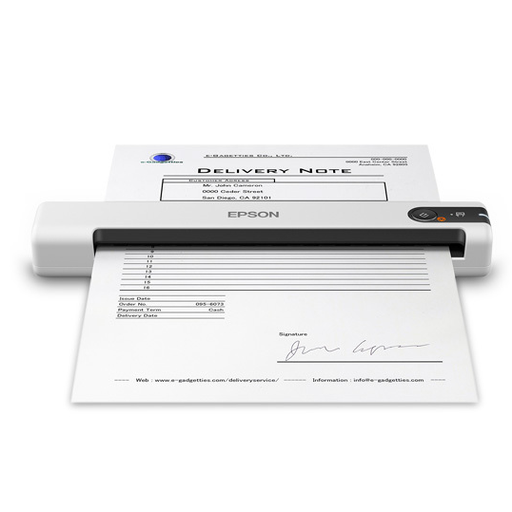
Epson WorkForce DS-70 Handheld Scanner, 600 x 600 DPI, A4, White
This compact handheld scanner is designed for A4 documents and may suit loose programme sheets if you’re looking for a portable device.
The description mentions OCR and output to searchable PDF. Don’t force thick or damaged documents through the feed slot.
View at Joybuy
 No image available
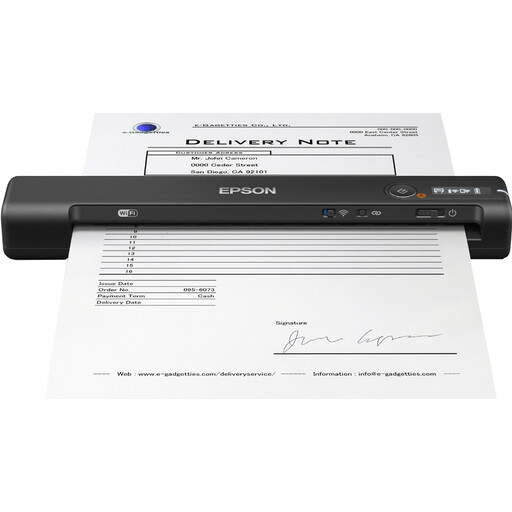
Epson WorkForce ES-60W Handheld Scanner, 600 x 600 DPI, A4, Black
The product description calls this model portable and compact, making it an option if you scan loose A4 sheets and have limited workspace.
The description lists Wi-Fi, USB and a rechargeable battery as power options; the product name lists 600 × 600 dpi.
View at Joybuy
Frequently asked questions
How do you work out whether A4 is large enough?
Measure the programme in the position you want to scan it: a single page and an open double-page spread are not the same size. Plustek lists a scanning area of 216 × 297 mm for the OpticBook 3800L; CZUR lists support for up to A3 for its book-focused ET series.
What should you check before installing it on a school computer?
Check that software for the exact model is available for the school computer’s operating system and that installation is permitted. Plustek lists Windows and macOS support for the OpticBook 3800L. Then test the OCR output you need on one of your own sample pages.
Can you give scanned theatre programmes to the class or put them online?
Not automatically. Auteursrecht.nl outlines an educational exception subject to conditions, with fair compensation potentially applying; the Dutch government distinguishes between a copy for personal use and distribution or making it public. Before sharing scans, consider the specific material, the educational purpose and how you intend to share it.
What if pupils are recognisable in images captured while scanning?
Where possible, keep pupils out of shot and handle the data in line with your school’s policies. The Dutch Data Protection Authority outlines requirements for consent and security when using recognisable images in education; for pupils under 16, it specifies that parental consent is needed.
What software and support should you check before buying?
Ask which software and support come with the model version on offer, and whether they are compatible with the school computer. Also check that your preferred file format is available and test OCR on a page with similar typography.


