Who is this relevant to?

Text and layout editor

If you mainly make corrections and work on page layouts, you’ll benefit from legible text, plenty of workspace and an adjustable screen position. Arboportaal highlights small text, reflections and poor ambient lighting as factors to consider when working with screens.

Print image editor

If you assess photos or cover colours for print, you’ll need a colour-managed proofing workflow as well as a suitable monitor. Adobe explains how to use colour profiles for soft proofing; agree the output profile with your printer.

Laptop editor in a quiet room

If you want a tidy workspace and spend long periods at your screen, you can choose connections, power delivery and screen settings to suit your laptop and room. A USB-C connection alone doesn’t tell you whether the laptop supports video or can receive enough power.

What should you look for when choosing?

Adjustable QHD office monitor

When to choose it: If you mainly correct text and lay out pages, a 27-inch QHD monitor with height adjustment can offer a good balance of workspace and flexibility. Dell lists these features for the P2725D.

The trade-off: These specifications alone don’t tell you whether it’s suitable for a colour-managed print proof or for charging a laptop through a single cable.

QHD monitor for design work and laptop use

When to choose it: If you also assess digital images, consider models with a stated sRGB coverage. ASUS lists 100% sRGB and up to 65 W Power Delivery via USB-C for the PA278CV; BenQ lists 100% sRGB for the PD2705Q.

The trade-off: These are manufacturer specifications, not independent colour measurements or a guarantee of print results. Check that your laptop and monitor support the same video connection and that the power delivery is sufficient.

Hardware-calibratable graphics monitor

When to choose it: If you regularly prepare colour-critical photos or covers, a colour-managed workflow with hardware calibration may be relevant. EIZO lists this feature for the 24-inch ColorEdge CS2400S.

The trade-off: The CS2400S has a resolution of 1920 × 1200 pixels, giving you less horizontal workspace than the QHD monitors mentioned above. An output profile and, where needed, a physical proof are still important.

Consideration What should you look for? Who is it important to?
Legibility and layout space Compare screen size, resolution and text scaling at your workspace’s viewing distance; also look out for reflections. If I want to review corrections and page layouts side by side, I look for legible text and plenty of space. Around 36% of consumers prioritise legibility and layout space.
Colours for print Ask your printer about the output profile and whether you need a calibrated monitor or a physical proof. When I assess photos or cover colours for print, I want to know how the colour-managed proofing workflow aligns with the printer’s requirements. Around 29% of consumers give assessing print colours top priority.
Comfort during long sessions Check the height adjustment, screen coating, text scaling and position relative to windows. For long editing sessions, I want to position the screen comfortably and minimise distracting reflections. Around 21% of consumers prioritise viewing comfort during extended work.
Laptop connection and a quiet workspace Compare your laptop’s video support and power requirements with the monitor; check the noise level of the specific model. If I want to connect my laptop easily and work in a quiet room, I check both the connection and any potential sources of noise. Around 14% of consumers prioritise connectivity and a quiet workspace.

Common buying mistakes

  • Assuming a wide colour gamut guarantees an accurate print proof

    Colours on paper also depend on the printer’s output profile and workflow. A monitor specification alone can’t predict how the print will look.

    Agree the colour profile with your printer and use a suitable proofing workflow for colour-critical work.

    Calibration and proofing require extra preparation.

  • Assuming every USB-C monitor works with every laptop

    To send a picture over a single cable, your laptop must support the right video mode. The monitor’s power delivery must also suit your laptop.

    Compare your laptop’s requirements with the video and Power Delivery specifications of the exact monitor model.

    If the connection or power delivery isn’t suitable, you may need a separate power adapter or a different connection.

  • Looking only at resolution

    Resolution doesn’t tell you whether text will be legible at your chosen scaling or how reflections will affect your workspace.

    Also check the screen coating and height adjustment, and set the text scaling and screen position to suit your workspace.

Brands to consider

Dell

The P2725D is a 27-inch QHD model for text and layout work.

  • Dell lists a resolution of 2560 × 1440 pixels and height adjustment for this model.
  • These features don’t prove that it’s suitable for print proofing or for the laptop connection you need.

ASUS

ASUS positions the ProArt PA278CV for design work, with QHD, sRGB and USB-C.

  • ASUS lists 100% sRGB, an anti-glare surface, height adjustment and up to 65 W via USB-C.
  • Colour coverage is a manufacturer specification; check the power you need and your printer’s workflow separately.

BenQ

The PD2705Q is a 27-inch QHD model for anyone combining layout work with image editing in sRGB.

  • BenQ lists an IPS panel, a resolution of 2560 × 1440 pixels, an anti-reflective coating and 100% sRGB.
  • The stated sRGB coverage is not an independent measurement and doesn’t guarantee a match with print colours.

EIZO

The ColorEdge CS2400S is designed for a colour-managed print workflow.

  • EIZO lists hardware calibration, a wide colour gamut and a resolution of 1920 × 1200 pixels on a 24-inch screen.
  • The screen has fewer horizontal pixels than the 27-inch QHD models mentioned above; its specifications don’t guarantee accurate print colours.

Philips

The 27E1N5600AE/00 is a QHD model with USB-C for a laptop setup.

  • Philips describes video, data transfer and charging via USB-C with compatible devices.
  • Check your laptop’s video support and the power delivery it needs separately.

Monitors at Joybuy

These monitor options are relevant to text and page layout. Compare their stated screen features with your connections, workspace and any colour-management requirements.

AOC Gaming Q27G42XNE 27-inch Quad HD monitor

AOC Gaming Q27G42XNE

Could suit you if you’re looking for a 27-inch QHD screen for text and page layouts; check that the video connections are compatible with your computer.

27 inches; 2560 × 1440 pixels; HDMI 2.0 and DisplayPort 1.4.

View at Joybuy

LG UltraFine 27U711B-B 27-inch 4K IPS monitor

LG UltraFine 27U711B-B

A 27-inch 4K IPS monitor to consider if you’re looking for plenty of pixels for text and page layouts; check that the connections are compatible with your computer.

27 inches; 3840 × 2160 pixels; IPS panel.

View at Joybuy

AOC G4 Q27G4ZR 27-inch QHD monitor

AOC G4 Q27G4ZR

Could suit you if you’re looking for QHD resolution and an adjustable screen position; check the stated features against your workspace and colour requirements.

27 inches; 2560 × 1440 pixels; according to the product information, 99% sRGB and a height-adjustable stand.

View at Joybuy

AOC GAMING Q27G4ZDR 26.5-inch QHD QD-OLED monitor

AOC GAMING Q27G4ZDR

Could suit you if you’re looking for a QHD screen with an anti-reflective finish; consider the screen position and colour workflow for your setup.

26.5 inches; 2560 × 1440 pixels; QD-OLED panel; height-adjustable stand.

View at Joybuy
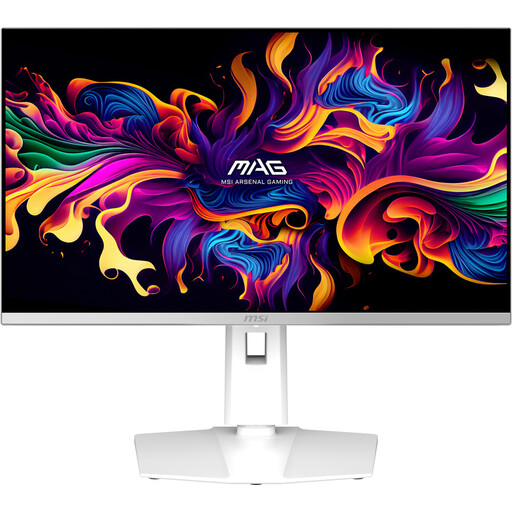
MSI MAG 272QPW QD-OLED X28 27-inch QHD monitor

MSI MAG 272QPW QD-OLED X28

Could suit you if you’re looking for a QHD screen with an adjustable stand; check whether its stated display features meet your colour requirements for print.

27 inches; 2560 × 1440 pixels; QD-OLED panel; according to the product information, 99% DCI-P3 and an adjustable stand.

View at Joybuy

Frequently asked questions

Is 100% sRGB enough to predict the printed colours of a programme booklet?

No, not on its own. For colour-critical work, use the printer’s output profile in a colour-managed proofing workflow and discuss a physical proof if needed. Stated sRGB coverage is a screen specification, not a guarantee of the print result.

How should you set up a monitor for long editing sessions?

Adjust the screen height, text scaling, lighting and position in relation to windows to make text easy to read. Arboportaal highlights reflections, small text and poor ambient lighting as factors to consider when working with screens.

Can you connect and charge your laptop with a single USB-C cable?

Only if your laptop supports video through the relevant USB-C mode and the monitor provides enough power. ASUS lists DisplayPort Alt Mode and up to 65 W Power Delivery for the PA278CV; compare these features with your laptop’s requirements.

What are your rights if a monitor bought online isn’t suitable?

According to the Rijksoverheid, when you buy online from a business in the Netherlands, you’re often entitled to a 14-day cooling-off period. You’re also entitled to a product that is fit for purpose; if there’s a problem, contact the seller about your statutory guarantee. There is no fixed statutory period for this guarantee in the Netherlands.

Does Dutch law require a particular type of monitor for your study?

Not simply because you’re editing a programme booklet at home. For employees who work with screens, Arboportaal describes workplace rules and employers’ responsibilities; the stated threshold of more than 2 hours of screen work per day is relevant to the separation of the screen and keyboard described there. This is not a requirement for every private buyer.
