Start by considering your source files, editing software and the number of camera angles you need to work with at once. Then decide how much memory, storage and screen space you’ll need for footage, audio and references. For Premiere on Windows, Adobe recommends 32 GB of RAM or more for 4K and above, but this isn’t a universal requirement for other software or projects. A proxy workflow can make it easier to edit on the move, although it does require extra preparation and storage.
Who is this choice relevant to?
Multicam editors
You’re combining footage from different angles, possibly with separate audio. The resolution and number of simultaneous streams both affect how demanding your timeline will be. Adobe describes multicamera editing as a workflow for synchronising and editing footage from multiple cameras.
Scene and reference editors
You want to find key moments, notes and timecodes. In Premiere, markers can flag important moments, while a transcript with timecodes can help you search spoken dialogue. Check references against the recording.
Editors working across multiple locations
You make selections on location and continue editing later. Adobe describes proxies as lighter copies of source videos for editing; a carefully managed workflow should keep them linked to the originals.
What should you look for?
Compare the specifications of the exact laptop configuration with your software, codec, resolution and number of camera angles. For Premiere on Windows, Adobe recommends 32 GB of RAM or more for 4K and above. This recommendation applies to that software workflow and isn’t a general minimum for every editor.
| What to consider |
What should you check? |
Who is this important for? |
| Multiple camera angles |
Check the number of streams, the codec and resolution of your recordings, and compare them with your editing software’s requirements. |
If you want to synchronise and edit footage from different camera angles at the same time, editing performance comes first. Around 33% of consumers make demanding video editing their top buying priority. |
| Scenes and timecodes |
Check that your software supports markers and the transcript workflow you want. Also consider whether you can comfortably view your timeline and references side by side. |
If you need to find key moments, notes and timecodes, suitable software features and usable screen space matter. Around 27% of consumers make scene and timecode references their top priority. |
| Working on location |
Compare the screen size and ports with your camera or audio media, and check whether your software works with linked proxies. |
If you make selections in different places and continue editing later, portability and a workflow you can transfer between devices both matter. Around 20% of consumers prioritise working on the move. |
| Storage and media management |
Work out how much space you’ll need for source footage and working copies, and plan where to store originals, cache files and backups. |
If you’re managing multiple video files, you’ll need room for both the originals and your editing files. Around 20% of consumers make media management their top buying priority. |
Common buying mistakes
-
Mistaking a ranking for a hands-on test
Techboer describes its video editing list, dated 22 October 2026, as catalogue research rather than a hands-on test. A laptop’s place in the ranking therefore doesn’t show how it will handle your codec, software or camera streams.
Use a list like this to draw up a shortlist at most, then check the full model code and your editing software’s requirements.
-
Confusing a product range with an exact configuration
Memory, storage, screen and graphics card can vary between configurations. A series name or partial model name doesn’t confirm which components are in the device being offered.
Compare the full model code and the specifications of the configuration you’re actually considering.
-
Using all your SSD space for source footage
Source footage, working copies and cache files all need storage space. Adobe recommends fast storage and describes separating the system, cache and media as one possible setup.
Work out how much space you need based on your own recordings, and plan where to keep originals, working copies and backups. Depending on your footage, you may need additional fast storage.
-
Assuming the manufacturer’s warranty is your only warranty right
According to ACM ConsuWijzer, your statutory guarantee rights apply alongside any manufacturer’s or seller’s warranty.
If there’s a problem, contact the seller and discuss what you could reasonably expect from the product. Consider any additional warranty separately from your statutory rights.
Relevant brands to compare
ASUS
The ProArt P16 is worth comparing if you’re looking at a creator-focused Windows laptop with a dedicated GPU and a 16-inch screen.
- For the Dutch retail configuration H7606, ASUS lists an RTX 5090 Laptop GPU, 64 GB of built-in memory and a 2 TB SSD.
- These are specifications for that configuration, not independent performance measurements. Check the full model code.
Lenovo
The Yoga Pro 9i Aura Edition range is one option to compare with other creator-focused 16-inch Windows laptops.
- Lenovo lists OLED screen options and NVIDIA graphics within the product range.
- Check the full model code and the configuration you’ve chosen, as the range page doesn’t specify a single configuration for every model.
Apple
The 14-inch MacBook Pro with M5 suits a macOS workflow that’s compatible with your chosen software and codecs.
- Apple specifies hardware acceleration for H.264, HEVC and ProRes, as well as an SDXC slot.
- Memory and storage vary by configuration. These specifications don’t guarantee a particular speed with unknown theatre files.
Acer
The Predator Helios Neo 18 AI NH.QVEEH.006 is an example of a large Windows laptop with a dedicated GPU.
- For this configuration, Acer specifies an 18-inch screen, 64 GB of RAM, a 2 TB SSD and an RTX 5070 with 8 GB of video memory.
- These specifications apply to model NH.QVEEH.006 and don’t automatically apply to other configurations.
MSI
The Vector 17 HX AI A2XW range offers a large-format Windows laptop to compare with creator-focused models.
- The range includes different screen and GPU options.
- Check the full model code of the configuration you’re considering before comparing specifications.
Laptops on Joybuy
These Joybuy laptops offer a range of configurations to compare screen space, memory and storage for your editing workflow. Check that each model’s configuration is suitable for your software and source files.
 No image available
ASUS ROG Zephyrus G16 GU605CM-QR026W
This 16-inch configuration may be worth considering if you want to view your editing tools and timeline on the built-in screen.
The product title lists an RTX 5060 Laptop GPU, 16 GB of RAM and a 1 TB SSD. According to the product description, the charger must be purchased separately.
View on Joybuy
 No image available
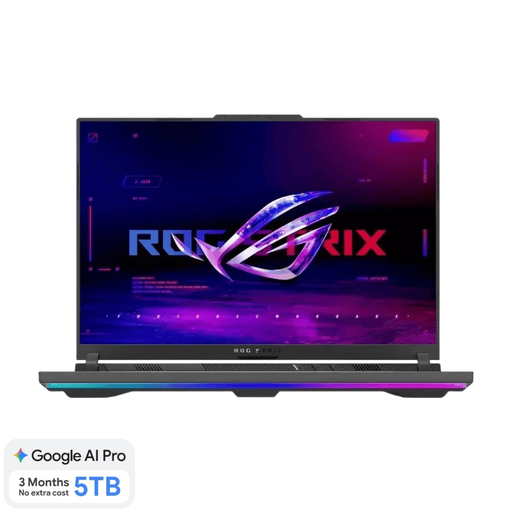
ASUS ROG Strix G16 G614FR-S5252W
This 16-inch configuration is worth comparing if you’re looking for a laptop with a dedicated graphics card.
The product details list an RTX 5070 Ti Laptop GPU with 12 GB of video memory, 16 GB of RAM and a 1 TB SSD. For Premiere on Windows at 4K and above, Adobe recommends 32 GB of RAM or more. The product description also says that the charger must be purchased separately.
View on Joybuy
 No image available
ASUS ProArt P16 H7607BA-SE030X
The 16-inch configuration gives you built-in screen space to consider for viewing your timeline and references while editing.
The product details list a 4K OLED touchscreen, 64 GB of RAM and a 1 TB SSD.
View on Joybuy
 No image available
ASUS ProArt P16 H7607BA-SE181X
This 16-inch configuration is worth comparing if you want plenty of memory and built-in screen space for editing and references.
The product details list a 4K OLED touchscreen, 128 GB of RAM and a 1 TB SSD.
View on Joybuy
 No image available
Lenovo Yoga Pro 9 15N1X11 83SR0030MH
The 15.3-inch screen is worth considering when weighing up built-in workspace against a laptop you can use in different locations.
The product details list an OLED touchscreen with a resolution of 2560 × 1600, 64 GB of RAM and a 2 TB SSD.
View on Joybuy
Frequently asked questions
Do I need a laptop with 32 GB of RAM straight away for a single theatre recording?
Not without knowing your source files and editing software. For Premiere on Windows, Adobe recommends 16 GB for HD and 32 GB or more for 4K and above. Use this recommendation only for the relevant workflow.
How can I mark references to key moments in a performance?
In Premiere, you can use markers to flag important moments on the timeline. For spoken dialogue, a transcript with timecodes can help you find passages. Check the references and transcript against the recording.
Can I edit demanding footage on a lighter laptop?
A proxy workflow may help. Premiere uses lighter copies during editing, then links them to the originals for the final export. Check that your software and project support this approach, and keep both versions well organised.
How should I manage my files during import and editing?
Keep the originals and make managed working copies. Adobe describes ingest as copying or converting source media and recommends fast storage for the application, cache and media. Work out the capacity you need based on your own files.
What are my warranty rights if a laptop breaks down too soon?
According to ACM ConsuWijzer, your statutory guarantee rights apply alongside any manufacturer’s or seller’s warranty. If there’s a problem, contact the seller. What you could reasonably expect from the product and what solution is appropriate will depend on the circumstances.
Can I publish an edited theatre recording without permission?
Don’t assume that you can. The Dutch government explains that copyright applies to works including films and music, and that performers have related rights. Privacy rules may also apply to identifiable people. The permissions or other legal basis you need will depend on the recording, the people involved and how you intend to use it.


