Start with the tennis game and device: a Windows game controlled with a gamepad calls for something different from a tennis game using Joy-Con motion controls on a Switch. If you want to swing yourself, check which controllers the game supports and make sure you have enough clear space. For seated play, compatibility with your specific PC game is the main thing to consider.
Who is this guide for?
PC player at a desk
You want to play a tennis game while seated at a Windows PC and are looking for a controller that suits the game and the available connection. Microsoft outlines Windows support for Xbox controllers; also check the controller information for your game.
Player who wants to swing
You want to play tennis using motion controls. Nintendo describes using a Joy-Con as a racket; make sure the game, Joy-Con generation and available playing space are right for you.
Player sharing a home office
You share the space with work or want to play with someone else. So, check whether there’s room to swing safely and how many compatible controllers the game requires.
What should you consider when choosing?
Choose your game and device first, then decide whether you’ll play seated or have room to use motion controls.
| What to consider |
What should you check? |
Who should consider this? |
| Game compatibility |
Check the exact game title, platform and stated controller support. Some PC games offer partial support or require a controller. |
I want to know first whether the controller works with my tennis game and device. Around 36% of consumers prioritise game compatibility. |
| Control style |
Check whether the game supports a standard gamepad or Joy-Con motion controls. Nintendo lists Joy-Con motion controls for tennis in Nintendo Switch Sports. |
I want to swing for my shots rather than just use buttons. Around 29% of consumers prioritise motion controls. |
| Playing space |
Check that you can swing safely without hitting your desk or other items. When using Joy-Con wirelessly, follow Nintendo’s instructions for the wrist strap for the right generation. |
In a small or shared home office, I don’t want to swing into furniture or equipment. Around 21% of consumers prioritise limited playing space. |
| Playing together |
Check how many players and compatible controllers the game supports, and count the ones you already have. If you have a Switch 2, check which controllers are included with the system. |
If I want to play with someone else, I want to know in advance how many controllers I’ll need and which ones I already own. Around 14% of consumers prioritise local multiplayer. |
Common buying mistakes
-
Assuming a standard Switch controller is suitable for Nintendo Switch Sports
Nintendo states that Switch Pro Controllers aren’t compatible with Nintendo Switch Sports. So, a controller that works with the system won’t necessarily work with every game.
Check Nintendo’s FAQ for the full game title and supported play style before choosing an extra controller.
-
Treating Nintendo Switch Sports and Nintendo Switch Sports Resort as the same game
Nintendo says that Sports Resort is exclusively for Nintendo Switch 2. The two game titles therefore belong to different system generations.
Check the full title, the system you’re playing on and the required Joy-Con generation.
-
Assuming PC support means support for all DualSense features
According to Sony, support for DualSense features depends on the game; haptic feedback on PC requires a USB connection. PC games can also offer different levels of controller support.
Check support for your tennis game and choose the connection required for the features you want to use.
-
Buying an extra Joy-Con 2 set without checking what came with your system
Nintendo says that a standard Switch 2 package includes one left and one right Joy-Con 2, as well as two wrist straps.
First, count the controllers you already have and check how many compatible controllers the game needs for your number of players.
Brands to compare
Nintendo
Joy-Con for motion controls in Nintendo Switch Sports, and Joy-Con 2 for Switch 2 games such as Nintendo Switch Sports Resort.
- Nintendo describes playing tennis with Joy-Con motion controls and lists motion controls for Sports Resort.
- Nintendo states that Switch and Switch 2 Pro Controllers aren’t compatible with Nintendo Switch Sports. Use the wrist strap for the correct generation.
Xbox
A standard gamepad for players who want to control tennis games on a Windows PC.
- Microsoft outlines Windows support and connections via USB, Bluetooth or a compatible Xbox Wireless Adapter.
- Windows support doesn’t guarantee that every tennis game supports all controller features.
PlayStation
DualSense for PS5 players and for PC games that support this controller.
- Sony describes connecting to a Windows PC via USB or Bluetooth.
- On PC, support for special features depends on the game; haptic feedback requires a USB connection.
8BitDo
An additional option if you’re looking for one standard gamepad for Switch and Windows.
- 8BitDo lists support for Switch and Windows, and says Switch 2 compatibility is available after a firmware update.
- General platform support doesn’t confirm that this gamepad can replace the motion controls in Nintendo Switch Sports.
Joybuy products
These product picks are suited to seated play with a PC gamepad or motion-controlled play with Joy-Con 2 on Nintendo Switch 2.
 No image available
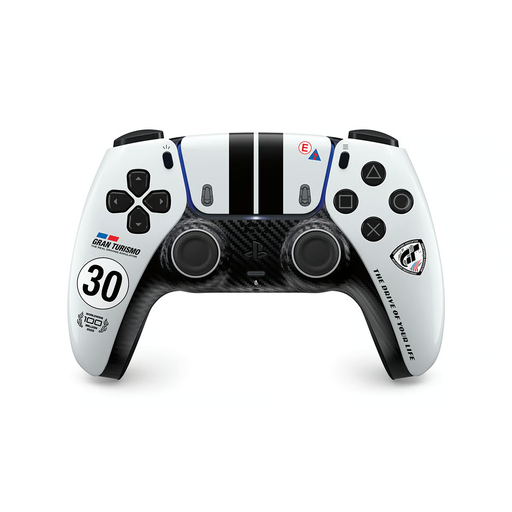
PS5 DualSense Wireless Controller – Gran Turismo Limited Edition
Suitable for PS5 gaming or PC use with a wired connection; check that your tennis game supports the features you want.
The product description lists PC use via USB-C. Sony says haptic feedback on PC requires a USB connection and may vary by game.
View at Joybuy
 No image available
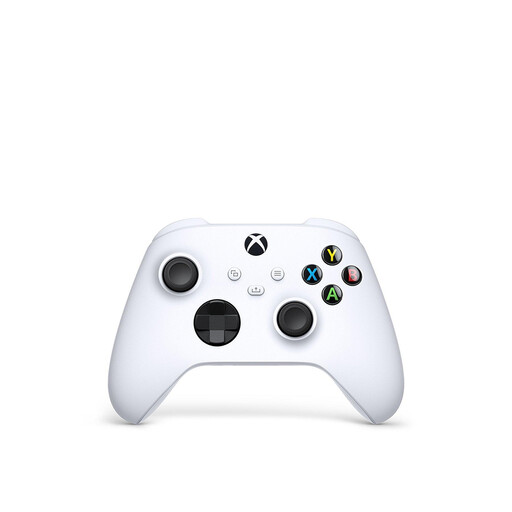
Xbox Wireless Controller Robot White
An option for seated play on a Windows PC, provided your tennis game supports the controller.
The product description lists Bluetooth, USB-C and customisable buttons. Microsoft outlines connecting Xbox controllers to Windows via USB, Bluetooth or a compatible wireless adapter.
View at Joybuy
 No image available
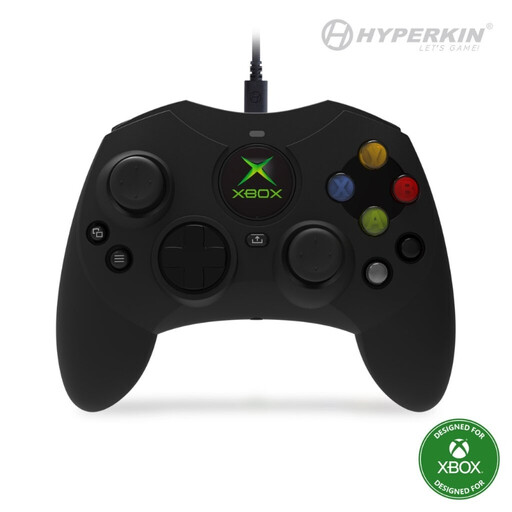
Hyperkin Duchess wired controller for Xbox and Windows
Suitable for a permanent PC setup if you want to use a wired gamepad; check support in your tennis game.
The product name lists Windows 10/11. The product description mentions a detachable 3-metre USB-C cable.
View at Joybuy
 No image available
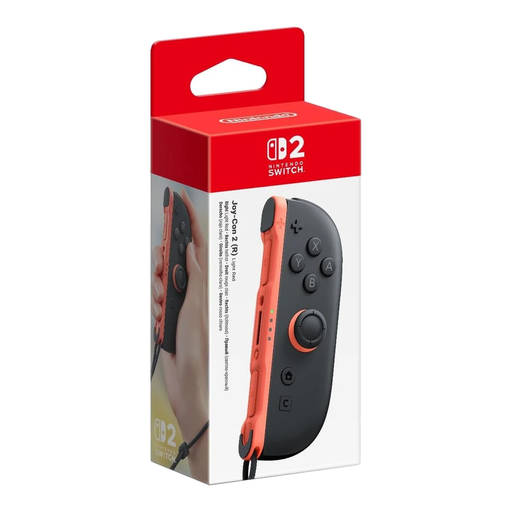
Nintendo Switch 2 Joy-Con 2 (R) Light Red
A standalone right controller for a compatible Switch 2 game with motion controls; Nintendo lists motion controls for Nintendo Switch Sports Resort.
This is one Joy-Con 2 (R), not a pair. When playing wirelessly, use the matching Joy-Con 2 wrist strap and make sure you have room to swing safely.
View at Joybuy
 No image available
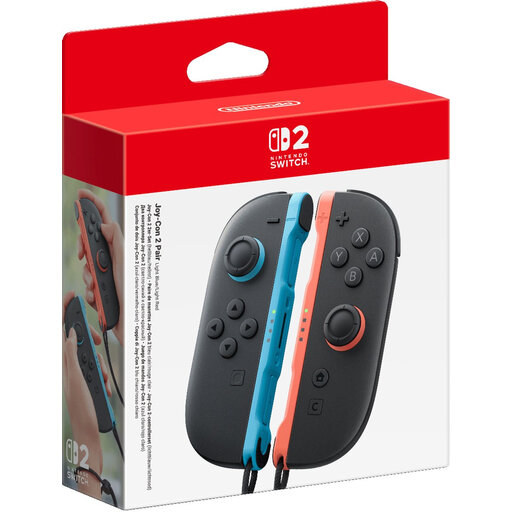
Nintendo Switch 2 Joy-Con 2 pair Light Blue/Light Red
A pair for compatible Switch 2 games with motion controls or local multiplayer; check the required play style and number of players.
The product description lists two controllers and two wrist straps. When playing wirelessly with motion controls, use the matching wrist straps and make sure you have enough clear space.
View at Joybuy
Frequently asked questions
Can I play Nintendo Switch Sports with a Switch Pro Controller?
No. Nintendo says that Switch and Switch 2 Pro Controllers aren’t compatible with Nintendo Switch Sports. Check which Joy-Con play style is supported for the sport you’ve chosen.
How do I connect an Xbox controller to my Windows PC?
According to Xbox, you can connect using a compatible USB cable, Bluetooth or an Xbox Wireless Adapter. Also check whether your tennis game supports the controller.
Do I need an extra Joy-Con 2 set to get started?
Not always: Nintendo says that a standard Switch 2 package includes one left and one right Joy-Con 2, as well as two wrist straps. Whether you need extra controllers depends on the game, play style and number of players.
Should I use a wrist strap when playing tennis wirelessly with Joy-Con?
Nintendo instructs users to attach the matching Joy-Con or Joy-Con 2 wrist strap when playing wirelessly. Wrist straps from the two generations aren’t interchangeable.
What are my rights in the Netherlands if my online-bought controller is faulty?
According to the Dutch Government, you’re entitled to a product that works properly, and the seller must provide a solution if it doesn’t. There is no fixed statutory warranty period in the Netherlands. In many cases, online purchases from a business come with a 14-day cooling-off period; check whether any exceptions apply to your purchase.


