
Viewing two drawings at once
You compare versions or drawing sheets side by side and want to keep both windows readable. Dell Netherlands and Philips Netherlands list a resolution of 5120 × 1440 pixels for the 49-inch models mentioned.


A 49-inch ultrawide with 5120 × 1440 pixels suits anyone who mainly wants to place two wide drawing windows side by side. A screen of around 40 inches with 5120 × 2160 pixels offers more vertical pixels for drawing sheets and annotations. Two separate monitors are an alternative if you want to position or rotate drawings independently. Compare readability at your preferred text scaling, and check the connections, desk space and adjustability too.
You compare versions or drawing sheets side by side and want to keep both windows readable. Dell Netherlands and Philips Netherlands list a resolution of 5120 × 1440 pixels for the 49-inch models mentioned.
You read dimension lines, legends and notes, and weigh extra vertical pixels against maximum screen width. Dell Netherlands lists 5120 × 2160 pixels for the U4025QW; Lenovo Netherlands lists the same resolution for the P40WD-40.
You switch between computers or laptops, so you need to check the video connection, power delivery and controls as well as the screen layout. Samsung lists a built-in KVM for the ViewFinity S95UF; check that it works with your equipment.
Best for: anyone who wants to place two wide drawing windows side by side without a bezel between them and has room for a 49-inch screen.
Consider: the models mentioned have 1440 vertical pixels; check that annotations remain readable at your preferred text scaling.
Best for: anyone who needs more vertical pixels for drawing sheets, dimension lines or toolbars.
Consider: the screen width and window layout differ from those of a 49-inch 32:9 model. Also check that your computer supports the resolution you choose.
Best for: anyone who wants to position or rotate drawings independently, or already has a suitable screen.
Consider: there will be a bezel between the drawings, and you’ll need enough space and connections.
| What to consider | What to look for | Who is this important for? |
|---|---|---|
| Viewing two drawings at once | Compare the aspect ratio, native resolution and window layout at your preferred text scaling. Dell Netherlands and Philips Netherlands list 5120 × 1440 pixels for the 49-inch models mentioned. | When I put two versions side by side, I want both drawings to be wide and easy to read. That’s why around 36% of consumers give two wide drawing windows top priority. |
| Vertical space | Compare the usable screen height at the same preferred text scaling. Dell Netherlands lists 5120 × 2160 pixels for the U4025QW, and Lenovo Netherlands lists the same for the P40WD-40. | When dimension lines and notes need plenty of room, I focus on the height of the drawing area. Around 29% of consumers prioritise vertical drawing space. |
| Connecting and switching between computers | Check the video inputs, power delivery via USB-C, and whether you need a KVM or picture-by-picture feature for your use. Also check which resolution your computer supports through the connection you plan to use. | When I switch between computers, I want to know whether I can use them with my existing connections. Around 21% of consumers say connecting and switching between computers is their main requirement. |
| Workspace and setup | Measure the available space, including the stand and cables, and check the adjustment options. If you’re using two screens, also consider the available connections and whether you can keep using an existing monitor. | If my desk is small or I want to keep using an existing monitor, the whole setup needs to fit. Around 14% of consumers focus mainly on desk fit and the overall setup. |
The 49-inch 32:9 models mentioned have 1440 vertical pixels, while the models of around 40 inches mentioned have 2160 vertical pixels. For tall drawing sheets, that extra vertical space may matter more than the diagonal measurement.
Compare the full resolution and test two drawing windows at the text scaling you need.
Arranging windows from one computer side by side is different from displaying images from two computers at once or switching between those sources. Microsoft explains how to snap windows in Windows.
First decide whether you’ll use one computer with two windows or actually switch between two computers.
A high resolution won’t necessarily work at its best with every laptop. Tweakers specifically warned about this with older laptops when testing the Dell U4025QW.
Before buying, check whether your laptop supports the resolution you want through the connection you plan to use, and whether it can provide the required power. You may need a different compatible connection, cable or computer setup.
Dell Netherlands lists a resolution of 5120 × 1440 pixels for the U4924DW and 5120 × 2160 pixels for the U4025QW. These are two different screen sizes and resolutions.
Philips Netherlands lists the 49B2U6900CH/00 as a 49-inch screen with a 32:9 aspect ratio and a resolution of 5120 × 1440 pixels.
Lenovo lists the ThinkVision P40WD-40 as a 39.7-inch screen with 5120 × 2160 pixels and a Thunderbolt connection. The P34WD-40 is a different, 34-inch model with 3440 × 1440 pixels.
Samsung lists the Netherlands version of the ViewFinity S95UF as a 49-inch 32:9 screen with USB-C and a built-in KVM.
LG Netherlands describes the LG 40WP95CP-W as a 39.7-inch model with 5120 × 2160 pixels, Thunderbolt and a picture-by-picture feature.
These Joybuy products include ultrawide screens for wide drawing windows, as well as higher-resolution models that offer extra vertical drawing space.
 No image available
An option to compare if you’re looking for a 34-inch ultrawide with dual mode for your workspace.
The product name describes a curved business monitor with dual mode. Check which mode and connections suit your computer and preferred text scaling.
 No image available
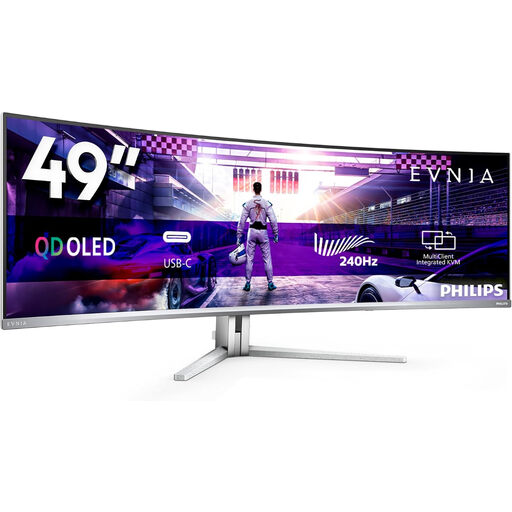
A large 49-inch screen to consider if you want to put two wide drawing windows on one monitor.
The product name lists DQHD, 240Hz and QD-OLED. The product information warns that image retention may occur when static images are displayed for long periods; bear this in mind if you’ll have drawings on screen for extended periods.
 No image available
The 49-inch 32:9 setup is an option if you mainly want to view wide drawing windows side by side.
The product name lists 5120 × 1440 pixels and 165Hz. The product information recommends that two people assemble it, and that you use a desk or VESA mounting solution capable of supporting at least 15 kg.
 No image available
An option to compare if you’re looking for extra vertical pixels for drawings and annotations.
The product name lists 40 inches, 21:9, 5120 × 2160 pixels, 100Hz and PIP/PBP modes. Check that the modes and connections suit the way you want to display your sources.
 No image available
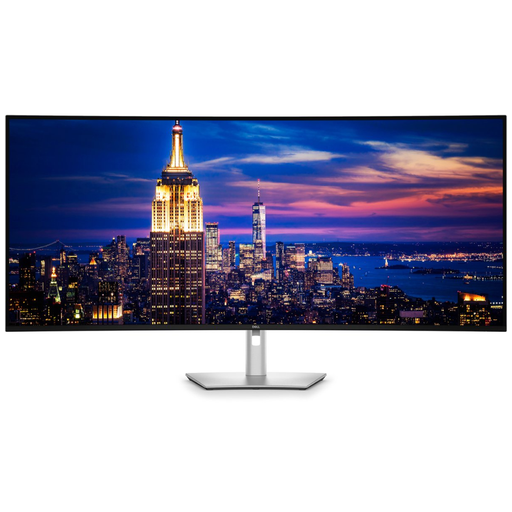
A large screen to compare if you’re looking for a spacious drawing area with plenty of vertical pixels.
The product name lists 6144 × 2560 pixels. The product information gives a weight of 17.76 kg and recommends lifting it with two people and placing it on a stable, level surface.
No, not necessarily: according to Microsoft Support, Windows Snap can place two application windows side by side. Check that your drawing software and text scaling make the chosen layout practical; displaying images from two separate computers on one monitor is a different situation.
Check that the laptop supports the resolution you want through the connection you plan to use, and that it can provide the required power. When testing the Dell U4025QW, Tweakers specifically warned that older laptops may not run this model at its best.
First check that your computer can run both screens through the available outputs, then arrange them to match their physical positions. Microsoft Support explains how to set up the layout of multiple monitors in Windows.
According to Arboportaal, in applicable work situations, screen work must be alternated at set intervals with other work or a break. This isn’t a universal product requirement for every personal buyer.
According to the Dutch government, purchases made remotely from a business often come with a 14-day cooling-off period, subject to exceptions. Check the seller and the terms of the specific purchase; this doesn’t automatically apply to a business purchase.