
Designer with one spare socket
You want to draw on a screen without using another socket for your pen display. Check your computer’s video output and power delivery before buying.


Start by checking your computer’s video output and power supply: a USB-C port alone doesn’t guarantee that display, pen input and power will all work through one cable. Then compare the drawing area and pen controls, and check which cables are included with the exact model and whether it needs additional power.
You want to draw on a screen without using another socket for your pen display. Check your computer’s video output and power delivery before buying.
You’re comparing the active drawing area, pen controls and shortcut button positions. Product specifications alone don’t prove that a design will be more accurate.
You take your computer and pen display between workspaces and want to know how many cables, how much power and how much space the complete set-up requires.
Choose this option when: your computer provides the required video output and enough power.
Trade-off: requirements vary by model. Wacom specifies DisplayPort Alt Mode or Thunderbolt 3/4 and at least 15 W from the computer for the Movink 13; the Huion Kamvas 13 (Gen 3) may need additional power.
Choose this option when: your computer doesn’t have a suitable USB-C video output but does have the necessary HDMI and USB ports.
Trade-off: you’ll use more ports and may need a power adapter or an extra socket. The Huion Kamvas 13 (Gen 3) uses a 3-in-1 connection; the XPPen Artist 13 (2nd Gen) may need extra USB power or an adapter if the available power isn’t sufficient.
| What to consider | What should you check? | Who should give this more weight? |
|---|---|---|
| Working without an extra socket | Check the USB-C video mode, power delivery and required cable for the exact model. Find out whether additional power may be needed. | If I have few sockets, I want to know whether my computer can power the display through one cable. Around 42% of consumers say avoiding an extra socket is their top buying priority. |
| Working on detailed lines | Compare the active screen size, pen controls and shortcut buttons. Also check that the display and pen work with your design software. | If you work on tattoo designs directly on screen, you’ll want to assess the drawing area and controls. Around 25% of consumers prioritise detailed line work and pen controls. |
| Moving your set-up | Check the dimensions, cable routing and power requirements; find out whether the other workspace has the same video and power connections. | If I move between workspaces, I want to know whether the computer, display and cables are practical to take along together. Around 17% of consumers prioritise being able to move their complete set-up. |
| What's included and extra costs | Check the contents of the box for the exact version, and whether your chosen connection method requires a separate cable or power adapter. | If you want to know in advance what you’ll need besides the display, compare the pack contents with the connection options. Around 16% of consumers make the total cost of buying everything their top priority. |
The required video mode and power delivery vary between pen displays and computers. A USB-C port on both devices isn’t enough on its own to confirm compatibility.
Check your computer’s port and the connection and power requirements of the exact display before choosing a one-cable set-up.
The Movink 13 is a compact OLED pen display with a one-cable connection; the Wacom One 12 has its own power requirements.
The Kamvas 13 (Gen 3) offers a 3-in-1 cable option as well as a full-featured USB-C cable option.
The Artist 13 (2nd Gen) offers a USB-C connection as well as a 3-in-1 connection method.
These product picks focus on pen displays for drawing on screen, with an emphasis on USB-C connections and reducing the need for extra cables or power.
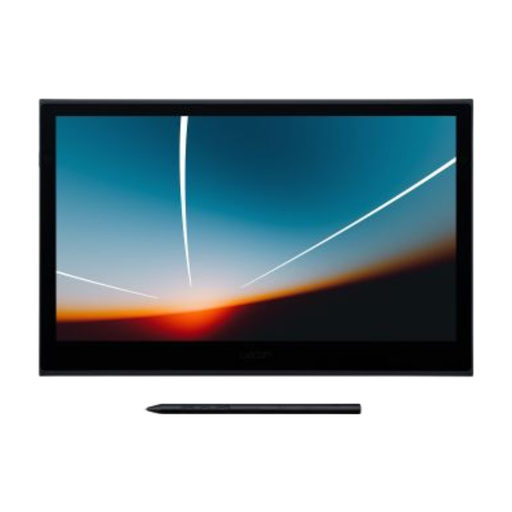 No image available
Suits anyone who wants to draw tattoo designs directly on screen and is considering a one-cable set-up.
Wacom describes the Movink 13 as a 13.3-inch OLED pen display. Its one-cable connection requires DisplayPort Alt Mode or Thunderbolt 3/4 and at least 15 W from the computer.
 No image available
An option to consider if you want to draw directly on screen and connect both display and power through one USB-C cable.
Check the video output and power requirements of your computer for this version. A USB-C port alone doesn’t guarantee that the set-up you want will work.
No. Also check whether the port supports video output and delivers enough power for the exact display. Wacom specifies at least 15 W from the computer for the Movink 13; the Huion Kamvas 13 (Gen 3) manual specifies at least 5 V/2 A for the USB-C connection, along with a suitable video and data connection.
First, check the recommended port and cable for your model. The Huion Kamvas 13 (Gen 3) manual recommends additional power if the screen is dark or flickering; the XPPen Artist 13 (2nd Gen) manual recommends using an extra USB port or power adapter if the available power isn’t sufficient.
For a standard online consumer purchase, you generally have a 14-day cooling-off period starting the day after delivery, subject to applicable exceptions. Business.gov.nl also explains the statutory right to have a faulty product repaired or replaced, subject to the relevant conditions. If you’re buying the display for your tattoo business, don’t automatically assume that the same consumer rights apply; check the terms for business purchases.
The connection options described here require a computer or another compatible device to provide the image and handle input. So, as well as checking the display connections, make sure your computer and design software are compatible.