If you want to create tattoo designs without a connected computer, choose a standalone tablet and check whether a compatible drawing pen is included and how the devices are charged. With a laptop, you can use a screenless pen tablet or a pen display: with the first, you draw while looking at your laptop screen; with the second, you draw directly on the display. Manufacturers such as Wacom, Huion and XPPen specify the computer, video signal and power requirements for their computer-connected models, so check that they’re compatible with your equipment.
Who are these options for?
Designer without a fixed workspace
Wants to sketch directly on a screen at a client’s or in different locations, without a laptop. Compare standalone tablets and check the pen and battery level. Apple Netherlands, Samsung Netherlands and XPPen describe options for drawing on a standalone device.
Designer with a laptop
Already has a laptop and wants to draw with it. A screenless pen tablet uses the laptop screen; a pen display lets you draw directly on the display. Wacom, Huion and XPPen describe computer-connected models.
Tattoo artist with a studio
Wants to show or amend designs in a studio. Keep your choice of drawing device separate from the rules on actually tattooing: Dutch government information and the RIVM set out separate permit and hygiene requirements for this.
What should you look for?
Standalone tablet
Choose this if: you want to sketch without a connected computer.
Bear in mind: charging and getting the right drawing pen; Apple offers the Pencil as a separate option.
Screenless pen tablet
Choose this if: you already have a laptop and don’t mind drawing on its screen.
Bear in mind: you’ll still need the computer and screen, even if the pen itself doesn’t need a battery.
Pen display
Choose this if: you want to work directly on the drawing display and have a compatible computer.
Bear in mind: the video connection and power requirements; Huion and XPPen specify connection requirements that vary by model.
| What to consider |
What should you check? |
Who is this important for? |
| Working without a socket or computer |
Check whether the device works on its own, which pen it comes with and how to charge the tablet and pen. |
If I want to sketch in different places without a computer, I need a standalone drawing setup. Around 36% of consumers prioritise working independently. |
| Line control and drawing on the display |
Compare the compatible pen and screen size, and consider the difference between drawing on the screen and using a separate input surface. |
If I want to adjust outlines and draw directly on the design, I focus on the pen and how the image is displayed. Around 29% of consumers make line control their top priority. |
| Using an existing laptop |
Check computer compatibility and, for a pen display, the required video and USB connections and power supply. |
If I want to keep using my laptop, I want to know in advance whether the tablet will connect to it and how many cables or what power supply the setup needs. Around 21% of consumers prioritise reusing their laptop. |
| Complete drawing setup |
Check what’s in the box and which pen, cable or power adapter you need for your chosen connection. |
If I don’t want to find out after buying that an essential part is missing, I compare complete, ready-to-use setups. Around 14% of consumers focus on the total cost of their drawing setup. |
Common mistakes
-
Confusing a wireless pen with a standalone setup
A battery-free pen doesn’t make a pen tablet standalone: you still need a computer with a screen to draw. A pen display also needs a computer connection and power.
Start by asking yourself whether you want to design without a computer. Then choose between a standalone tablet, a screenless pen tablet or a pen display.
-
Assuming an iPad Air comes with a drawing pen
Apple offers a compatible Apple Pencil as a separate option with the iPad Air.
Check that the Pencil is compatible with your exact iPad Air model and see which components are included in your chosen bundle.
-
Assuming every USB-C port carries video and provides enough power
For the Kamvas 13, Huion specifies data and video signal requirements, as well as additional power when connecting to Android. XPPen explains when additional power is needed if the USB power supply isn’t sufficient for the Artist 13 (2nd Gen).
Before buying, check the manual for the exact pen display, your computer’s ports and the power source required.
Brands to consider
Apple
The iPad Air is a standalone tablet that Apple lists as supporting compatible Apple Pencil models.
- Apple lists 11- and 13-inch models, with support for Apple Pencil Pro and Apple Pencil (USB-C).
- Apple offers the Pencil separately; check which Pencil is compatible with your specific model.
Samsung
The Galaxy Tab S10 FE is a standalone Android alternative with S Pen support, according to Samsung Netherlands.
- Samsung lists S Pen support for the Tab S10 FE in the Netherlands.
- Check the model and what’s included in the box when you buy.
XPPen
According to XPPen, the Magic Drawing Pad works on its own, while the Artist 13 (2nd Gen) is a pen display for use with a connected device.
- XPPen describes the Magic Drawing Pad as an Android device with a pen that doesn’t need charging.
- The Artist 13 (2nd Gen) needs a computer connection and may require additional power if USB power is insufficient.
Wacom
One by Wacom is a screenless input tablet designed for use with a computer.
- Wacom lists a battery-free pen and a choice of smaller or larger input surface.
- You’ll need a computer and its screen while you draw.
Huion
The Kamvas 13 is a pen display for drawing directly on the screen when connected to another device.
- Huion says it can be powered by a compatible laptop.
- The manual specifies additional power for Android; a compatible USB-C cable may need to be purchased separately.
Joybuy products
This selection includes tablets with a stylus and pen devices for use with a computer. Check each model to see whether you can draw on it independently or need a computer, a compatible connection and additional power.
 No image available
TECLAST ArtPad Pro, 12.7 inch, 2K, 256 GB
The title mentions a stylus pen, making this a good option if you’re looking for a tablet with pen input for drawing or sketching.
The product title lists a 12.7-inch 2K screen, 20 GB RAM (8 GB + 12 GB virtual), 256 GB storage and an included stylus pen.
View at Joybuy
 No image available
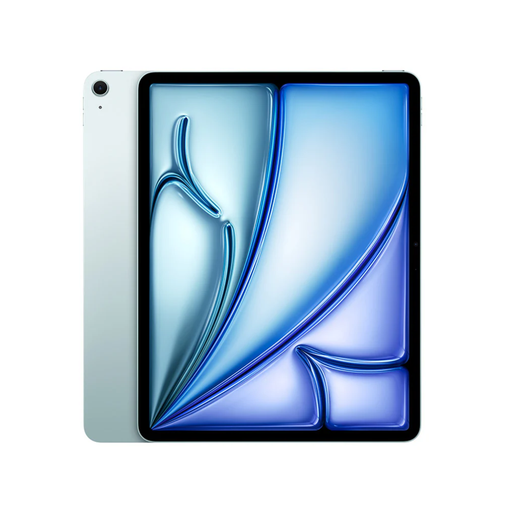
Apple 11-inch iPad Air (M4), Wi-Fi, 256 GB, Blue (2026)
Ideal if you want to draw on a standalone tablet. To draw with a Pencil, you’ll need to choose a compatible one separately.
The product title lists Wi-Fi and 256 GB storage. Apple lists support for Apple Pencil Pro; the Pencil is sold separately.
View at Joybuy
 No image available
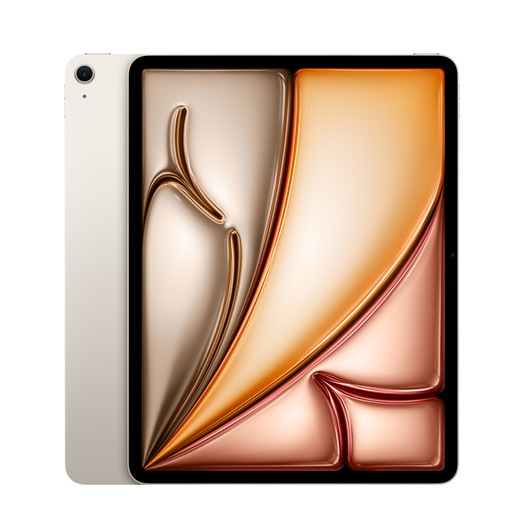
Apple 13-inch iPad Air (M4), Wi-Fi, 128 GB, Starlight (2026)
Ideal if you want to draw on a standalone tablet. Check which compatible Pencil you need and bear in mind that it’s a separate purchase.
The product title lists Wi-Fi and 128 GB storage. Apple lists support for Apple Pencil Pro; the Pencil is sold separately.
View at Joybuy
 No image available
Wacom One pen display 14.0"
Ideal if you want to draw directly on the display and already have a compatible computer; this pen display doesn’t work on its own.
The product information lists a 14-inch Full HD screen, an included battery-free pen and a USB-C connection to a computer for data and power. Compatibility is listed for Windows, macOS and ChromeOS.
View at Joybuy
 No image available
Wacom Intuos Pro Pen Tablet Small
Ideal if you want to use an existing computer and don’t need a screen on the pen tablet itself.
The product information lists an active area of 187 × 105 mm, 8.192 pressure levels and a battery-free pen. Connect via USB-C or Bluetooth; a computer is required.
View at Joybuy
Frequently asked questions
Will a pen display work through any USB-C port without a socket?
No, you can’t tell from the shape of the plug alone. Huion specifies data and video signal requirements for the Kamvas 13, as well as additional power for Android; XPPen explains what to do if the USB power supply isn’t sufficient for the Artist 13 (2nd Gen). Check the manual for your exact model and your computer’s ports.
Do I need a permit to design a tattoo on a tablet?
Dutch government information on permit requirements relates to actually applying tattoos, piercings or permanent make-up, not simply creating digital designs. If you’re going to tattoo someone, make sure you meet the applicable permit and hygiene requirements.
What should I consider when connecting and using a drawing tablet?
First, check that the cables and connections you need are suitable for your device; power requirements can vary between pen displays and connections. Save your drawing files in a way that works with your chosen app and device. If you use the tablet around a tattoo treatment, follow the applicable hygiene guidance too; the guidelines mentioned don’t specify a universal cleaning method for tablets by model.
What returns period and warranty apply to a purchase?
For an online consumer purchase in the Netherlands, you’ll generally have up to 14 days after delivery to change your mind, subject to statutory exceptions. If a product is faulty, you may have a statutory guarantee claim against the seller; this isn’t simply limited to a fixed manufacturer’s warranty period. If you’re buying the tablet mainly or exclusively for business use, don’t assume the same consumer protections apply.


